
Flow is being touted as a high-quality, low-latency remote review platform designed for professional creatives.
The idea for Flow came from a real workflow problem that colorist Marcus Friedlander was personally facing. According to Marcus, colorists, editors, post teams, and other creatives doing client review didn’t have a great option that delivered a genuinely high-quality, responsive viewing experience without the high cost and complexity of traditional solutions.
If you click on this link you can watch the Flow Introduction video.
Flow was then built to make remote review feel more practical and more accurate. Flow streams at very high quality with very low latency, and without transcoding in the pipeline, so viewers are seeing what the creative is actually sending rather than a heavily re-compressed version. Teams get a more reliable review experience with better image fidelity, allowing for faster feedback in sessions where timing and picture quality really matter.
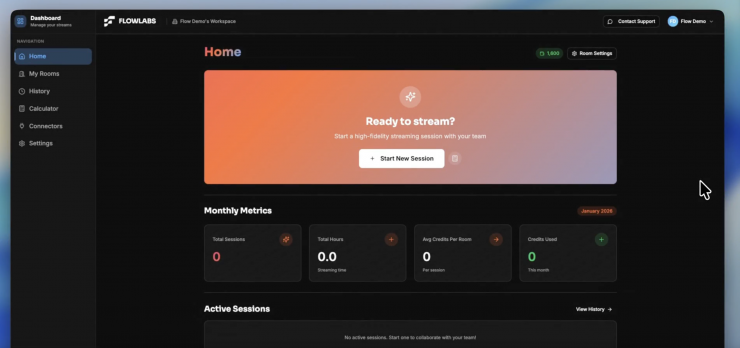
Flow Dashboard
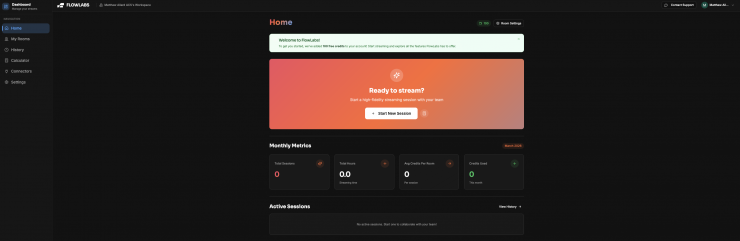
The Flow Dashboard is a central hub for managing rooms, sessions, and credits.
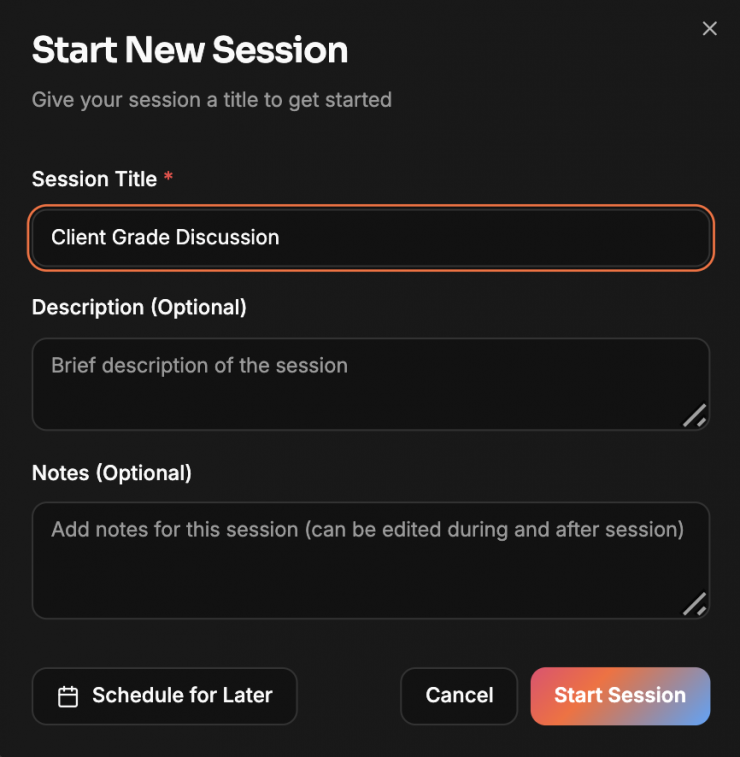
The Home screen shows:
- A Start Session call-to-action (opens the start-session dialog)
- Shortcut to the Calculator (estimate credit cost)
- Monthly metrics: Total Sessions, Total Hours, Avg Credits per Session, Credits Used (this month)
- Active Sessions list with Join Session buttons and a link to View History
Flow offers two types of rooms:
- Instant Rooms: Temporary sessions created on demand. Free and unlimited on all plans.
- Personal Rooms: Permanent rooms with a reusable URL. Included with Pro and Studio plans, or available for purchase.
See Pricing for details on what’s included with each plan.
My Rooms shows your Personal Rooms: permanent meeting spaces with a reusable URL.
Create a Personal Room
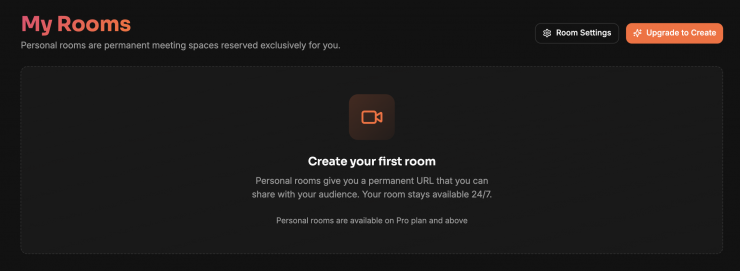
- Go to My Rooms in the sidebar.
- Click Create Room.
- Enter a title (and optional description).
- Confirm creation.
Personal Rooms are included with Pro and Studio plans. Additional rooms can be purchased.
Manage a Room
- Join Room: Opens the room in a new tab (
meet.flowlabs.live/<roomName>). - Copy Link: Copies the room join URL to share.
- Delete Room: Shows a confirmation dialog; deleting is permanent.
Flow Session is Flow Labs’ real-time review room for high-quality remote collaboration. It’s built for colourists, directors, DPs, editors, and producers who need low-latency, high-fidelity streaming.
Flow Session
Flow Session is a room for live streaming and real-time collaboration. You stream into the room using WHIP, and viewers receive your video with minimal delay.
Key points:
- Viewers receive exactly the same quality and bitrate you send.
- Anyone with the link can join as a viewer. No account required.
- Each session has its own viewer link.
Creating a Session
- Log in to your Flow account at dashboard.flowlabs.live.
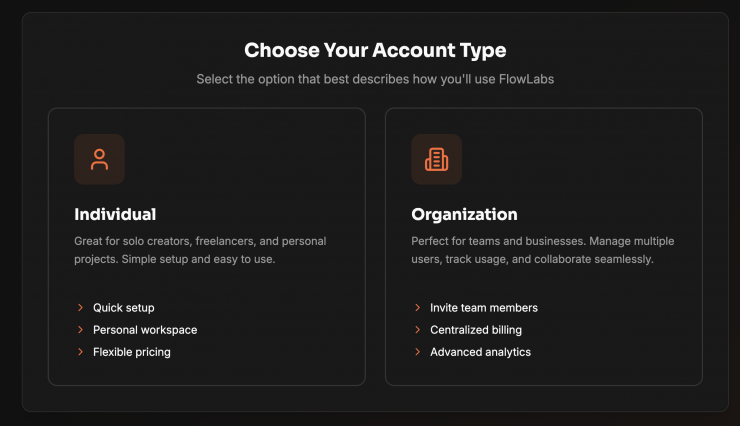
- Select Start new session (for an instant room) or join an existing Personal Room.
- Name your session (helps you identify it in your dashboard).
- Click Create.
- Flow generates a unique WHIP ingest URL for your encoder.
You stream from your encoder into the WHIP URL, not directly from Flow.
Joining a Session
As a Host
- Go to dashboard.flowlabs.live
- Create a new session or select a Personal Room
- Click Join or Start Session
- Configure your audio and video settings
- Click Join Meeting
As a Participant
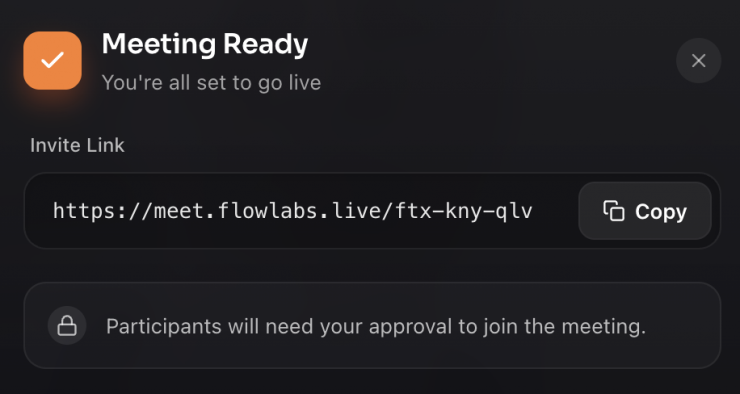
- Click on the session link shared with you
- Enter your name
- Allow browser permissions for camera and microphone
- Configure your audio and video settings
- Click Join Meeting
Guest Access
Participants don’t need a Flow Labs account. They can join as guests with just the link.
Control Bar
The control bar at the bottom includes:
- Microphone: Toggle on/off and pick an input device.
- Camera: Toggle on/off and pick a camera.
- Share Screen: Share your screen, window, or browser tab.
- Chat: Open the chat panel.
- Participants: View and manage participants.
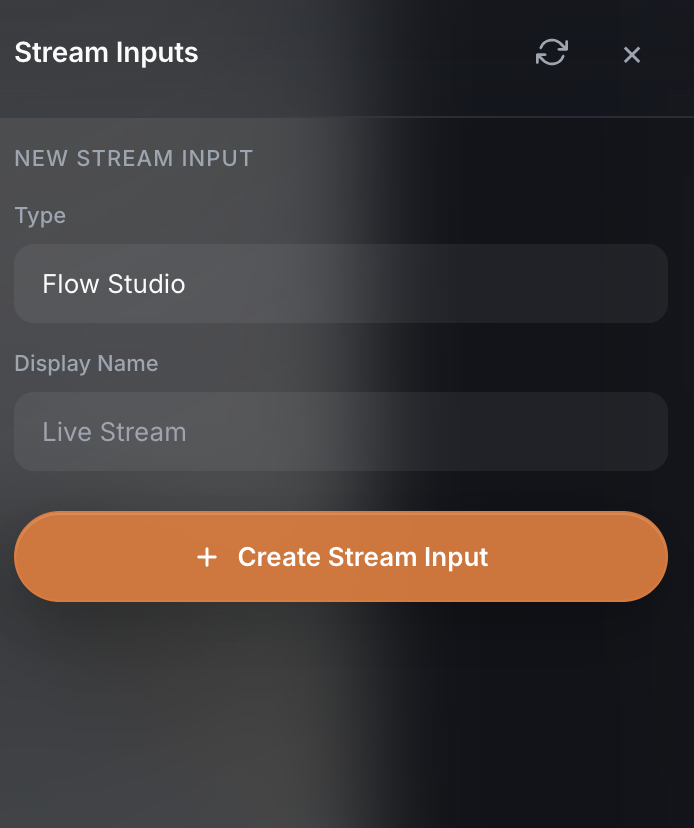
- Streaming Controls (moderator only): Manage WHIP stream inputs.
- Volume Controls: Adjust playback volume when a stream is active.
- Session Notes: Capture notes during the session.
- Leave: Exit the session.
Participant View
- Grid View: See all participants in a grid layout.
- Spotlight: Pin specific participants or the livestream to focus on it.
- Fullscreen: Hide the UI for focused viewing; move your mouse to reveal controls.
Chat & Messaging
Use the chat panel to send messages, share links, and keep a written record of discussions.
Screen Sharing
- Click the Share Screen button
- Select what to share: Entire Screen, Window, or Tab
- Click Share
Note: Screen sharing is for presentations and collaboration. For high-quality streaming review, use the WHIP ingest instead.
Moderator Controls
If you’re the host/moderator, you have additional controls:
- Participants drawer: Mute or kick participants. Approve or reject join requests.
- Streaming Controls drawer: Manage WHIP stream inputs. Copy the URL and Stream Key.
- Session Notes drawer: Capture notes for the session.
Streaming with WHIP
Flow uses WHIP (WebRTC Ingest) for real-time streaming with minimal delay.
- Flow does not transcode your stream. Viewers receive exactly what you send.
- Flow supports high bitrates, but match your bitrate to your audience’s network conditions.
- What you send is what they see.
See the Encoder Setup page for detailed configuration.
Network Considerations
Because Flow forwards your stream without transcoding, viewers must be able to download the same bitrate you upload. For mixed networks, target ~6 Mbps at 1080p for best compatibility.
Latency
Host-to-viewer latency is typically 0.3 to 1.0 seconds. No transcoding means we avoid the multi-second delay common on other streaming platforms.
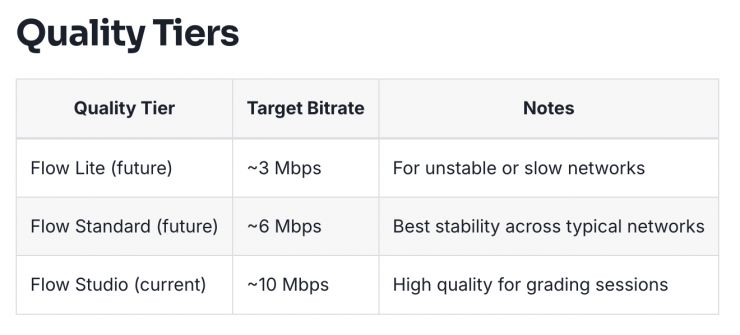
See Pricing for credit costs per quality tier.
Encoder Setup (WHIP)
Flow uses WHIP (WebRTC Ingest) for low latency streaming. Flow does not transcode, so viewers receive the exact quality and bitrate your encoder sends. To go live, join your Flow Session as a moderator, open Streaming Controls, copy the WHIP URL and Stream Key, then configure your encoder using the settings below.
Getting Your WHIP URL and Key
- Join your Flow Session as a moderator and open Streaming Controls.
- Copy the WHIP URL and Stream Key using the copy icons. You will see a “Copied” tooltip.
- The WHIP URL defines the quality mode and bitrate limits of your session.
- Only Flow Studio is available today. See Pricing for quality tier details.
Recommended Encoder Settings (OBS or hardware encoder)
These settings give the best results for low-latency WHIP streaming:
Video (OBS Settings)
- Output Mode: Advanced
- Video Encoder: x264
- Codec: H.264
- Profile: High
- Tune: Zero Latency
- Keyframe interval: 1s or 2s
- CPU Usage Preset: Fast or Very Fast
- Rate control: CBR
- Bitrate: 1,000–10,000 kbps (set according to your Flow tier)
- Resolution: 1920×1080
- Framerate: 24, 25, or 30 fps. Choose the framerate that matches your timeline.
- Colour Format: NV12
- Colour Space: Rec709
- Colour Range: Limited
Audio
- Codec: AAC
- Bitrate: 128 kbps
Important
- If you push above the bitrate allowed by the session preset, the stream may fail to start or drop frames. Flow does not modify or downconvert the stream.
Quality Tiers & Bitrate
Flow Studio (current) targets ~10 Mbps for high-quality grading sessions. Future tiers (Flow Standard at ~6 Mbps, Flow Lite at ~3 Mbps) will offer options for different network conditions.
If viewers experience buffering or stutter, lower your bitrate before reducing resolution. See Pricing for details on quality tiers and credit costs.
Resolution Guidelines
- 1080p provides the best balance between clarity and performance.
- If networks struggle, drop to 720p to stabilise playback more effectively than bitrate cuts alone.
- Avoid resolutions above 1080p unless every participant has very strong internet.
Network Requirements
Flow forwards your stream without transcoding, so your network must support the bitrate you send.
Host requirements
- For a 6 Mbps stream, upload of at least 10 Mbps is recommended.
- For a 10 Mbps stream, upload of at least 15 Mbps is recommended.
- Wired Ethernet is ideal.
- WiFi works but can cause jitter if the connection is weak.
Viewer requirements
- Viewers must have download capacity equal to the host’s upload bitrate.
- If multiple users share one network, each needs the full bitrate.
Colour Pipeline Notes
Flow does not apply colour management, gamma shifts, or colour space conversion. The video your encoder sends is passed directly to the viewer via packet routing only (standard SFU behaviour).
Technical Details
Encoder output: OBS outputs NV12 by default, which is YUV 4:2:0 Rec.709, typically limited range, 8-bit for H.264.
Flow SFU: Packet routing only; no colour or gamma transforms. The stream stays YUV 4:2:0 Rec.709.
Browser decoding: Browsers decode H.264 WebRTC streams as Y′CbCr 4:2:0, then convert to RGB for compositing. Higher chroma profiles (4:2:2 or 4:4:4) are not reliably supported for WebRTC playback.
Display pipeline: Browser RGB is colour-managed by macOS into the monitor profile (usually Display P3). Rec.709 SDR video on macOS is commonly rendered with an sRGB-ish / ~1.96–2.2 effective display gamma. Safari honours colour tags more aggressively than Chrome, which can create small gamma differences.
What This Means
- The host’s calibrated grading monitor is always the ground truth.
- MacBook displays may show slight differences in gamma or saturation.
- These differences are normal for browser-based review tools and are not caused by Flow.
For the most consistent review, hosts should grade on a calibrated monitor and viewers should use displays that are profiled or familiar to their workflow.
Pricing
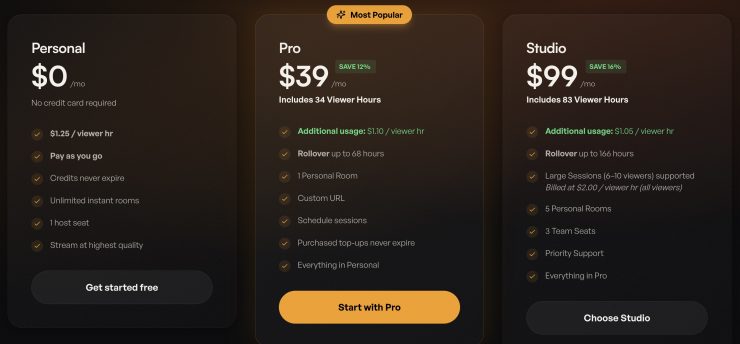
The team behind Flow also wanted the pricing model to better reflect how a lot of creative teams actually work. Flow offers a pay-as-you-go option for users who want flexibility, alongside Pro and Studio tiers for more frequent use and lower ongoing usage costs.