
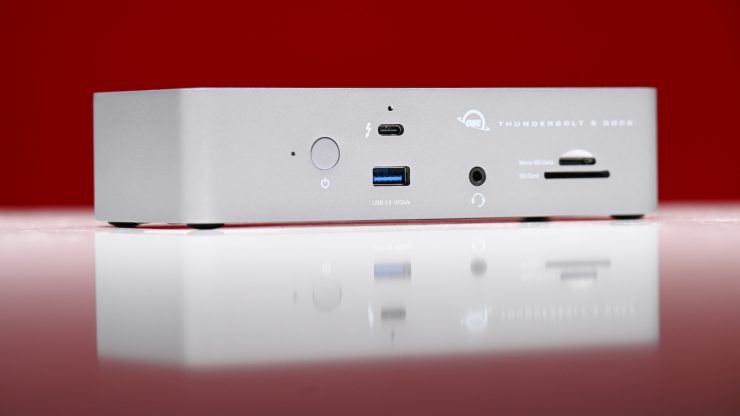
The OWC Thunderbolt 5 Dock allows you to connect anything from older USB drives to the latest Thunderbolt 5 SSDs. You can also power up to three 8K displays, read SD or microSD cards, and output 140W to charge a laptop.
For the last four years, I have been using the Sonnet Echo 11 Thunderbolt 4 Dock, but it was time for an upgrade.
By using the OWC Thunderbolt 5 Dock and a single Thunderbolt connection, your laptop or workstation can connect to displays, storage, audio, and networking. If you own a Mac Mini, MacBook Air, Mac Studio, etc., it looks to be a good solution. What you need to keep in mind is that to utilize the Thunderbolt 5 bandwidth, your machine needs an M4 Pro chip or better.
The trouble with a lot of computers these days is that they can be lacking when it comes to connectivity. I always find that I never have enough inputs available on my computer, and that’s why a good dock or hub can make life a lot easier. I use a Mac Mini Pro as my main computer, and once you start connecting a lot of peripheral devices, you soon start running out of ports.
What do you get?
The OWC Thunderbolt 5 Dock comes with the following items:
- OWC 11-Port Thunderbolt 5 Dock with Thunderbolt Cable
- Thunderbolt Cable (39″)
- External Power Supply and Power Cable
- Limited 2-Year Manufacturer Warranty
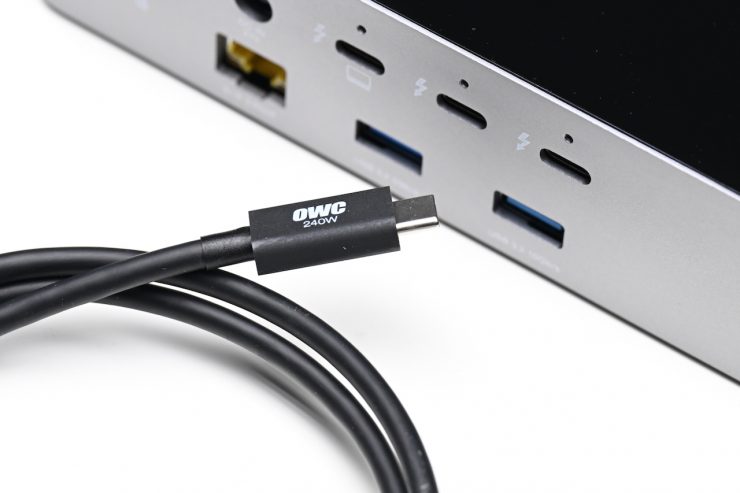
It is nice that OWC gives you a reasonably long Thunderbolt 5 cable as standard. Yes, this is a small thing, but at least you don’t have to try and source your own.
Physical Size & Weight
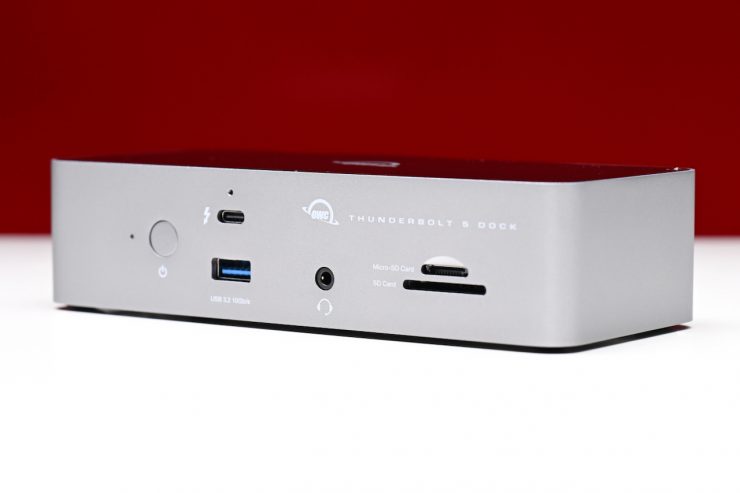
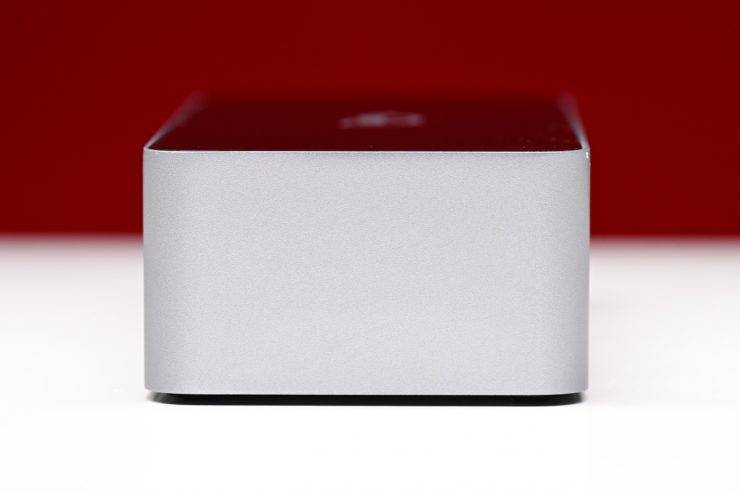
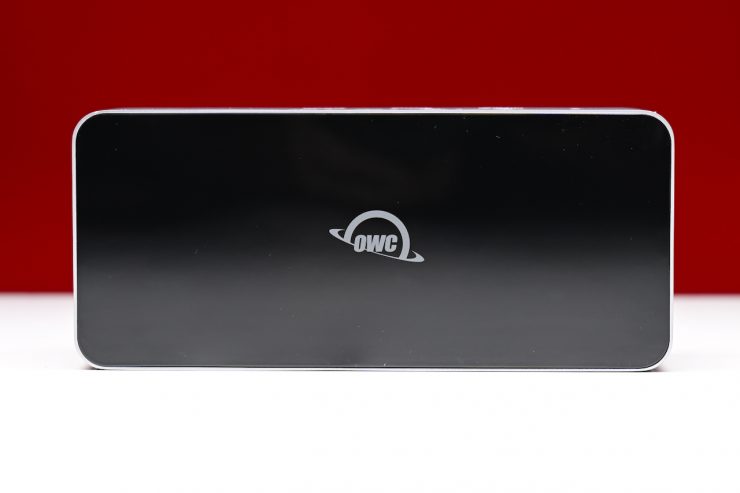
As you would expect from a dock with so many inputs, the Thunderbolt 5 Dock does take up a fair bit of real estate. It isn’t overly deep, but it is quite tall.
It has physical dimensions of 7 x 3.1 x 1.7″ / 17.8 x 7.8 x 4.2cm, and it tips the scales at 18.7 oz / 530g.
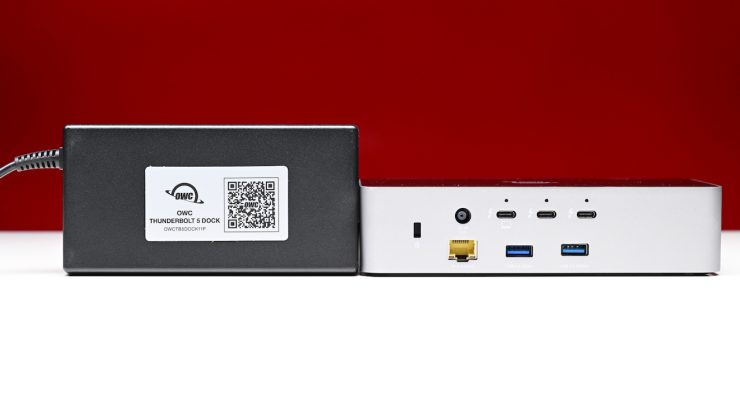
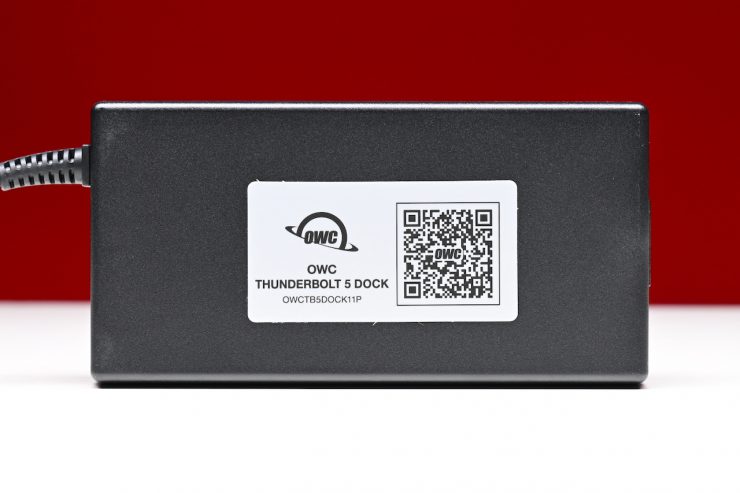
The power supply that does come with the Dock is fairly large and heavy.
Build Quality
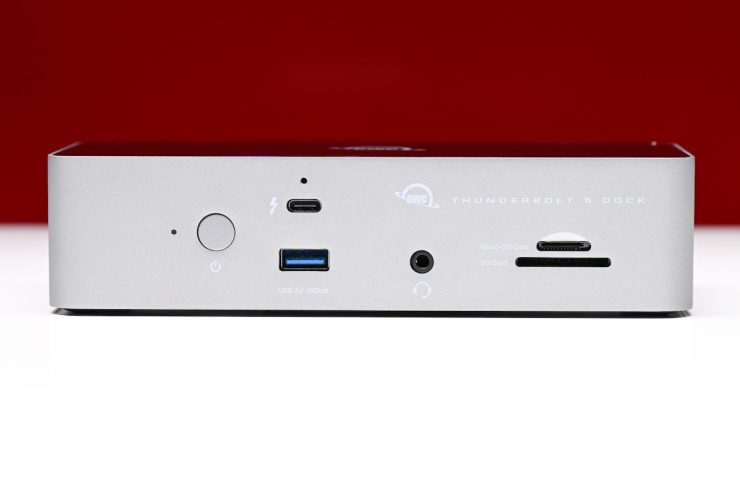
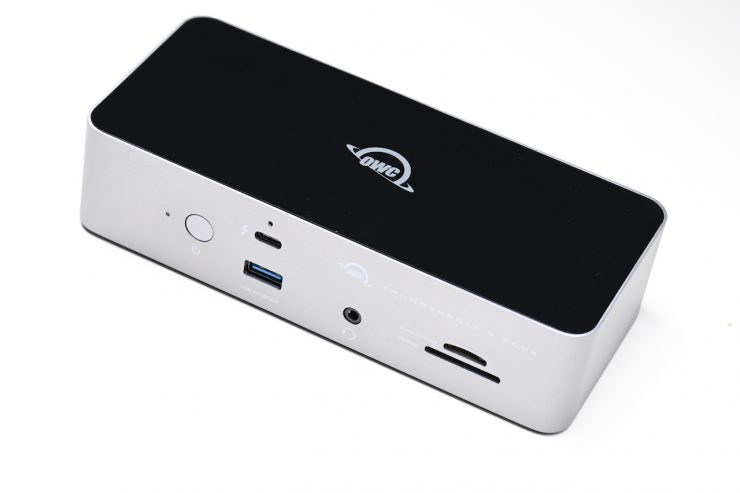
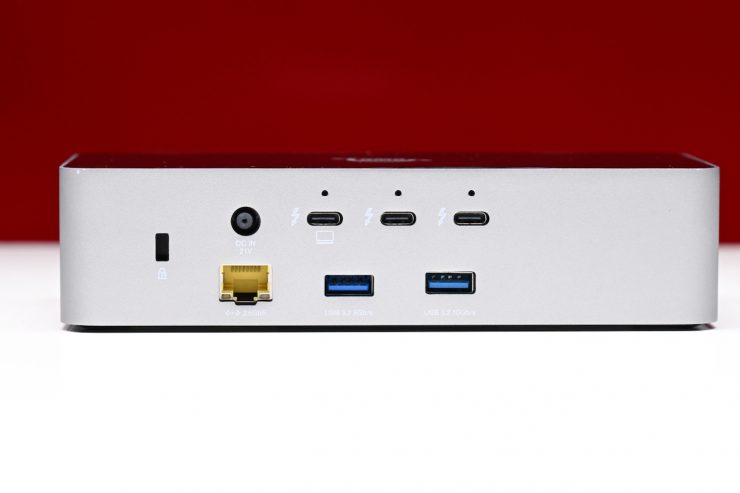
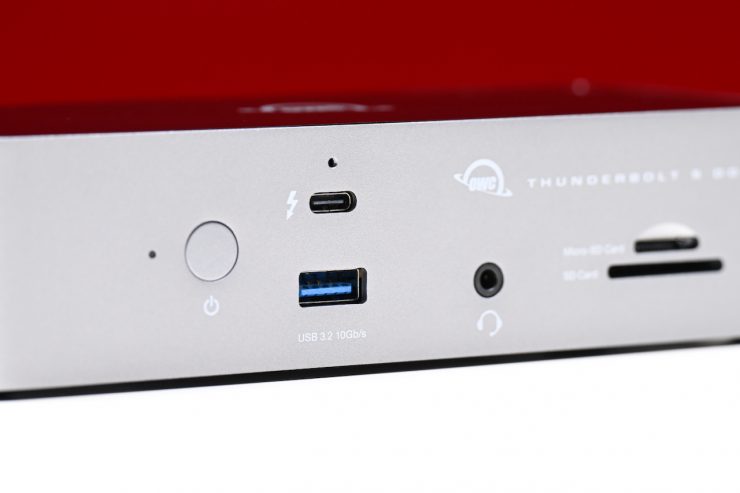

I have owned quite a few OWC products in the past, dating way back to some of their original FireWire 400 hard drives. I have personally always found their products to be solidly made and reliable.
The Thunderbolt 5 Dock is solidly made and well constructed. It comes in an aluminum enclosure.
There is no fan, so it doesn’t make any noise.
Inputs & Outputs
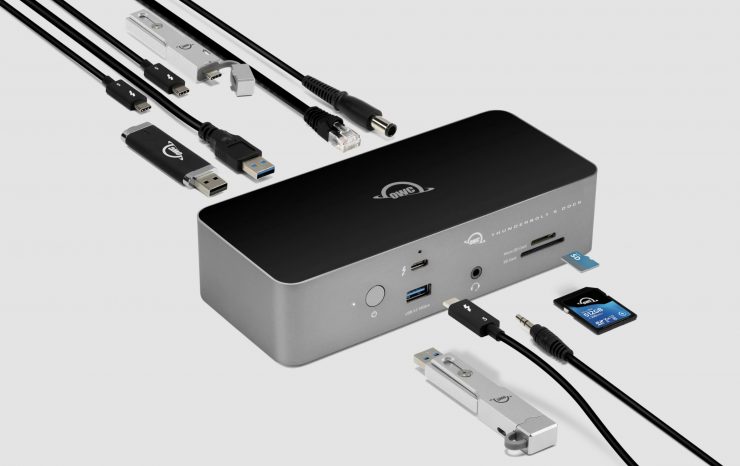
This is the main reason you buy a dock is for the connectivity. The Thunderbolt 5 Dock has 11 ports. Here is what you get:
- 3x USB-C (Thunderbolt 5)
- 2x USB-A 3.1/3.2 Gen 2
- 1x USB-A 3.0 / 3.1/3.2 Gen 1
- 1x 1/8″ / 3.5 mm Headphone/Microphone Combo Jack
- 1x RJ45 (2.5 GbE)
- 1x SDXC (UHS-II [312 MB/s])
- 1x microSDXC (UHS-II [312 MB/s])
- 1x Host Connector: USB-C (Thunderbolt 5) Supporting USB Power Delivery up to 140 W via Built-In Connector
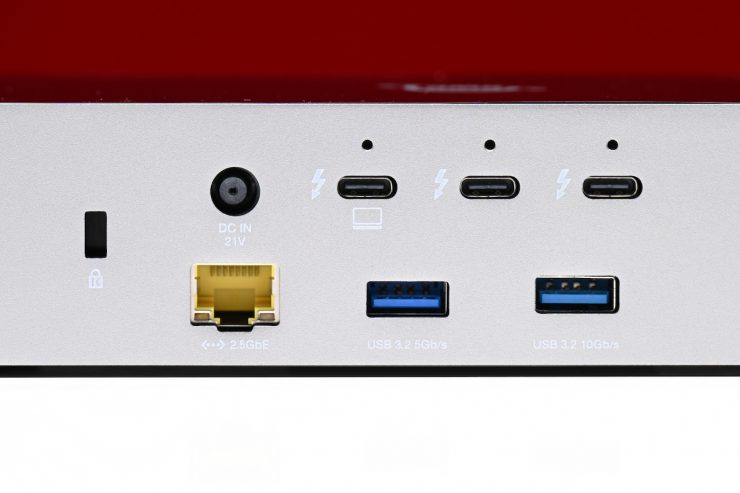
Three Thunderbolt 5 ports provide you with high bandwidth for connecting fast storage, high-res displays, and accessories so you can use them at full speeds. Thunderbolt 5 supports up to 80Gb/s bi-directional data with up to 120Gb/s video stream performance, but this depends on your host machine.
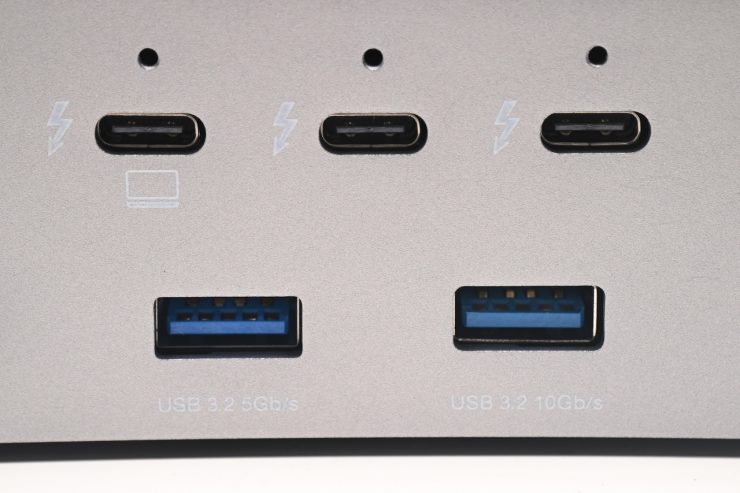
The Thunderbolt 5 ports are fully USB-C compatible and backward compatible with some older Thunderbolt devices. Please note that Thunderbolt 3 Windows systems are not compatible, nor are Thunderbolt 2 and earlier systems.
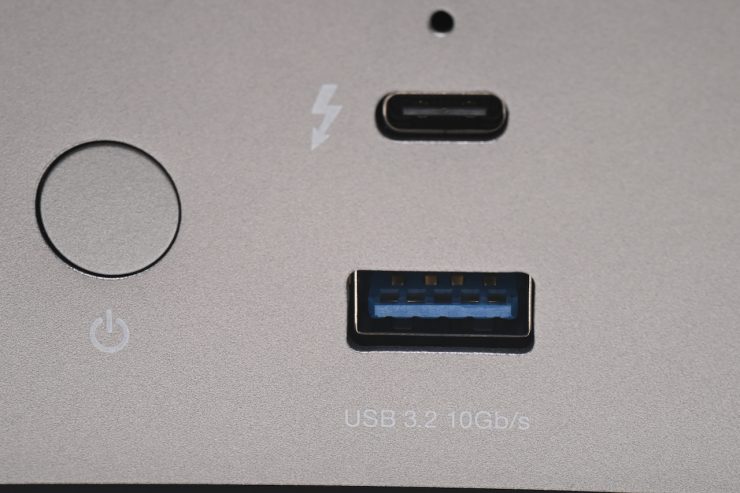
The three high-speed USB-A ports (two at 10Gb/s, one at 5Gb/s) allow you to connect older peripherals and accessories.
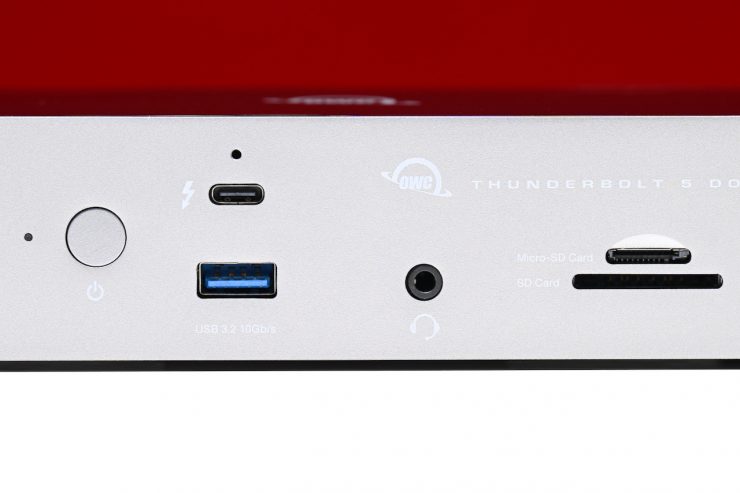
The 1/8″ / 3.5 mm Headphone/Microphone Combo covers you for sound. You could use it with a connected microphone for joining a video call, recording a podcast, or listening to music with wired headphones.
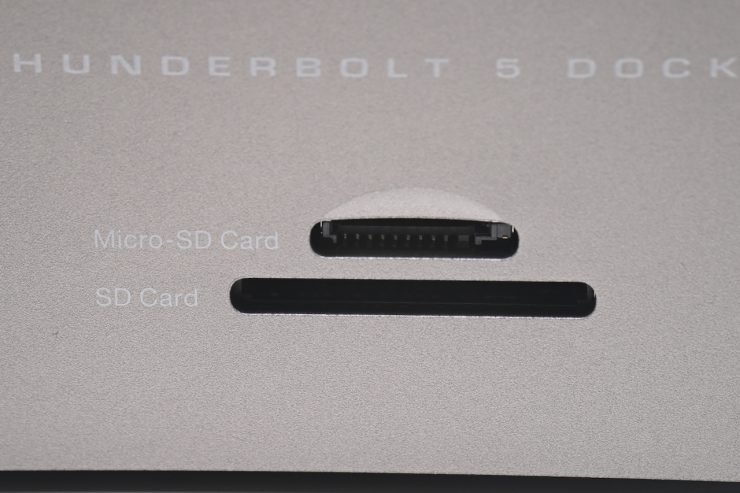
The built-in SD 4.0 UHS-II and microSD slots are useful for offloading footage from cameras, drones, etc. The microSD Media Slot supports microSD 4.0 in UHS-II (Ultra High Speed II) with bus speed up to 156 MB/s (full duplex) or 312 MB/s (half duplex). The SD Media Slot supports SD 4.0 in UHS-II (Ultra High Speed II) with bus speed up to 156 MB/s (full duplex) or 312 MB/s (half duplex). I would like to see more companies adding a CFexpress Type B card reader, as they have become a lot more common and are used in a wide array of cameras.
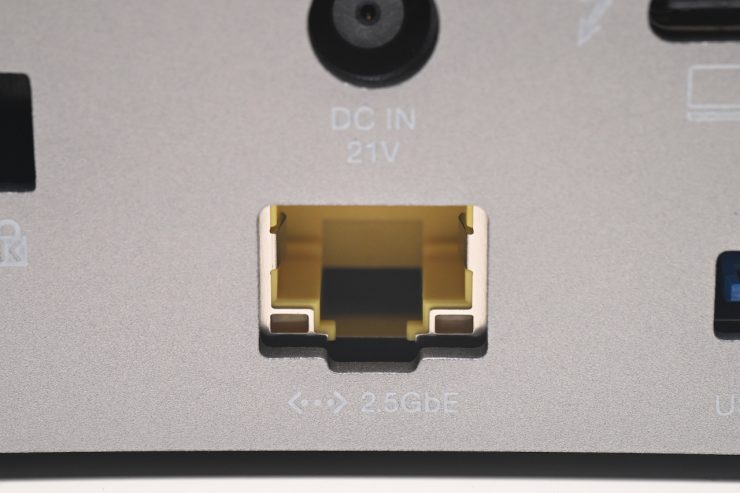
The RJ45 (2.5 GbE) port allows you to hook up a LAN cable if need be. OWC also has the Thunderbolt 5 Dual 10GbE Network Dock if you need 10GbE RJ45. As my Mac Mini Pro has 10Gbe already, I didn’t need this model. 10GbE ports can handle Dante Audio, ABV (Audio Video Bridging), NDI Video, NAS-based workflows, virtual machines, and 3D distributed rendering via Ethernet. A 2.5GbE port can handle all of those, except for ABV.
There are no HDMI/DisplayPort options, as the dock was specifically made for people who have Thunderbolt-based displays. If you need to connect an HDMI monitor, you could just use a Thunderbolt-to-HDMI dongle or buy OWC’s new Thunderbolt 5 Dock with Dual HDMI.
Multiple Monitor Support
Depending on the computer to which it’s connected, the Thunderbolt 5 Dock supports up to three 8K displays. Now, support for three 8K displays is limited to Windows machines. On a Mac, it will support dual 6K displays.
Thunderbolt 5 can support up to three displays from a single computer host port, depending on the host computer’s capability. This includes up to three 6K or lower resolution displays, three 8K displays @ 60Hz, or two 8K displays @ 120Hz. Display support, including available resolution and refresh rates, is dependent on host hardware and drivers.
OWC 11-Port Thunderbolt 5 Dock external display support includes up to three 8K displays @ 60Hz, or two 8K displays @ 120Hz
Presently, Apple has enabled support for a maximum of two native displays per connected Apple Mac Thunderbolt host port. Software driver-based technologies, such as DisplayLink (as supported by the OWC USB-C Dual HDMI 4K Display Adapter), may enable additional display support.
The front-facing Thunderbolt 5 port is nice to have for quick SSD access, and I like that it is backward compatible with Thunderbolt 3/4.
Plug & Play?
The Thunderbolt 5 Dock is virtually plug-and-play if you are using it with a Mac; however, you do need some drivers for certain functionality.
Mac Users
A software driver is required to enable Apple Super Drive, Apple USB Keyboard, and high-power support for charging and powering USB bus-powered devices.
The driver is included in the OWC Dock Ejector software download package.
NOTE: Connect an Apple SuperDrive directly to a USB port if the device doesn’t respond when connected through an external display or USB Hub.
NOTE: OWC Dock Ejector for Mac includes a USB charge support driver in version 1.1.9. The current version of OWC Dock Ejector (version 2.0.2) has the USB charge support driver disabled. Users can not charge or bus-power devices over external powered USB ports at high power.
Users should roll back OWC Dock Ejector by uninstalling version 2.0.2 and downloading version 1.1.9 if the USB charge support driver is needed. Please review Section 2.2 “Uninstall OWC Dock Ejector” in the OWC Dock Ejector Support Manual for instructions.
PC Users
Downloading and installing a Realtek driver is required to enable proper network function.
Please visit Realtek Driver Support and download the appropriate driver based on the operating system version currently in use. Complete the on-screen instructions provided by the download to complete the driver installation.
Once you have done this, you simply plug the power cable into the OWC Thunderbolt 5 Dock DC IN power port located on the back and into a power outlet. The Power LED will illuminate solid white. You then connect the included Thunderbolt cable into the 140W Thunderbolt 5 Host Port located on the back and into a system. You are then good to go!
The Thunderbolt 5 Dock supports:
- Mac: macOS 14.x or later
- Thunderbolt 5 requires macOS 15.3.x or later
- Thunderbolt 3 requires macOS 15.x or later
- Intel-based Mac systems require macOS 15.x or later
- PC: Windows 10 or later
- Thunderbolt 5 requires Windows 11 or later
- Linux: current Ubuntu version recommended
- Chromebook: current ChromeOS version recommended
- iPad Pro: current iPadOS version recommended
- Android: current Android version recommended
OWC Dock Ejector
You can download the free OWC Dock Ejector, which allows you to safely disconnect multiple drives in a single click. It was designed to ensure all data is written before disconnection.
As far as I am aware, OWC was the first to introduce software that enables high-power Thunderbolt dock ports without compromising macOS security settings. Dock Ejector eliminates the need for Recovery Mode, multiple reboots, and reduced security settings.
Users can also remount disconnected drives without unplugging cables or launching Disk Utility.
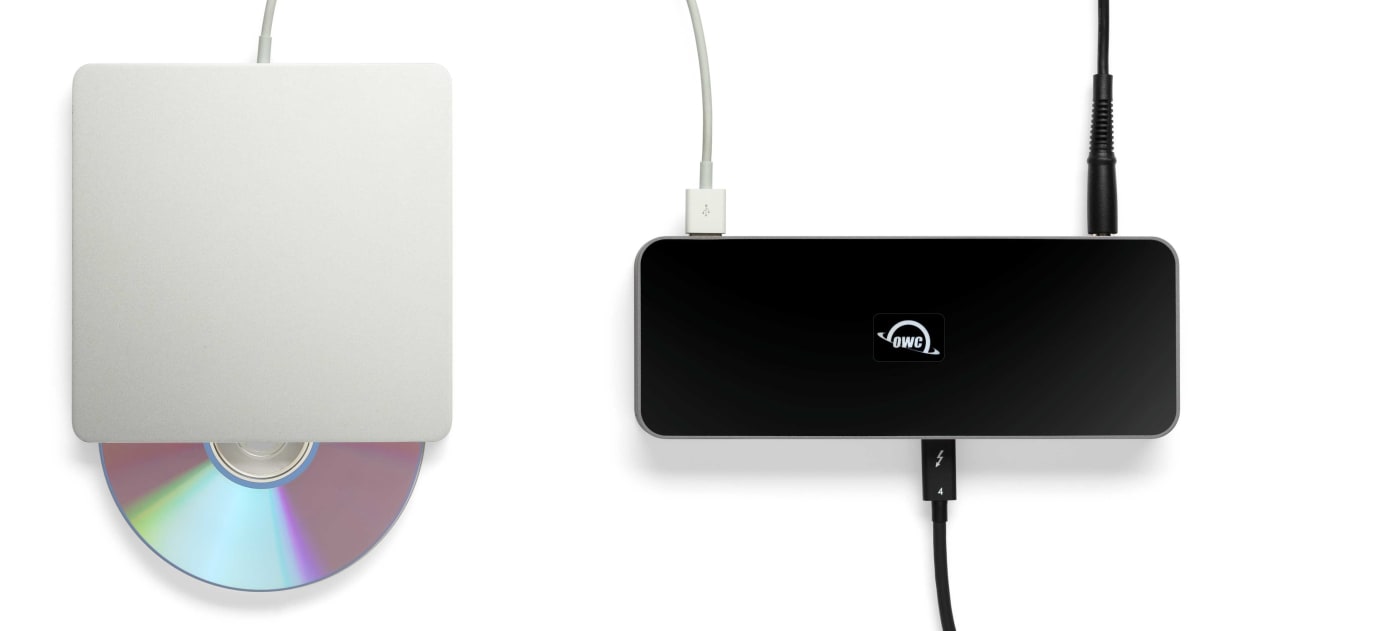
The Dock Ejector software also includes a special driver that enables your OWC Thunderbolt 5 Dock to play and burn CDs and DVDs with the Apple SuperDrive. Just connect the SuperDrive to an open USB-A port on the OWC Thunderbolt Dock.
General Usability
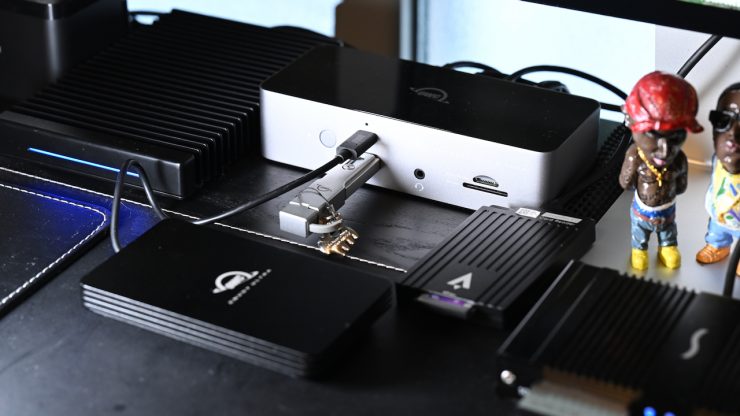
I found the dock easy to set up and use; however, as it has inputs on both the front and the back, you have to think carefully about where you position it on a desk if you are working with a desktop.
If you want easier access to most of the ports, you may want to turn it around and have the backside of the dock facing towards you. No, this won’t be as clean, but some users may find it more practical. The whole reason for wanting to use a dock with a desktop is not only for the added connectivity but also for the ease of access.
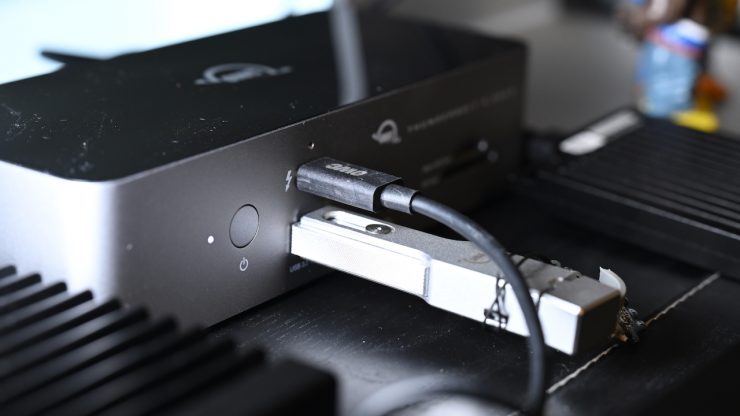
I did find that because of the finish on the casing, it was a bit of a dust magnet.
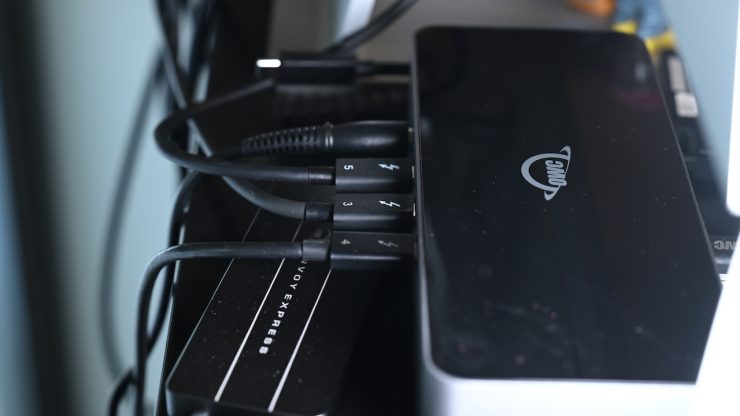
I wanted to see how it would perform if I loaded it up with devices and also had it powering a laptop.
I had the following items connected up:
- Apple 14″ MacBook Pro
- OWC 2TB Envoy EX External SSD
- OWC 2TB Envoy Ultra Thunderbolt 5 Portable SSD
- WD 16TB Gold 7200 rpm SATA III 3.5″ Internal Enterprise HDD
- Exascend Nitro CFexpress 4.0 Type B Card Reader & OWC Atlas Ultra 1TB CFexpress Type B Card
- OWC Express 4M2 Ultra Four-Slot Thunderbolt 5 External Storage Enclosure with SoftRAID
- OWC 1TB Envoy Pro mini USB 3.2 Gen 2 Flash Drive
Everything worked flawlessly without any issues.

OWC 2TB Envoy Ultra Thunderbolt 5 Portable SSD 
OWC 2TB Envoy EX External SSD
I also did some speed tests on the connected drives, and all of the drives were working at the speeds I was expecting to see.
The only real downside to docks is you can certainly end up with a spaghetti mess of cables and connected devices. A lot of peripheral devices these days come with very short cables, and that doesn’t help when you are trying to connect devices up to a dock.
Competition?
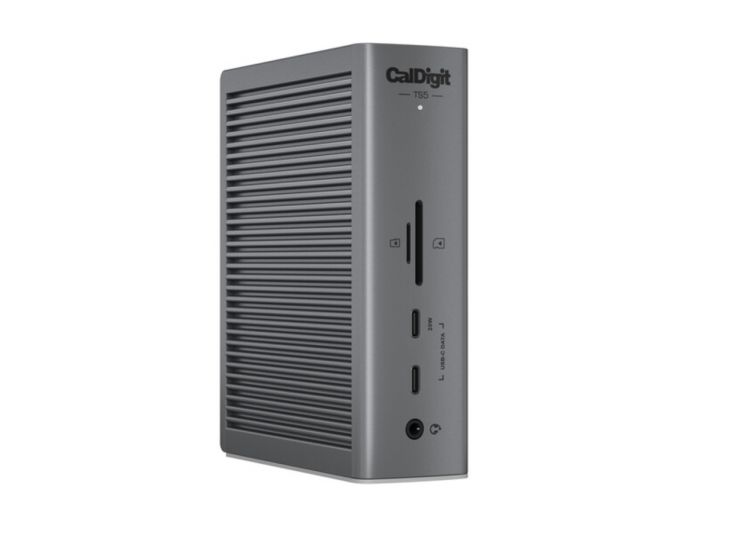
Main competition arguably comes in the form of the CalDigit TS5. Both the CalDigit and OWC offer 80Gbps bandwidth and 140W power delivery. The OWC Thunderbolt 5 Dock is slightly more compact, and it features a fanless design.
Other docks that could be considered competition include the Anker Prime 14-in-1 Thunderbolt 5 Docking Station and Satechi Thunderbolt 5 CubeDock with SSD Enclosure.
Price & Availability
The OWC Thunderbolt 5 Dock is available for $319.99 USD.
As a comparison, here is what some of the competition costs:
- CalDigit TS5 $399.99 USD
- Anker Prime 14-in-1 Thunderbolt 5 Docking Station $399.99 USD
- Satechi Thunderbolt 5 CubeDock with SSD Enclosure $399.99 USD
Conclusion
The OWC Thunderbolt 5 Dock certainly works as advertised, and I was very happy with the added versatility and usability it added to the way I work. Being able to plug in a variety of different hard drives and have them all work at their maximum performance levels means you don’t have to compromise on speed when using lots of drives at once. It was also nice having separate SD and MicroSD card slots.
If you require HDMI or built-in NVMe storage, then there are other options on the market that would be a better fit; however, if you are a Mac user and have lots of Thunderbolt-supported devices, it is a very compelling and well-rounded option.