
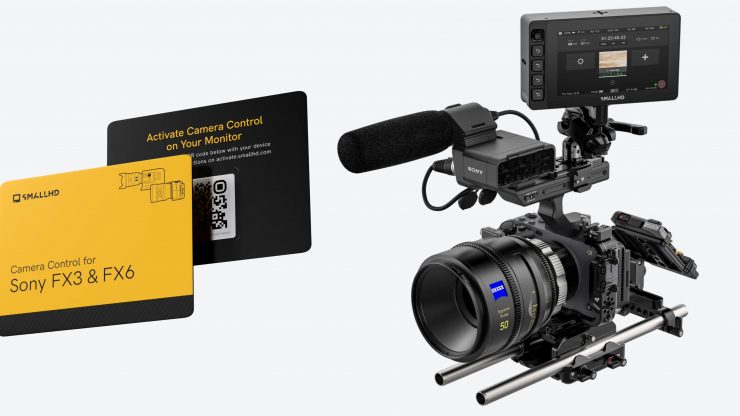
Sony FX3 Camera Control is now built into SmallHD’s PageOS, and users can
now create a simple USB connection to monitors such as:
- Cine 5
- Ultra 5 / Ultra 5 RX / Ultra 5 TX
- Cine 7 (Standalone only)
- Ultra 7 / Ultra 7 RX (750 & 1500) / Ultra 7 TX (750 & 1500)
- Ultra 10 / Ultra 10 RX
- Cine 13
- Cine 18
- Cine 24
- Vision 17
- Vision 24
- OLED 16
- OLED 22
- OLED 27
- Quantum 27
- Quantum 32

Camera Control for the FX3 allows you to view your shot and control your settings, adjust shutter speed, aperture, ISO, and trigger record Start/Stop. There is also touch to focus compatibility.
Camera Control Access: Start/Stop Record, ND Filter Selection, FPS, Shutter Speed, ISO, Color Temperature/White Balance, Partial LUT Configuration
Non-Interactive Camera Information: Timecode, Media Status, FPS, Resolution, Battery Info, Recording Format
How does it work?
Both the USB-C and Micro USB ports on the FX3 can be used for camera connection. For the best experience, SmallHD recommends using the USB-C port.
Monitors that use a 5-pin Locking Connector to USB-A Adapter Cable and a 3rd party USB-C to USB-A cable:
- Cine 5
- Ultra 5 / Ultra 5 RX / Ultra 5 TX
- Ultra 7 / Ultra 7 RX (750 & 1500) / Ultra 7 TX (750 & 1500)
- Ultra 10 / Ultra 10 RX
Monitors that use a Micro USB to 5-pin Adapter, 5-pin Locking Connector to USB-A Adapter Cable and a 3rd party USB-C to USB-A cable:
- Cine 7
Monitors that use a USB-C to USB-A cable OR USB-C cable:
- Cine 13
- Cine 18
- Cine 24
- Vision 17
- Vision 24
- OLED 16
- OLED 22
- OLED 27
- Quantum 27
- Quantum 32
If you want to use the USB-C port to power the camera, you can instead use the camera’s Micro USB port to connect to your monitor.
Wi-Fi Direct
Monitors without built-in Wi-Fi will require additional hardware to enable Wi-Fi functionality.
Monitors with built-in Wi-Fi (no additional hardware required):
- Ultra 10 / Ultra 10 RX
- OLED 16
- Quantum 27
- Quantum 32
Monitors that require a third-party Wi-Fi adapter:
- Cine 13
- Cine 18
- Cine 24
- Vision 17
- Vision 24
- OLED 22
- OLED 27
Monitors that require both a third-party Wi-Fi adapter and a 5-pin Locking Connector to USB-A Adapter Cable:
- Cine 5
- Ultra 5 / Ultra 5 RX / Ultra 5 TX
- Ultra 7 / Ultra 7 RX (750 & 1500) / Ultra 7 TX (750 & 1500)
Monitors that require a third-party Wi-Fi adapter, 5-pin Locking Connector to USB-A Adapter Cable, and Micro USB to 5-pin Adapter:
- Cine 7
Connect via USB Connection
In the monitor, navigate to Monitor Settings > Accessories > Camera Control > Sony FX3. Select USB Connection.
- Connect the monitor to the camera with a USB cable. A menu labeled “Select USB Connect Mode” will then appear on the camera’s screen.
- Press Remote Shooting on the camera screen.
- Press Connect on the monitor.
Troubleshooting
Every time you reconnect to the camera, you must press Remote Shooting on the camera screen.
If you don’t see the “Select USB Connect Mode” screen on the camera, your USB Connection Mode might be set to Remote Shooting by default.
Check Setup > USB > USB Connection Mode. If it’s set to Remote Shooting, just connect the camera to the monitor and press Connect on the monitor.
This setting allows you to reconnect to the camera without pressing Remote Shooting every time.
Connect via Wi-Fi Direct (camera as access point)
- On the camera, press the Menu button.
- Turn off authentication settings.
- Network > Network Option > Access Authen. Settings > Access Authen.: Off
- Select Wi-Fi Direct Info.
- Network > Cnct./Remote Sht. > Remote Shoot Function > Wi-Fi Direct Info
- Note: This will also automatically set Remote Shooting: On.
- Press Exit & go to next to turn on the camera’s Wi-Fi. The camera will display an SSID and password.
- In the monitor, navigate to Monitor Settings > System > Network and enable Wi-Fi.
- Select the Wi-Fi network that the camera created (matching the SSID) and connect to it using the password displayed on the camera.
- Navigate to Monitor Settings > Accessories > Camera Control > Sony FX3.
- Select Wi-Fi Direct and press Connect.
Pricing & Availability


Now, unfortunately, this isn’t free and the Camera Control license costs $279.99 USD. This is a hard sell as there are so many competing companies that give you free camera control with monitors. While I appreciate that there may well be licensing costs associate with providing camera control, the costs are arguably way too high, especially for more affordable cameras.
The other issue is that once camera control is registered to your SmallHD monitor, it cannot be removed or transferred to a different monitor.