
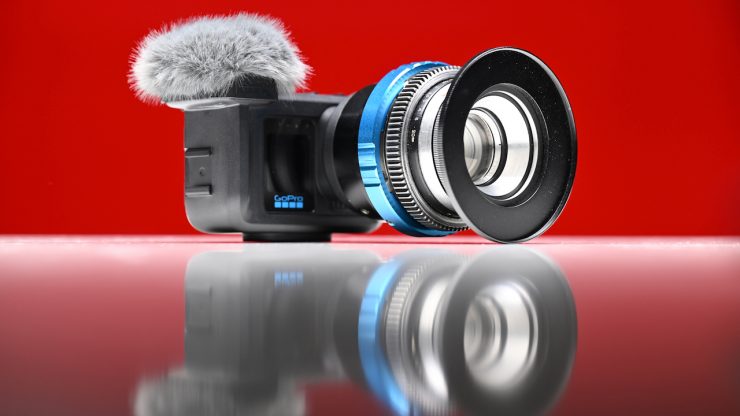
Back in April, GoPro unveiled its new MISSION 1 Series. The MISSION 1 Series consists of the MISSION 1 PRO, MISSION PRO ILS, and MISSION 1.
Although they could be used as action cameras, that is not their primary purpose. GoPro is targeting a new market, and the new MISSION Series is aimed more at content creators and professional users.
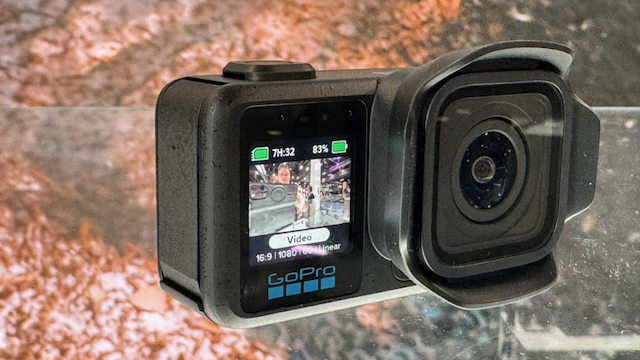
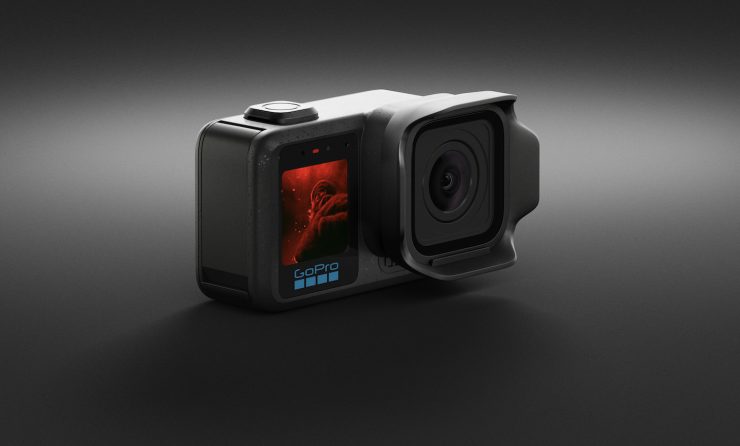
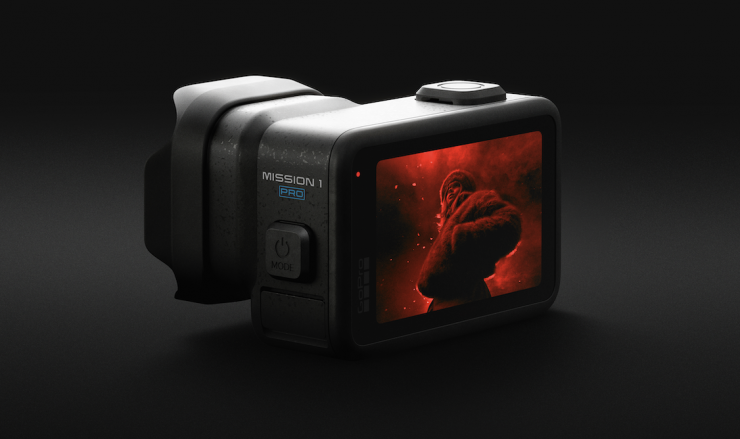
MISSION 1 PRO— Featuring a 50MP 1″ sensor; 8K60, 4K240, and 1080p960 ultra-high frame rates; 8K30 and 4K120 Open Gate video capture; and new GP3 processor
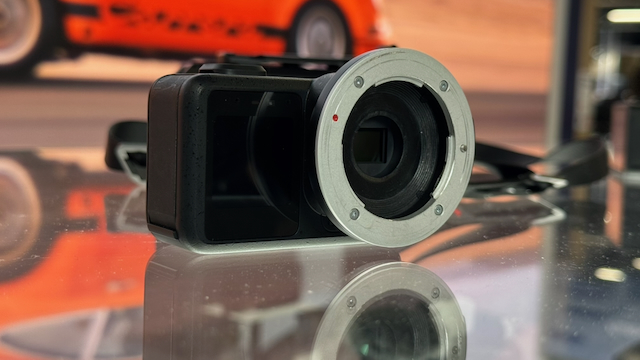
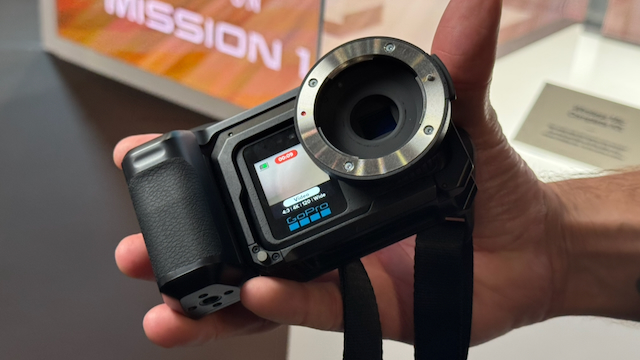
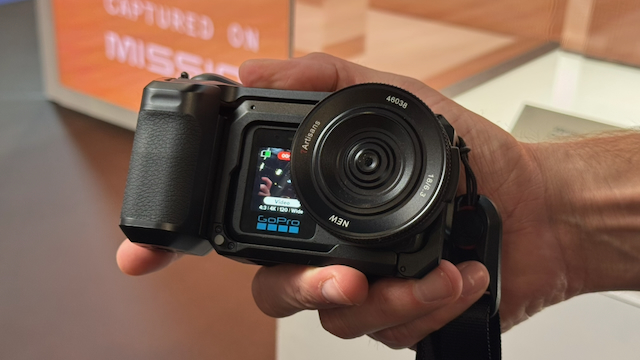
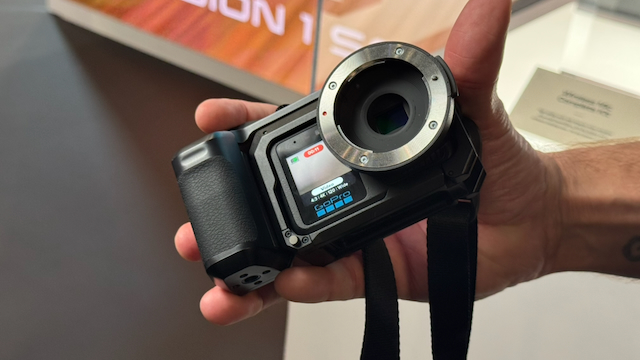
MISSION 1 PRO ILS— A new class of ultra-compact mirrorless cinema camera with the same sensor as MISSION 1 PRO, compatible with Micro Four Thirds (MFT) lenses.
MISSION 1— Same as MISSION 1 PRO, but with 8K30 video capture; 4K120 Open Gate; 4K120 and 1080p240 slow-motion frame rates.
Users have been asking for cameras like this from GoPro for more than a decade, and it’s good to see that they have now actually materialized. With increased competition in the action camera market, with options from DJI and Insta360, GoPro needed to think outside of the box.
“The MISSION 1 Series is the pinnacle of performance for low-cost, compact cinema cameras. Our most demanding, pro-minded customers have asked us for years to make this very line of cameras, and we’ve finally delivered. The MISSION 1 Series is built to withstand the most extreme environments our customers push them into. The footage is going to look amazing.”
Nicholas Woodman, GoPro’s founder and CEO
Out of all the cameras, at least in my opinion, the MISSION 1 PRO ILS is the most interesting. I say that because of the ability to utilize a wide array of interchangeable lenses. I will be reviewing the camera based on how it could be used by professionals in the film and TV industry.
MISSION 1 PRO ILS Key features
- 50MP 1″ Sensor & GP3 Processor
- Micro Four Thirds Lens Mount
- 8K30 & 4K120 Open Gate (4:3) Capture
- 8K60, 4K240, & 1080p960 Video Recording
- HDR, 10-Bit, GP-Log2, & Timecode Sync
- Enhanced Low-Light & Dynamic Range
- 32-Bit Float Audio Recording
- Larger OLED Display
- Improved Runtimes & Thermal Performance
- Raw Image Capture & Bursts up to 60 fps
Sensor
According to GoPro, the 50MP 1.0″ type 4:3 sensor (7680 x 5760) is claimed to help provide better image quality and less noise, even in challenging low-light environments. The actual sensor has dimensions of approximately 13mm x 10mm.
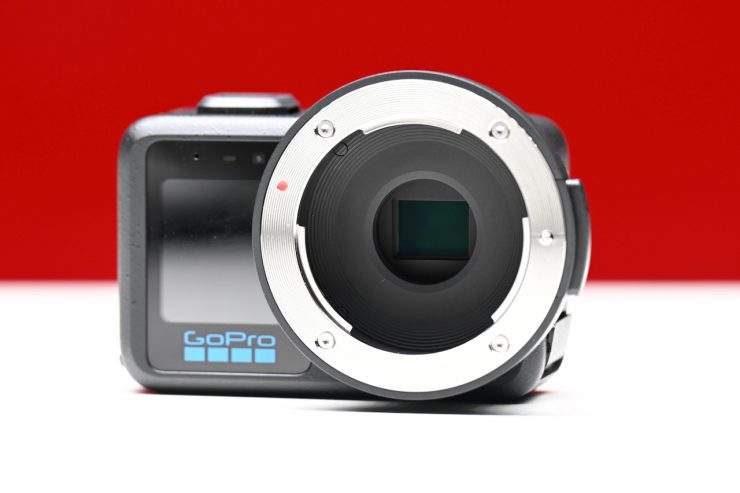
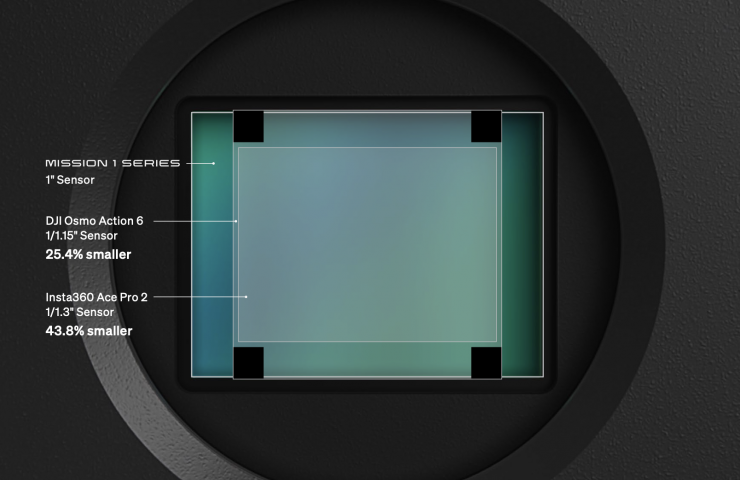
The sensor features a larger surface area and larger native 1.6µm pixels and 3.2µm fused pixels in Quad Bayer mode. The 1″ Sensor leverages Simultaneous Dual-Gain Readout HDR, sampling each pixel at multiple conversion gains to process shadow and highlight details simultaneously.
Pixel size at 8K:
- MISSION 1 Series 1.6um
Pixel size at 4K:
- MISSION 1 Series 3.2um
The new 1″ type sensor is larger than what is being used in the DJI Osmo Action 6 and Insta360 Ace Pro 2.
GoPro states that the new GP3 Processor features a power-efficient 5nm design, enabling longer battery runtimes and better thermal performance along with what is claimed to be best-in-class resolutions, frame rates, and image quality. An AI Neural Processor Unit (NPU) enables next-generation video pixel processing and increased low-light image performance.
According to the company, the MISSION 1 Series delivers the highest-quality image, with the least noise, and the highest dynamic range image from any GoPro ever. GoPro states a dynamic range of 14 stops.
Along with auto modes, users can utilize a full range of manual controls such as ISO, Shutter Speed, Exposure Compensation, and White Balance.
Interchangeable M4/3 mount
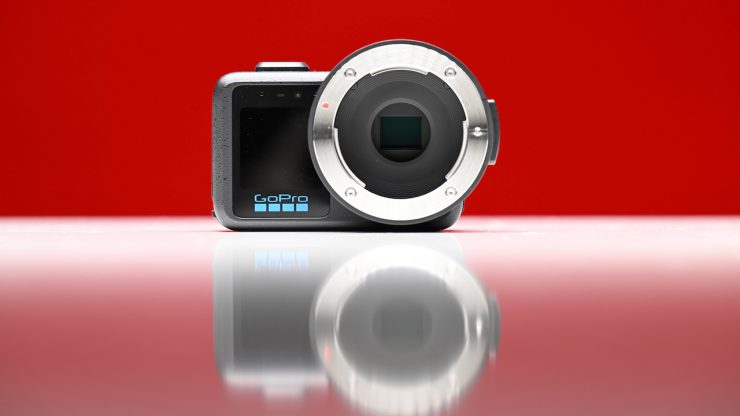
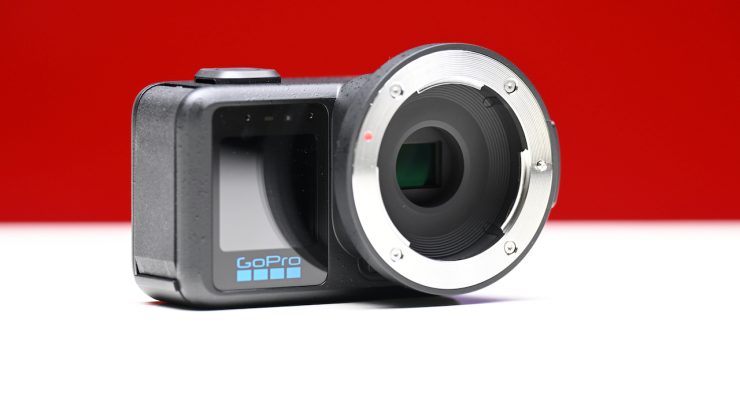
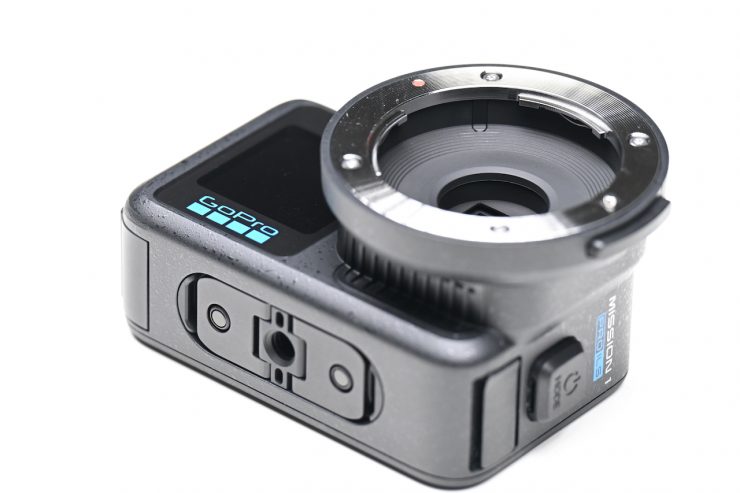
The MISSION 1 ILS features an interchangeable M4/3 mount that allows you to utilize a wide array of affordable lenses.
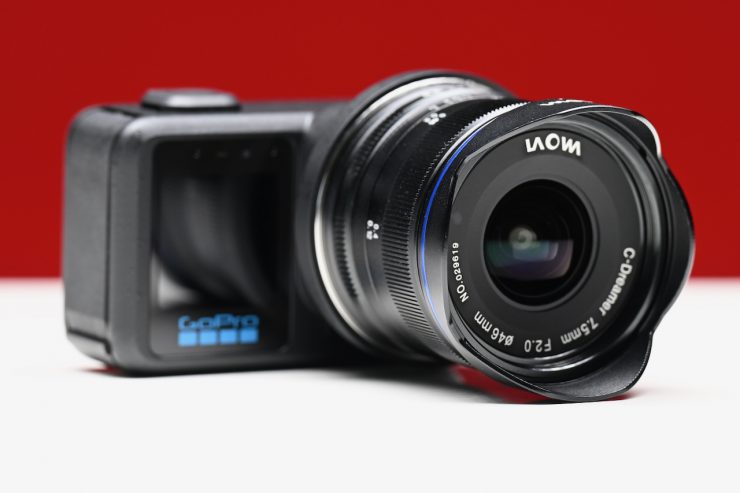
Now, you need to be aware that the camera doesn’t have any AF capabilities with this mount, so only manual M4/3 mount lenses will work. GoPro told me that they are looking into possibly offering some type of AF support in the future.
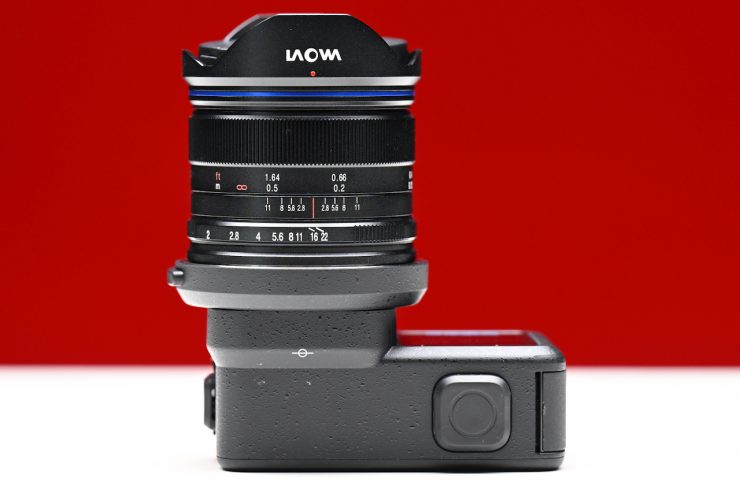
The nice aspect about M4/3 lenses is that they are small, compact, and relatively inexpensive. The negative aspect is that not a lot of people own M4/3 lenses.
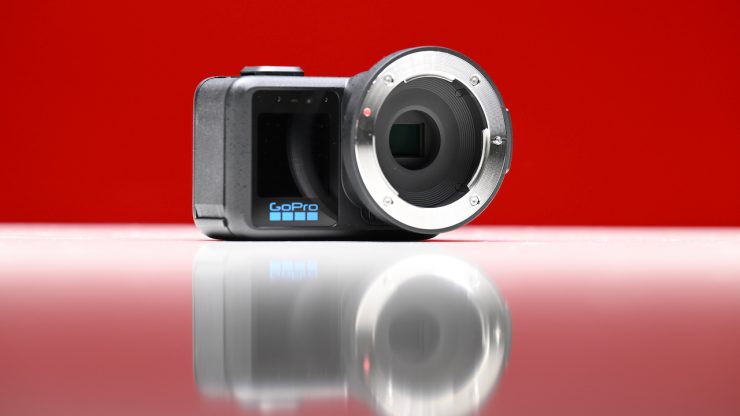
Having an interchangeable mount means you can use lens adapters, which opens up a lot of possibilities.
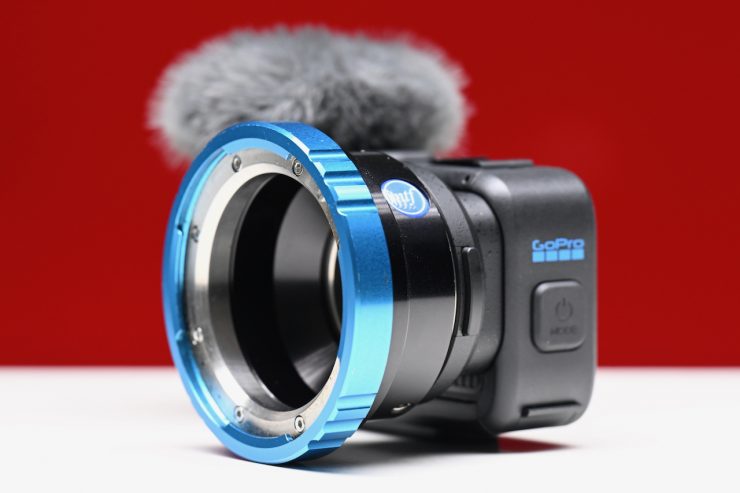
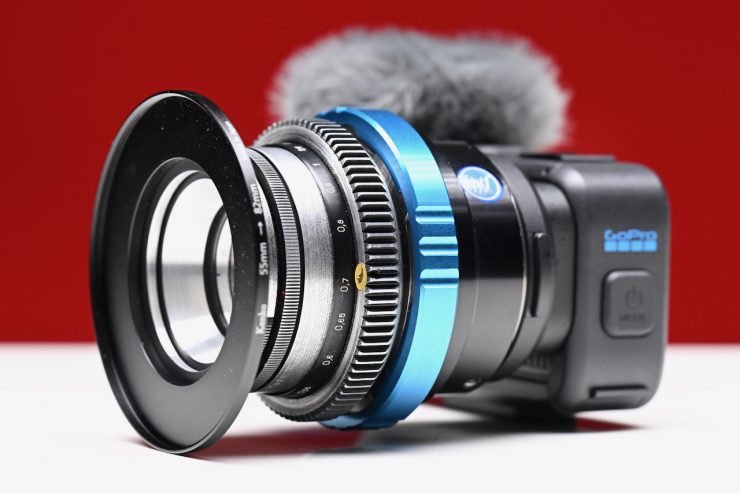
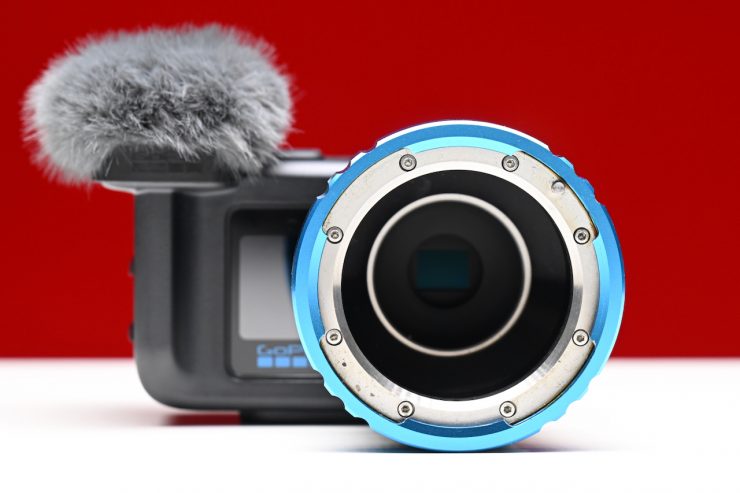
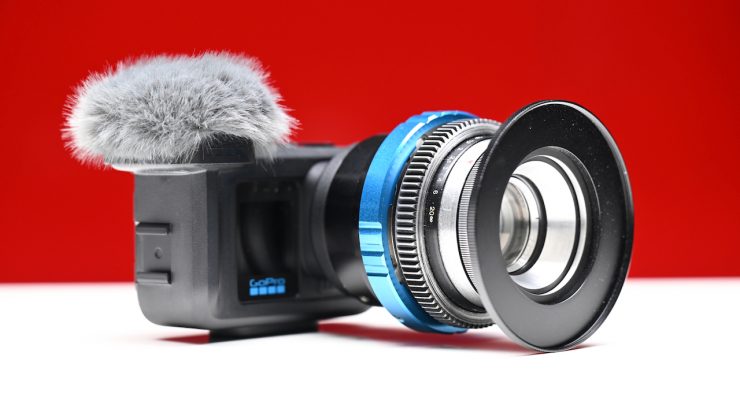
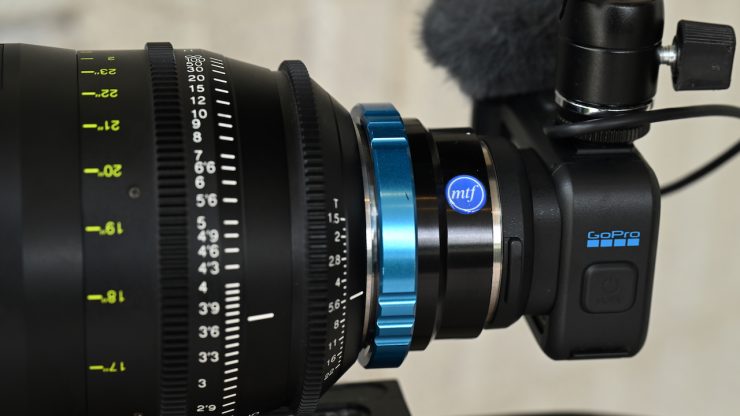
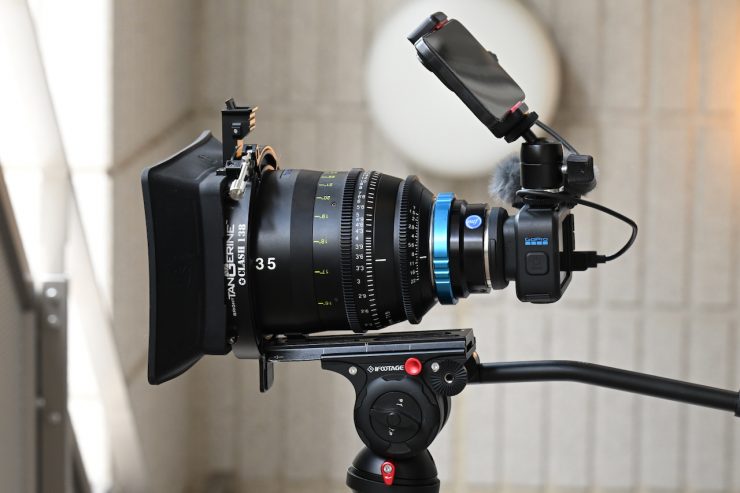
I was using an MTF Services PL-M4/3 mount to run PL lenses on the camera.
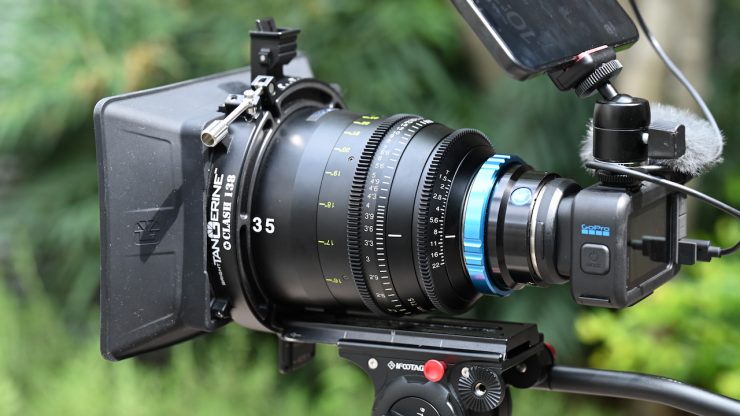
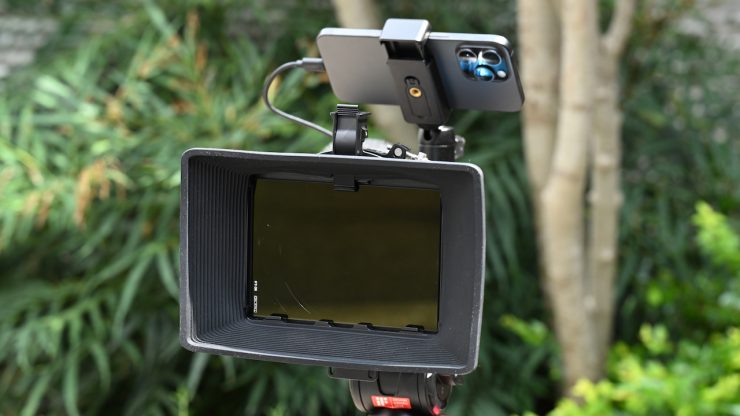
Above, you can see that I am using the camera with a Tokina Cinema Vista 50mm T1.4. I was also using a Bright Tangerine Clash 138 matte box to run ND. Now, personally, if you are going to run larger PL lenses, I don’t see any benefit in using the MISSION 1 Pro ILS, as there are better options out there.
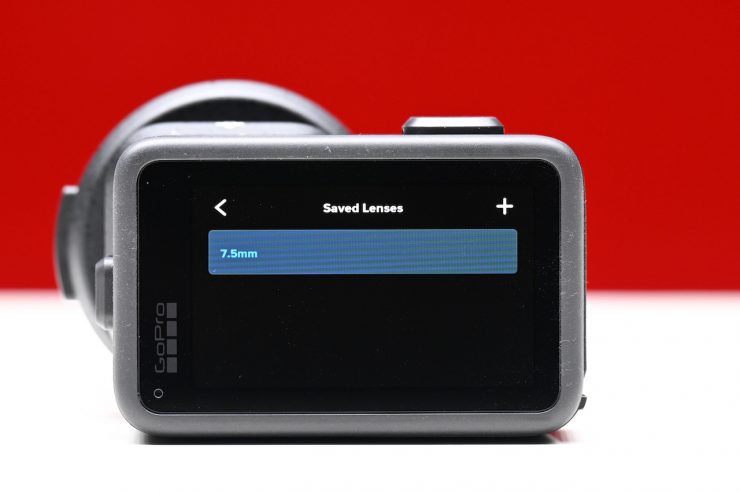
GoPro does give you the ability to enter the focal length of the lens you are using and to save that information.
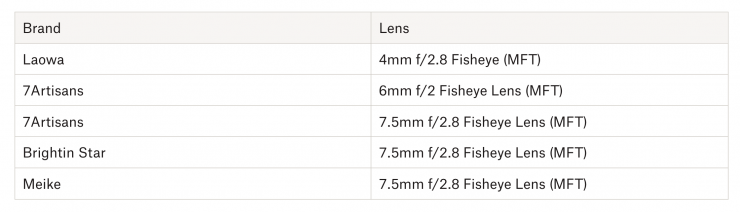
Five fisheye lenses have stabilization supported in-camera. These lenses have been specifically profiled to enable HyperSmooth compatibility in-camera.
All standard, non-fisheye, rectilinear MFT lenses between 6mm and 500mm can be added via the lens selection focal length entry process. GoPro has tested rectilinear lenses up to 50mm for guaranteed performance. Lenses with focal lengths longer than 50mm may have varied performance. I found that with really long focal length lenses, the HyperSmooth performance was not great.
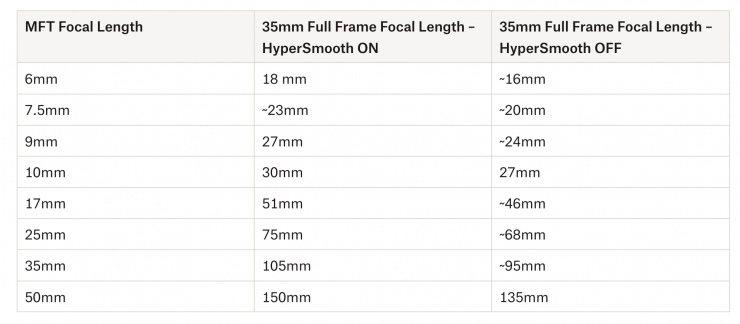
MFT is good if you need reach, but it can be a challenge if you need to get wider shots, unless you go with wide-angle M4/3 lenses.
Recording Capabilities
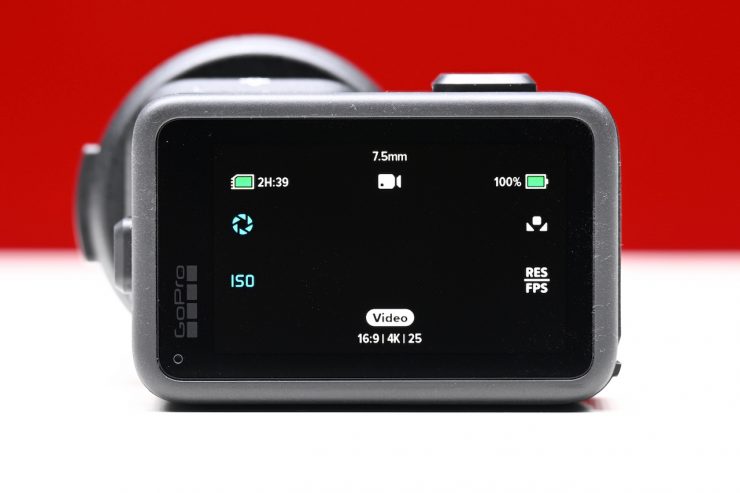
The MISSION 1 PRO ILS can capture 8K 16:9 video at up to 60 frames per second (2X Slo-Mo), 4K 16:9 at up to 240 frames per second (8X Slo-Mo), and up to 10-second burst 960 frames per second in 1080p 16:9. You can also capture non-burst 1080p 16:9 (and 1440p 4:3) at 480 frames per second. According to GoPro, these are currently the highest frame rates and slowest Slo-Mo rates in the category.
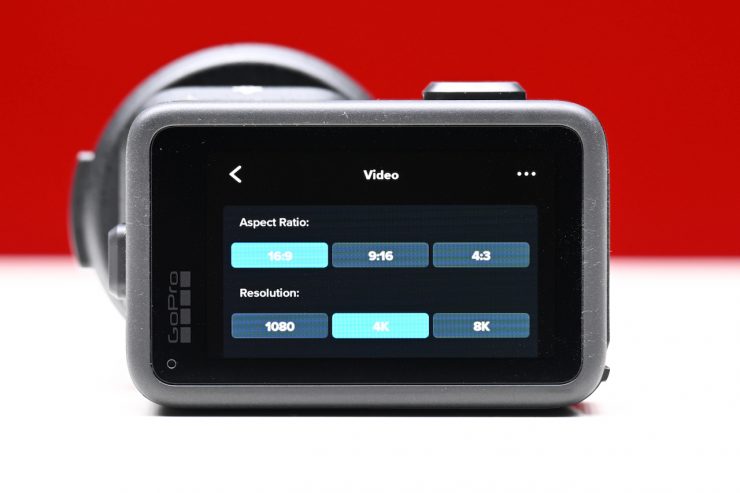
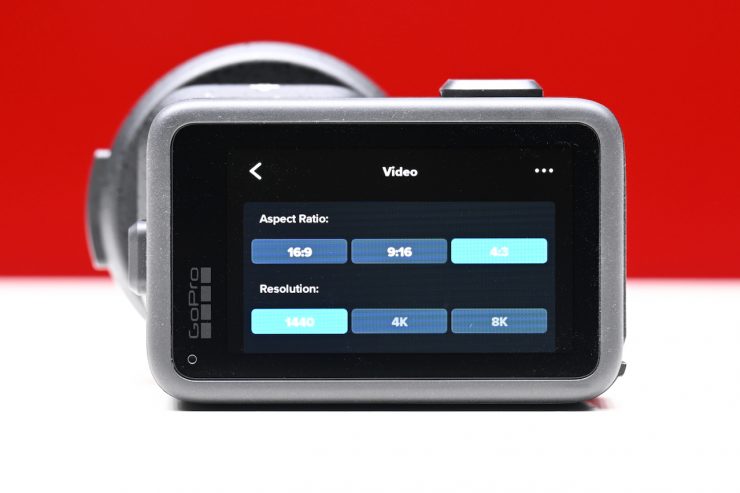
In the Video section of the menu, you choose the Aspect Ratio and the Resolution. You have the choice of 16:9, 9:16, or 4:3.
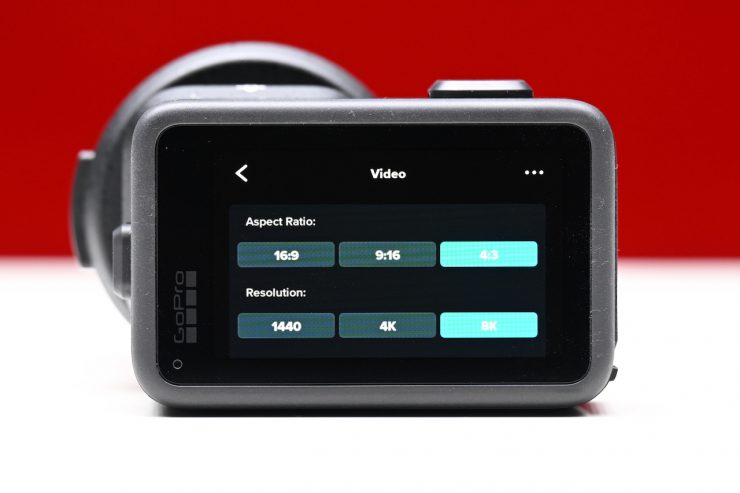
The resolution options are 1080, 4K, and 8K. The camera can do 8K 4:3 at up to 30p.
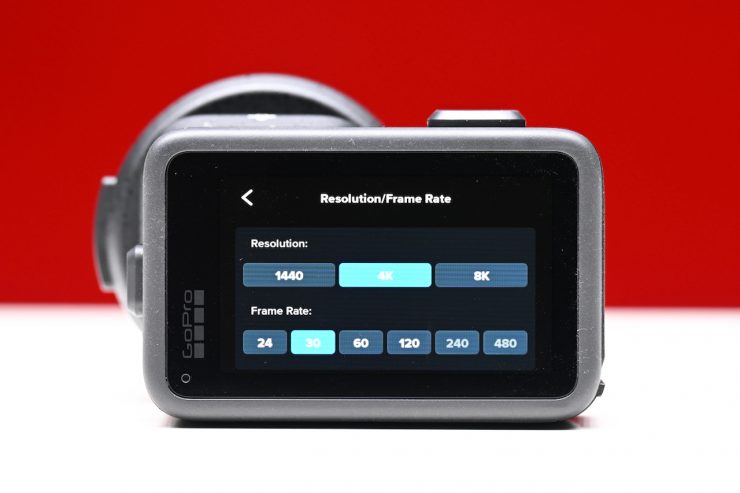
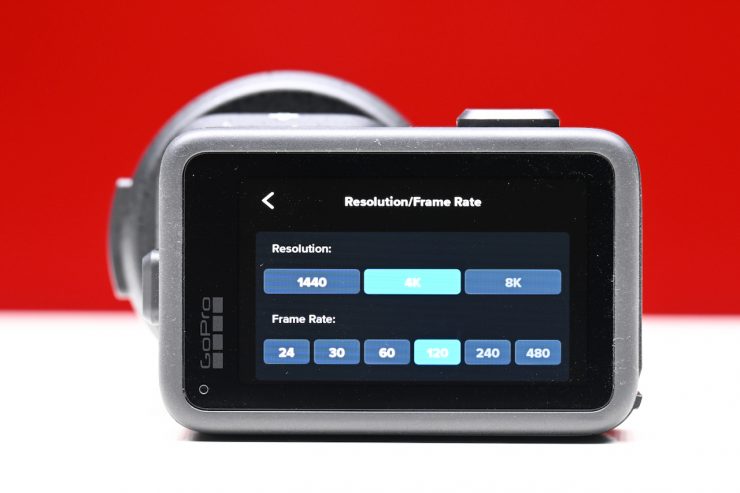
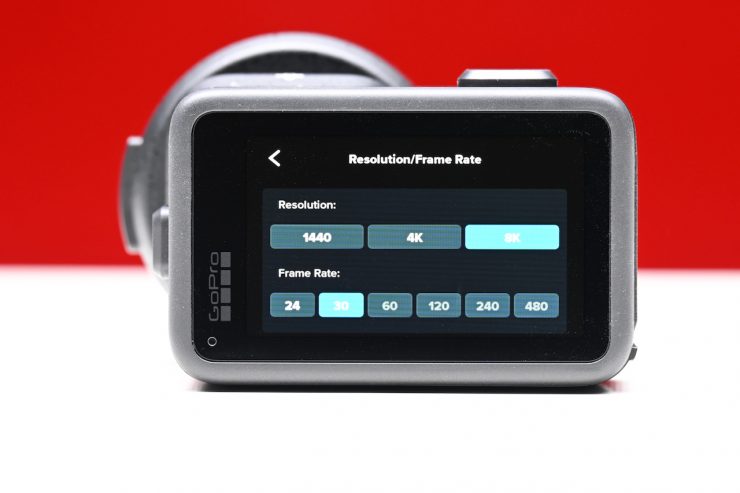
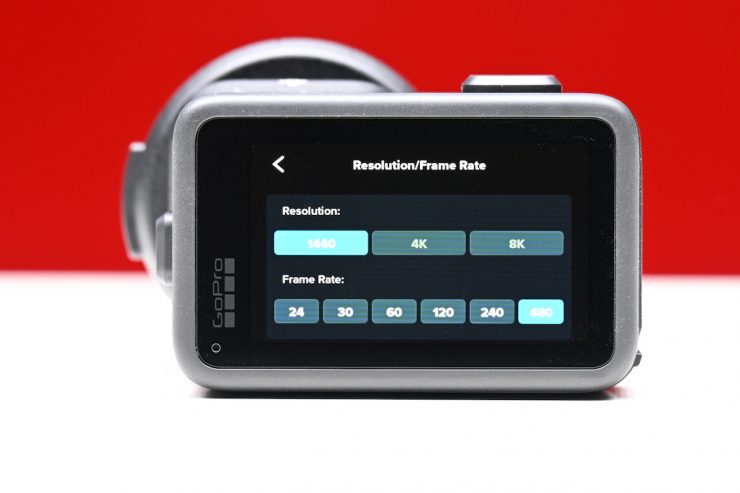
Once you have selected a resolution and aspect ratio, you can then choose the fps.
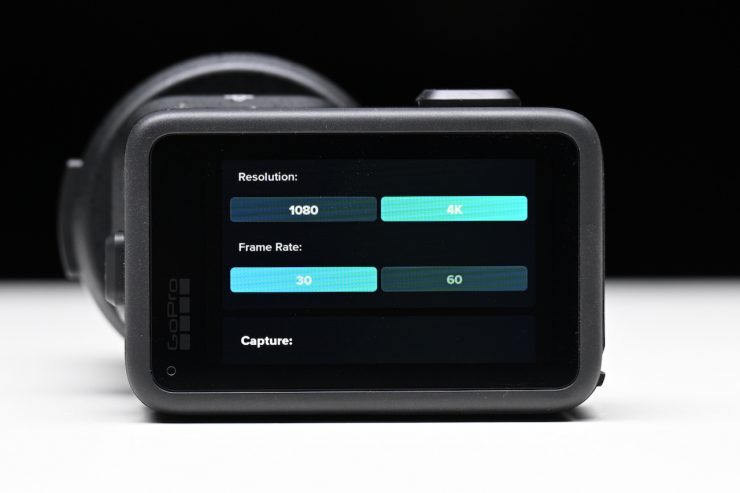
If you choose to record in the 9:16 aspect ratio, you are limited to 1080 and 4K recording, and in 4K the maximum frame rate is 60p.
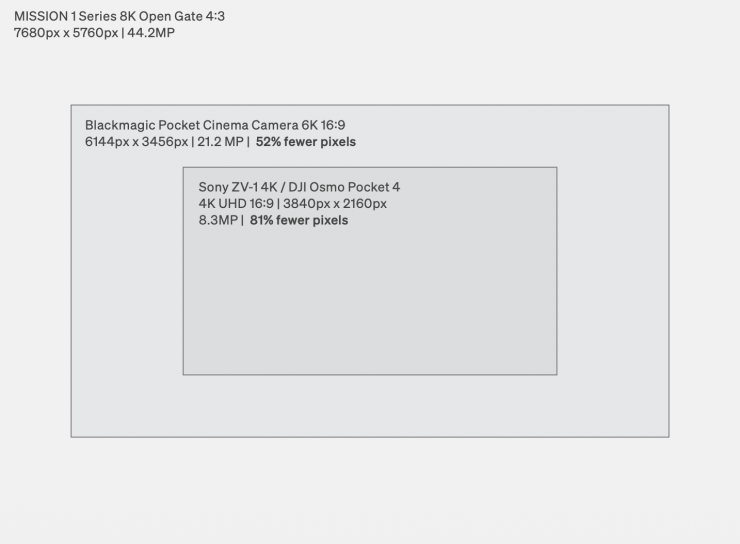
Video Resolutions + Frame Rates
- 8K Open Gate (4:3) @ 30/25/24 fps
- 8K (16:9) @ 60/50/30/25/24 fps
- 4K (16:9) @ 240/200/120/100/60/50/30/25/24 fps
- 4K (4:3) @ 120/100/60/50/30/25/24 fps
- 4K (9:16) @ 30/25 fps
- 1080p (16:9) @ 480/240/200/120/100/60/50/30/25/24 fps
- 1440p (4:3) @ 480/240/200/120/100/60/50/30/25/24 fps
- 1080p (9:16) @ 60/50/30/25 fps
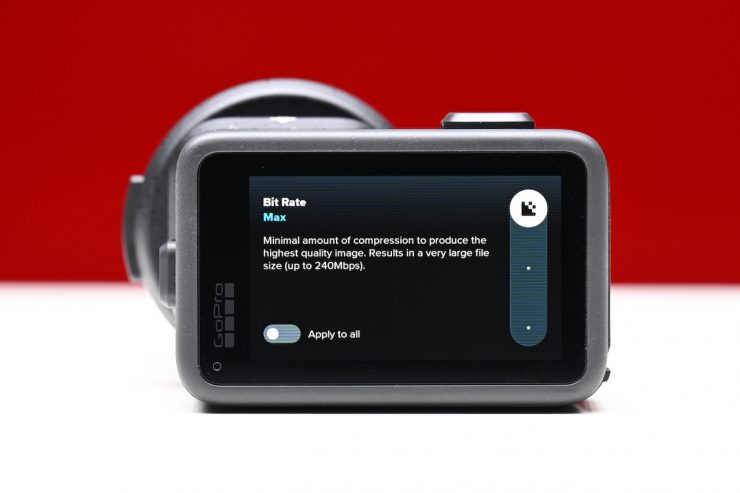
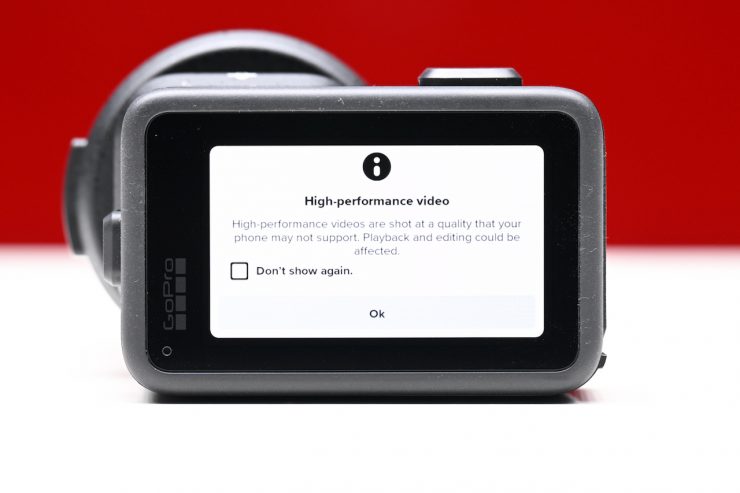
The MISSION 1 PRO ILS can capture up to 8K 60p in H.265 at 240Mbps. Why 240Mbps? It’s Netflix’s required data rate in their published Capture Requirements.
If you do the free firmware upgrade to use GoPro Labs, you can increase the bitrate to 300Mbps. GoPro Labs support for the MISSION 1 Pro ILS wasn’t available at the time of this review.
The MISSION 1 PRO ILS supports 8K30 and 4K120 Open Gate Video, enabling full sensor 4:3 captures for added flexibility for reframing, editing, and exporting content in multiple aspect ratios. It is good to see Open Gate recording with a GoPro camera. With so many productions now requiring multi-aspect deliverables, being able to utilize the full height of the 4:3 sensor makes this a lot easier. The only slight caveat is that GoPro doesn’t offer any framing lines on its displays, which can make framing difficult. There are also no anamorphic de-squeeze options, which I would like to see added.
Additionally, if you upgrade your camera using the free GoPro Labs firmware, you can unlock true 24p recording.
Users can record in 10-bit GP-Log2 and Hybrid Log Gamma (HLG), but this depends on the shooting mode. GP-Log2 uses a logarithm of base 600 to encode scene luminance. The base number is the key design parameter: it determines how much dynamic range is packed into the 0–1 signal range and how the tones are distributed across that range. Base 600 represents GoPro’s engineering decision for the dynamic range capability of their sensors and the bit depth of their recording formats. It is a relatively high log base, designed to encode up to 14 stops of dynamic range into a 10-bit signal.
Along with being able to record 8K at up to 60fps, users can access very high frame rates for HD and 4K UHD capture. In HD, you can go as high as 960fps, and in 4K UHD, you can do up to 240fps. The only catch with the HD is that you are limited to recording for up to 10 seconds at a time. This arguably isn’t a huge deal, as recording HD at 960fps for 10 seconds results in a clip that is 5 minutes and 20 seconds long!
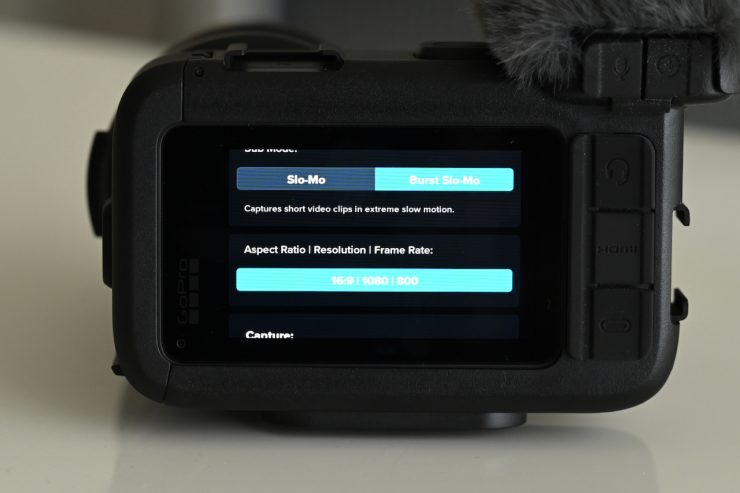
Now, initially I did find that the maximum frame rate in 1080 I could select when choosing Burst Slow Motion (which can only be accessed when putting the camera into the Slow Motion operating mode) was 800fps. It didn’t seem to matter if I changed the bitrate or color depth, etc in the settings; 800 fps was the only option I got. The issue was that the camera was set to 50Hz (PAL) in the Region Settings (I will cover this further down in the review).
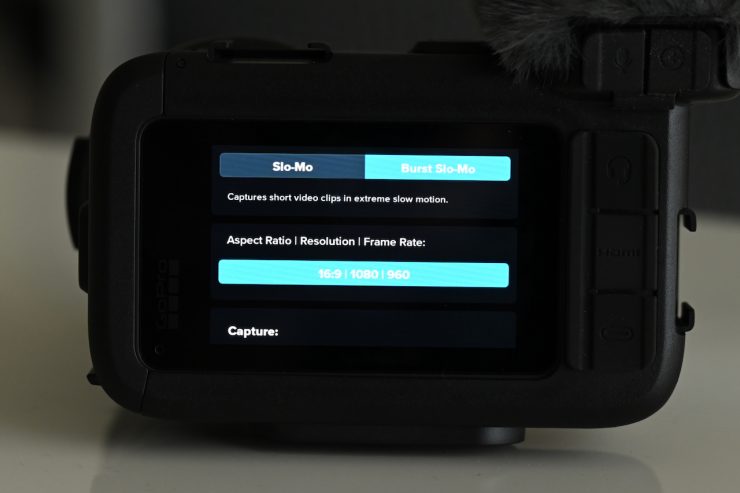
Once I set it to 60Hz (NTSC), I could select 1080 960fps.
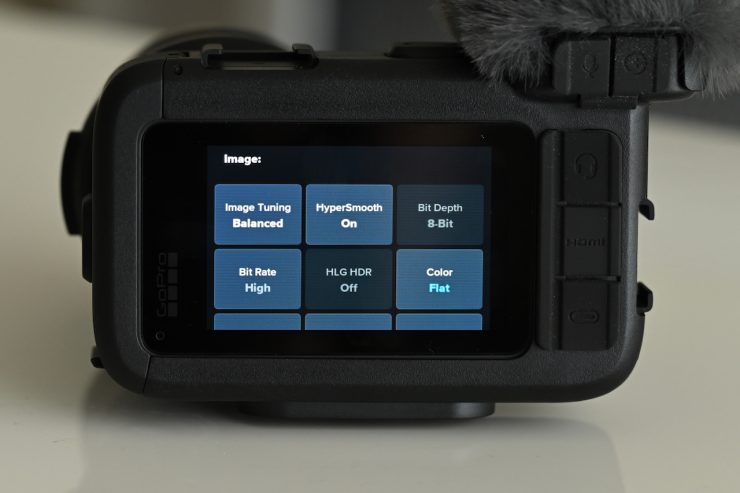
The caveat with shooting in Burst Slow Motion is that you can only shoot in 8-bit, and you can’t select GP-Log2. You can, however, still set it to high bitrate and activate HyperSmooth.
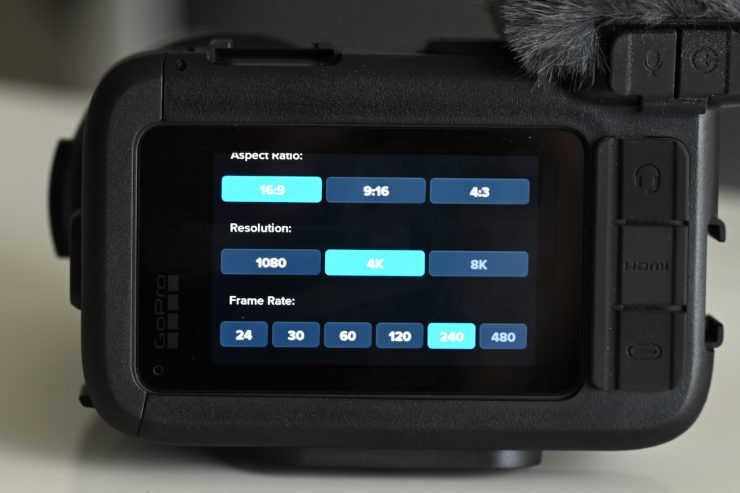
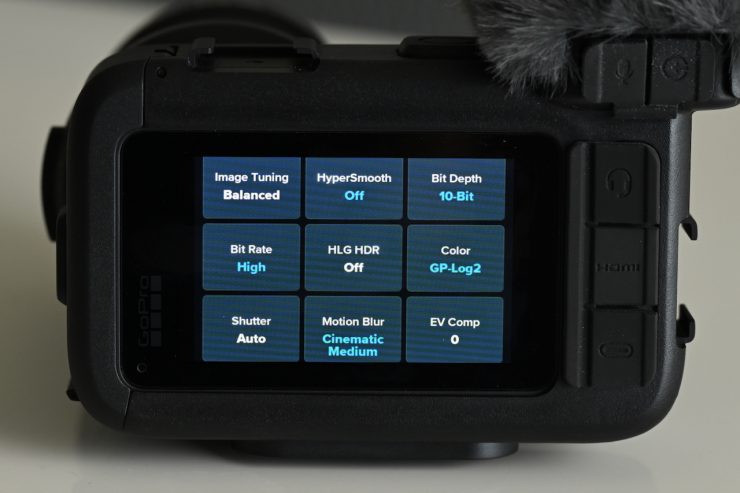
You don’t have to go into Burst Slow Motion to select 4K 240fps, and you can shoot in 10-bit and GP-Log2, which you can’t do when you are in 1080 at 800 or 960fps. There is no recording limit when shooting 4K 240fps. At 4K UHD 240fps, a 10-second clip amounts to 1 minute and 20 seconds of footage.
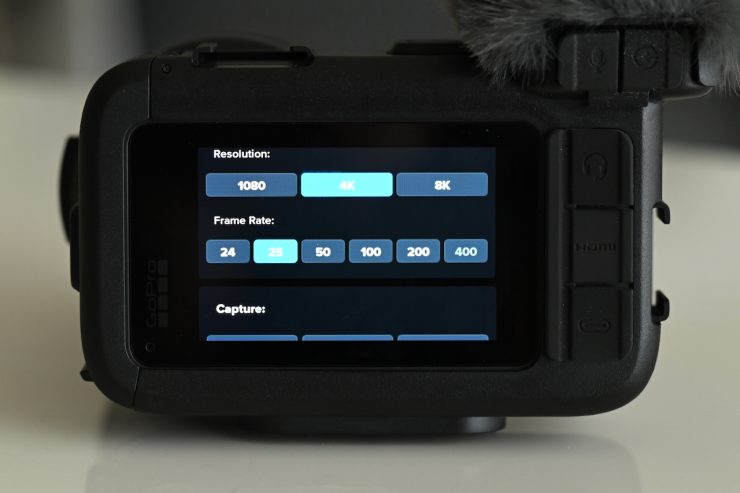
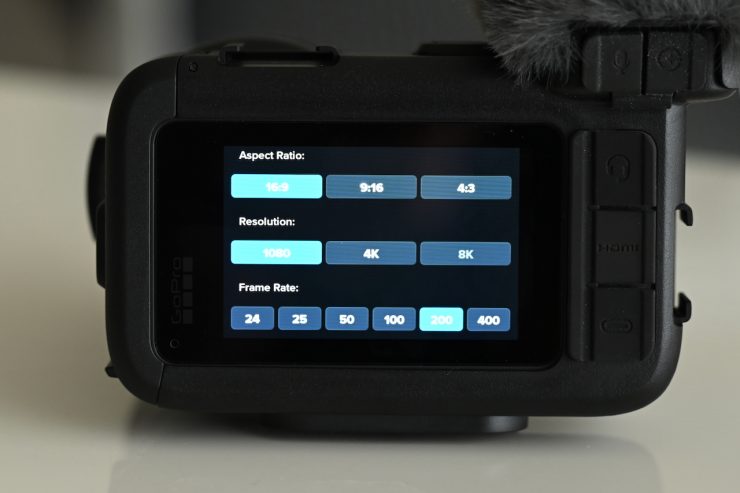
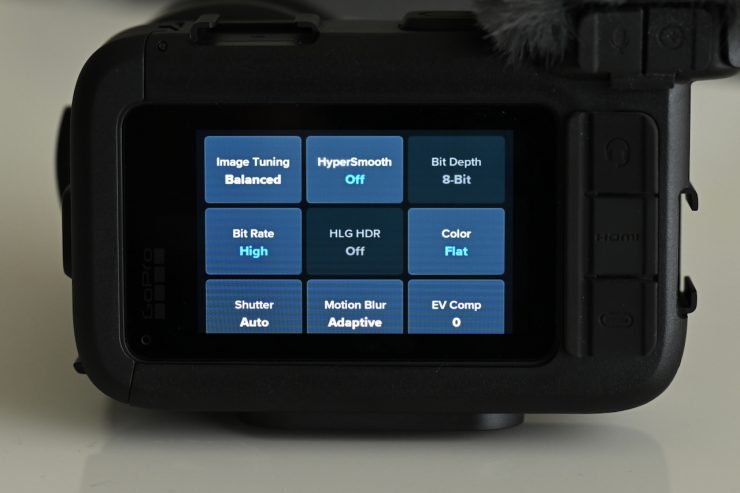
An issue I came across, which I thought was strange, is that if you set the camera to record in HD at frame rates under 400, I couldn’t select 10-bit or GP-Log2. If I chose 400fps in HD, suddenly these options were available.
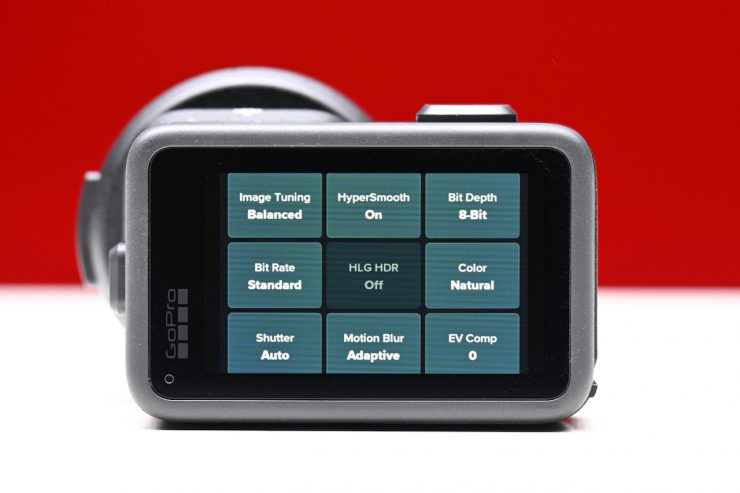
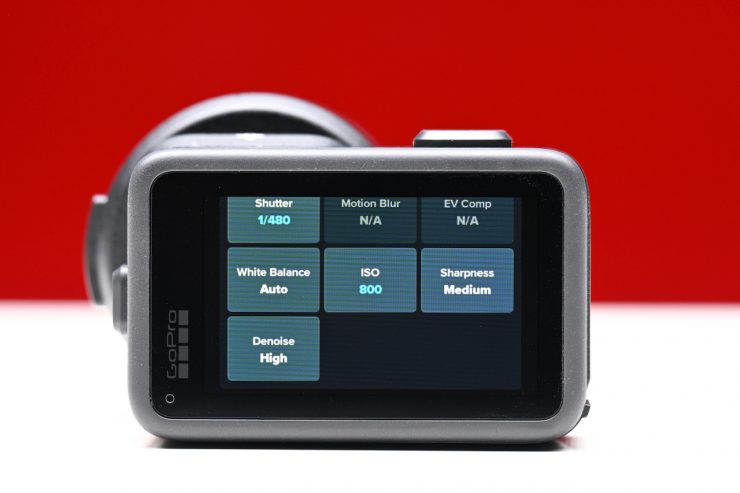
To change image capture preferences, you do need to scroll through menus to find the section where you can set the following:
- Image Tuning
- HyperSmooth
- Bit Depth
- Bit Rate
- HLG HDR
- Color
- Shutter
- Motion Blur
- EV Comp
- White Balance
- ISO
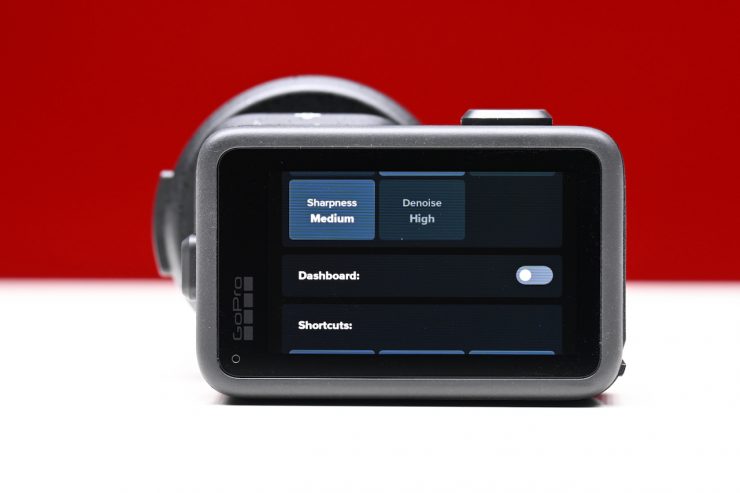
- Sharpness
- Denoise
I personally think there are way too many options here, and GoPro should simply things. Just give me a setting where I can record at the highest bitrate, highest bit depth, and in LOG.
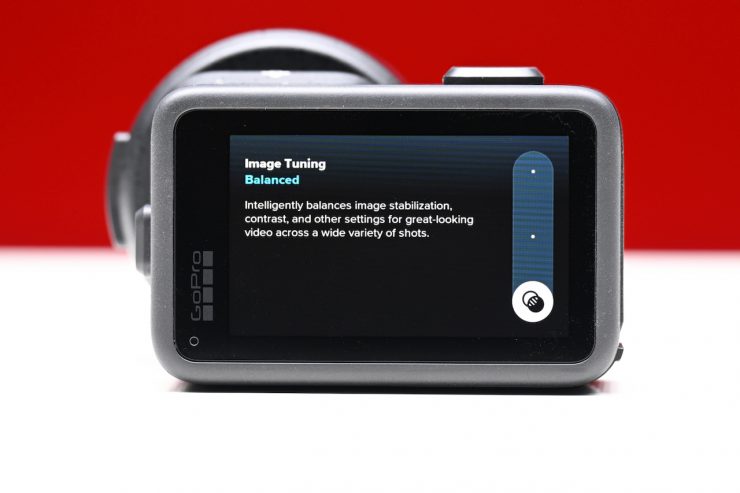
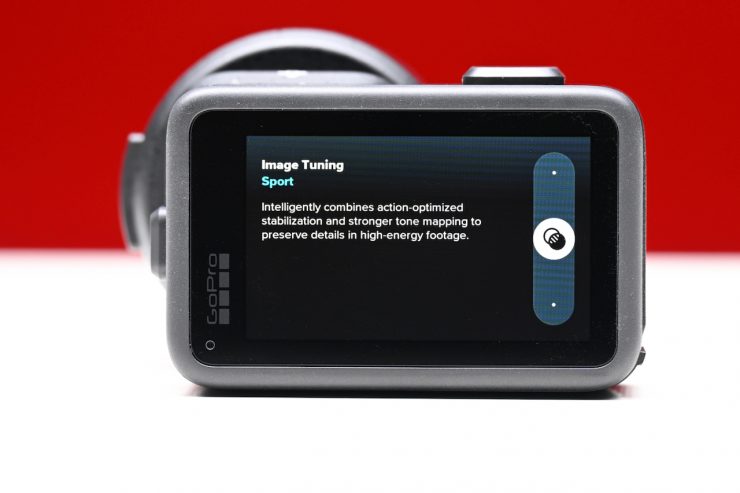
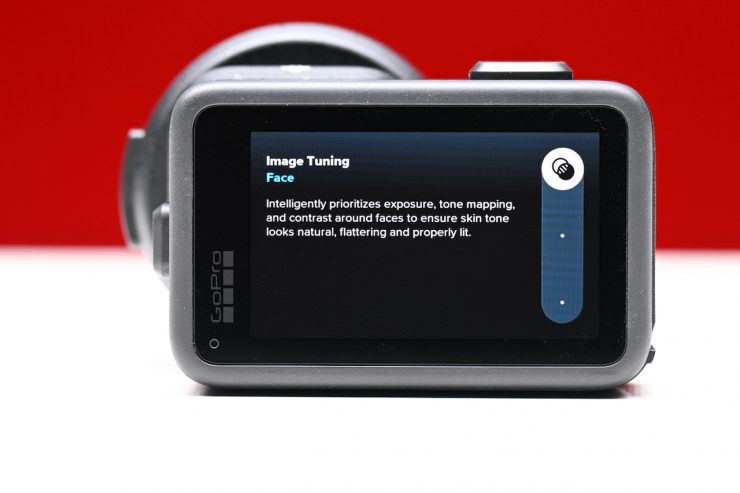
Image Tuning can be set to Balanced, Sport, or Face.
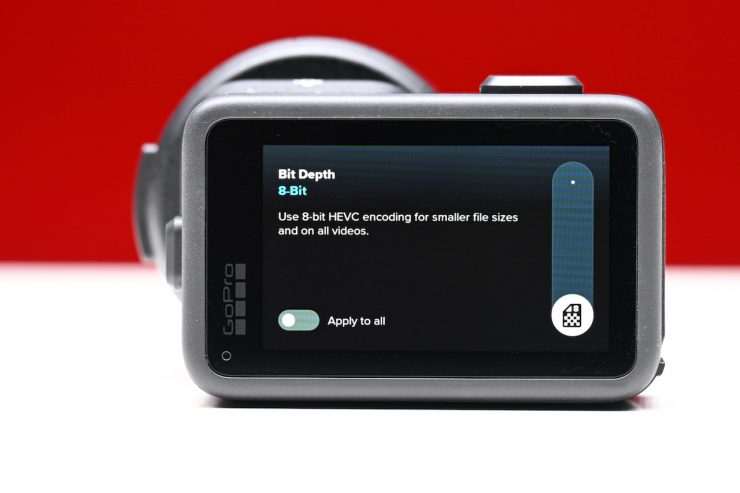
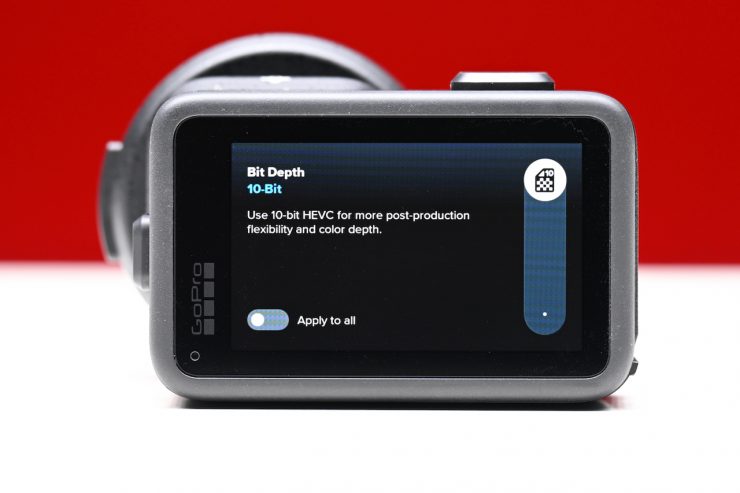
In Bit Depth, you can choose between 8-bit or 10-bit.
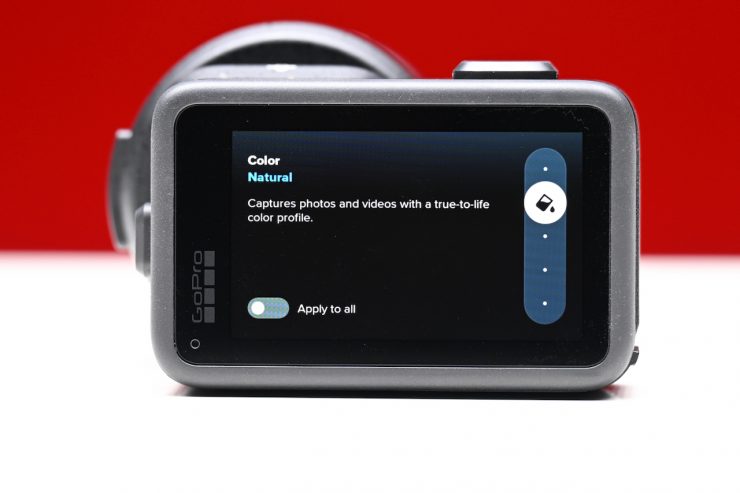
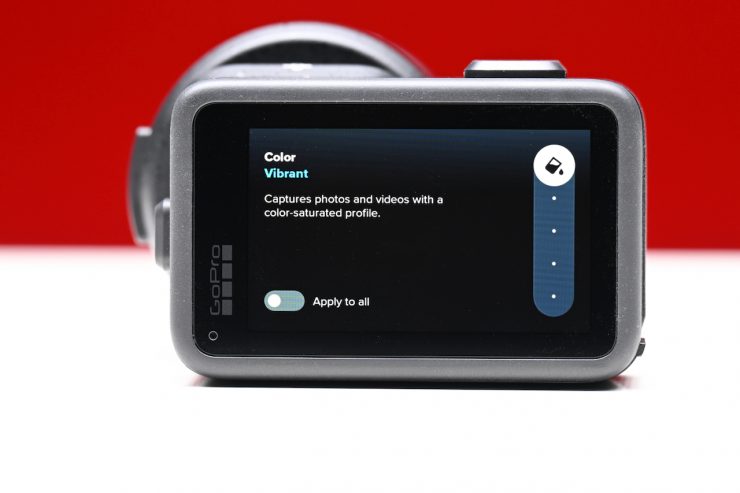
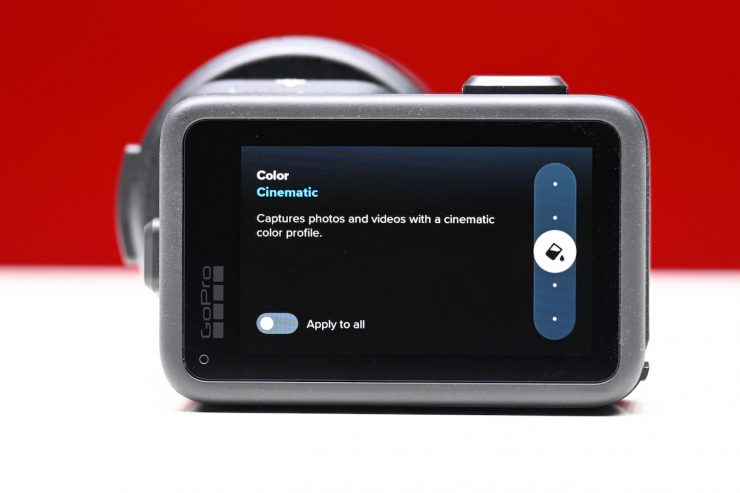
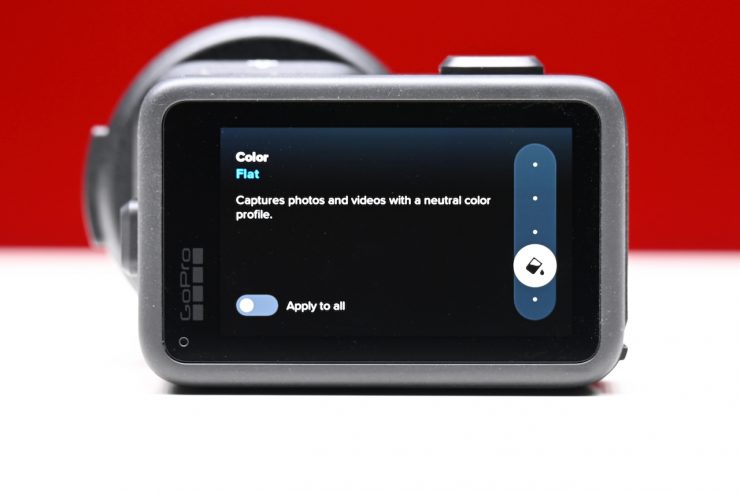
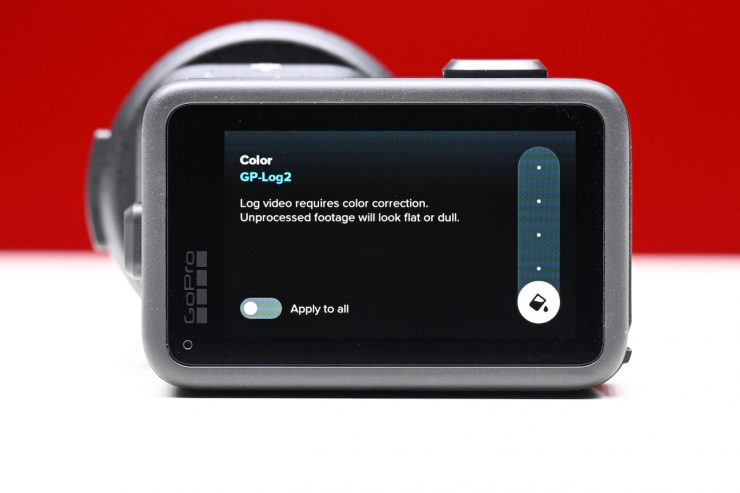
In Color, you have options to choose: Natural, Vibrant, Cinematic, Flat, or GP-Log2.
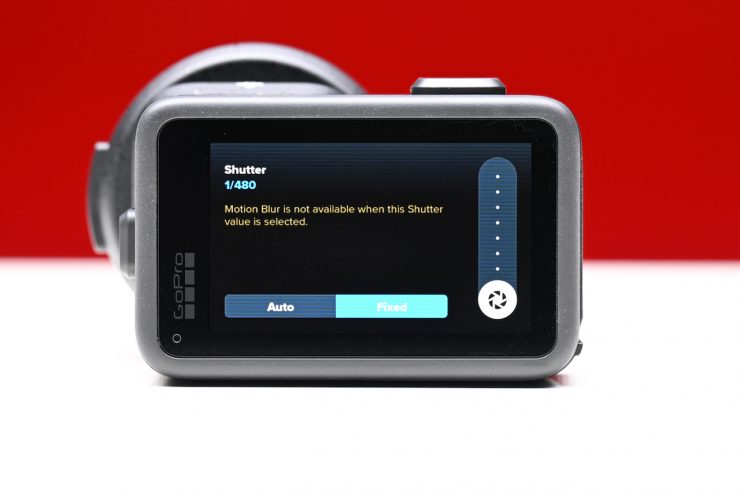
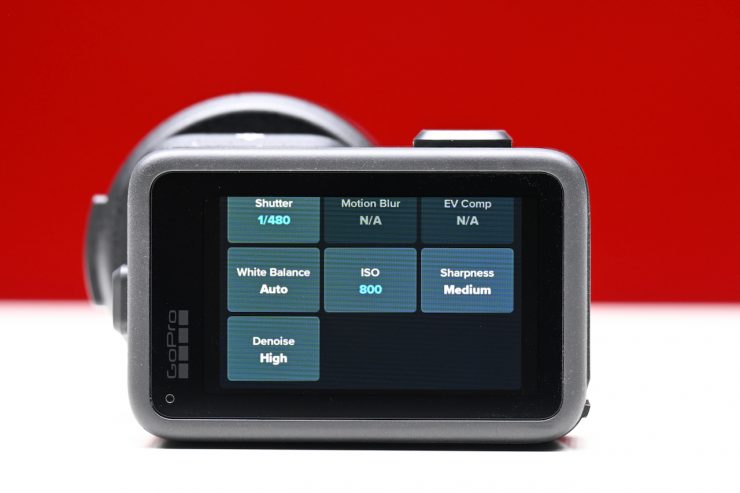
There are also sections for Shutter and ISO where you can set them to manual or auto, just like you can from the main screen.
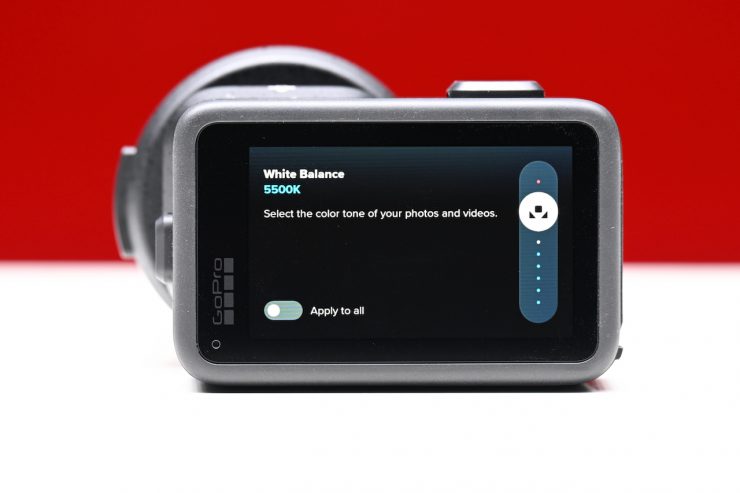
You can also set the WB manually or set it to auto. As I previously mentioned, there is no way to do a white balance.
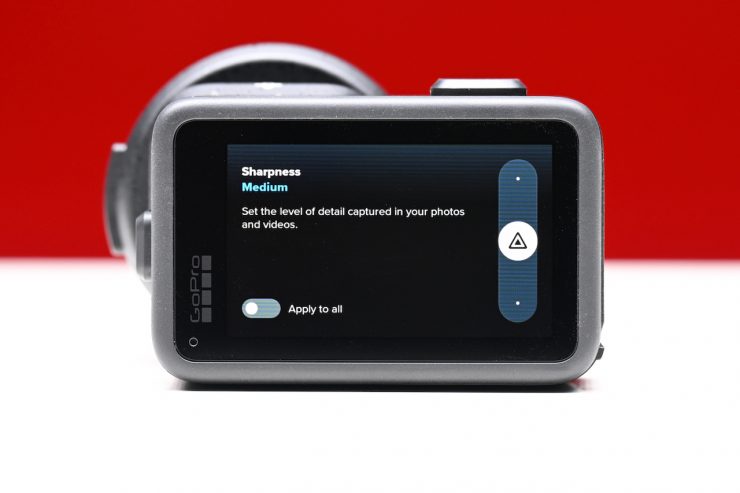
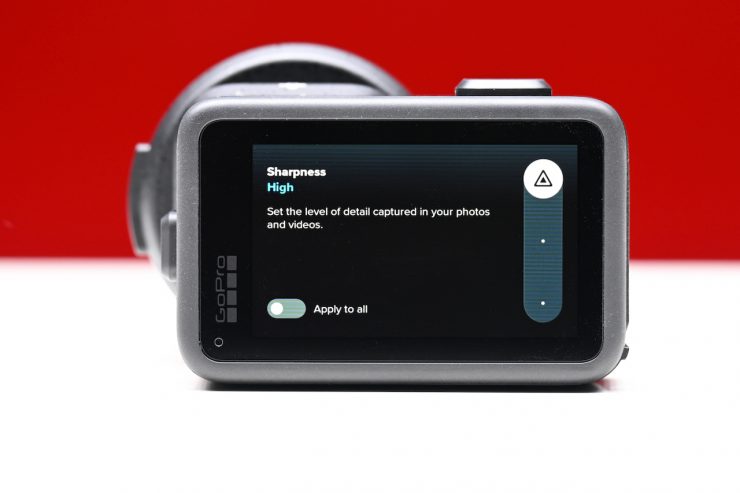
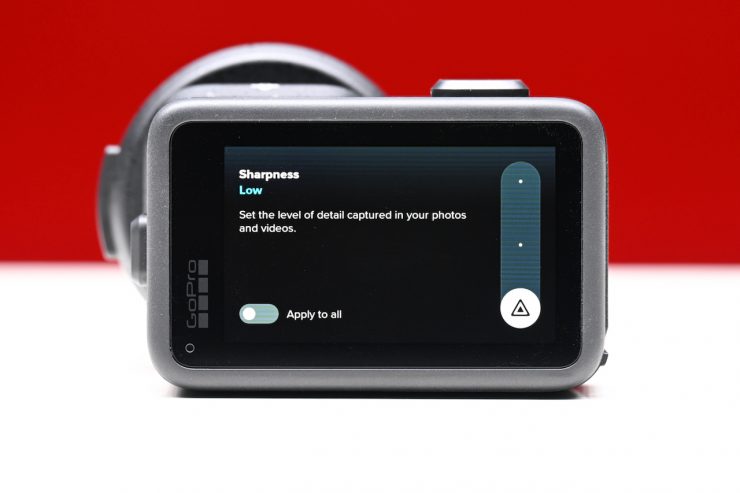
In Sharpness, you can choose between Low, Medium, or High. By default, it is set to Medium.
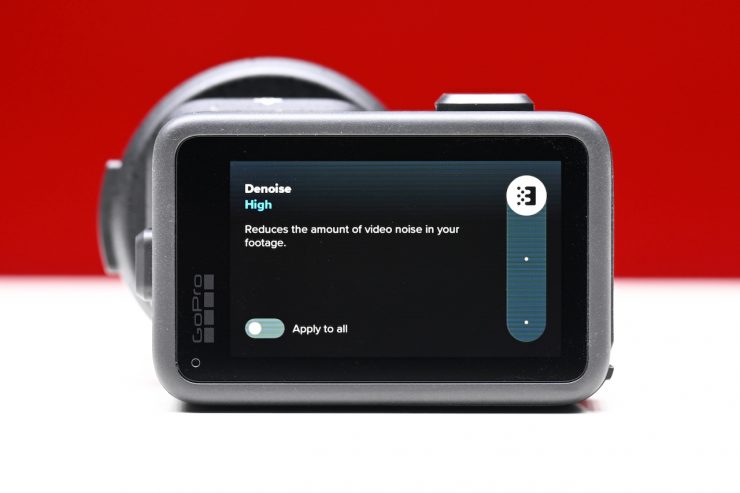
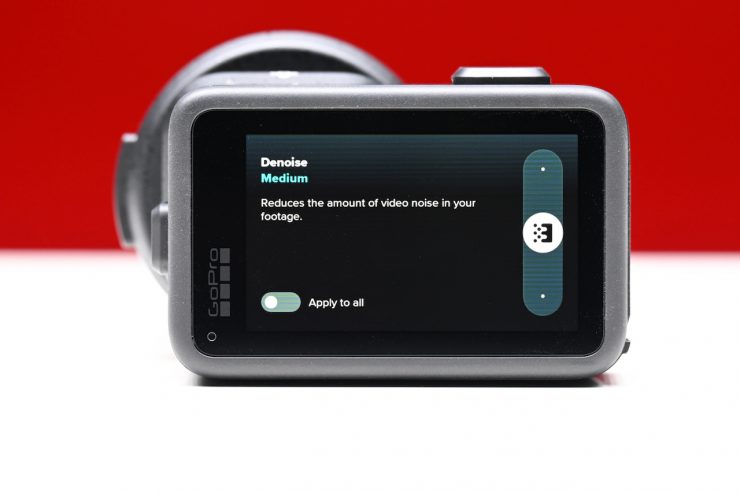
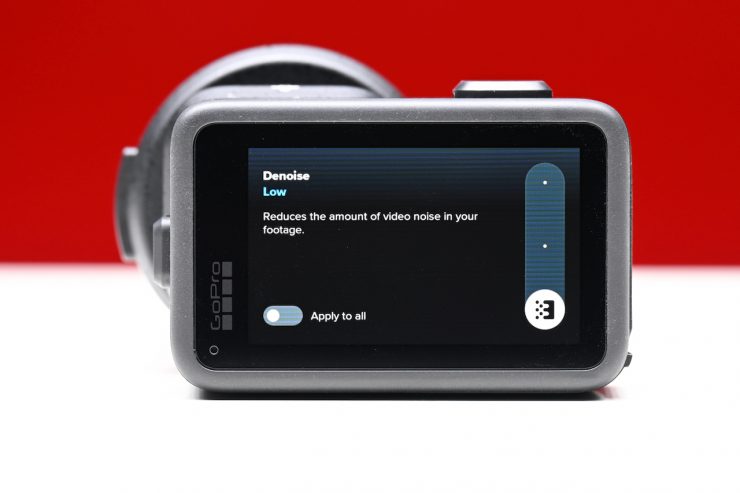
In Denoise, you can choose from High, Medium, or Low.
Motion Blur
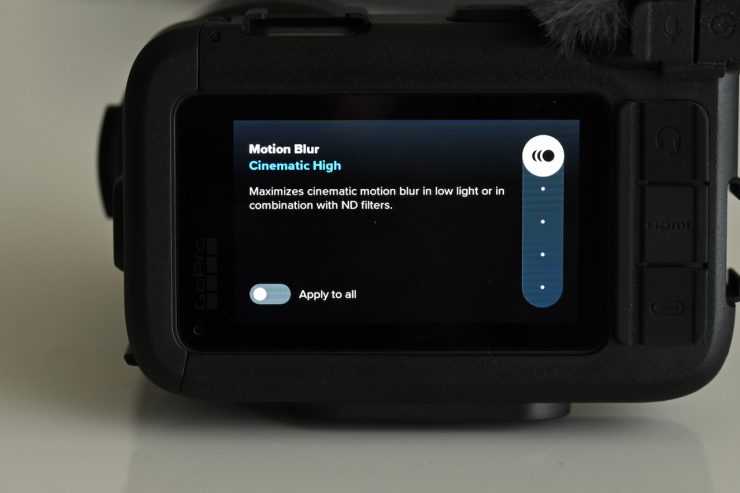
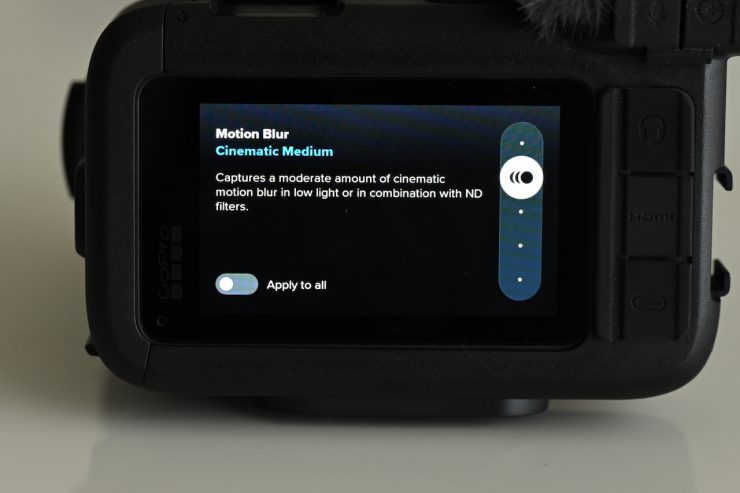
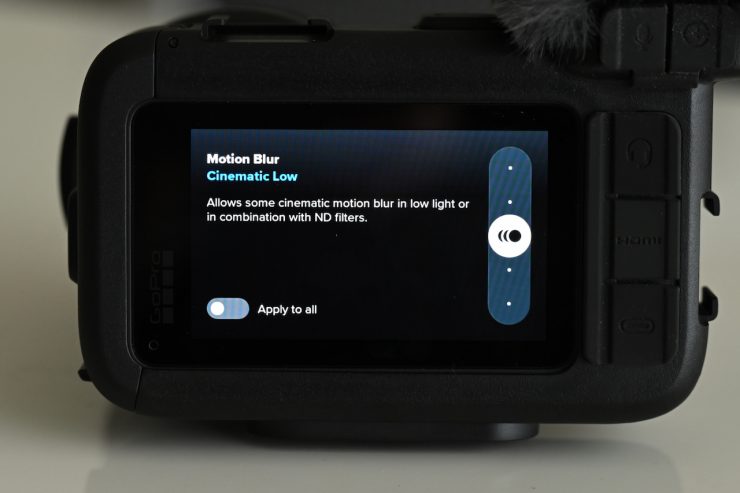
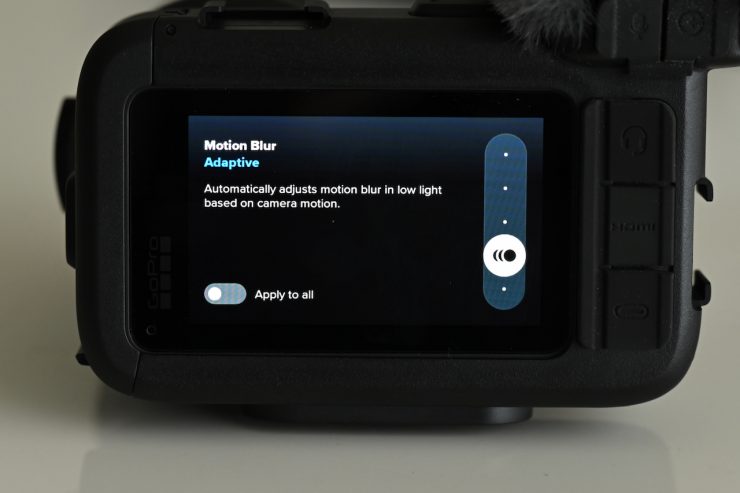
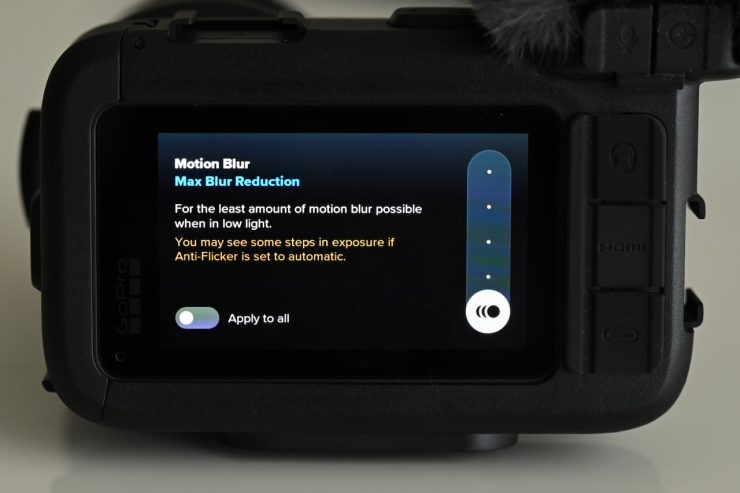
There are settings called Motion Blur where you have the following options:
- Cinematic High
- Cinematic Medium
- Cinematic Low
- Adaptive
- Max Blur Reduction
I am not quite sure why there are these options, as you can adjust the motion blur by changing your shutter speed if need be. There is no way of turning this off.
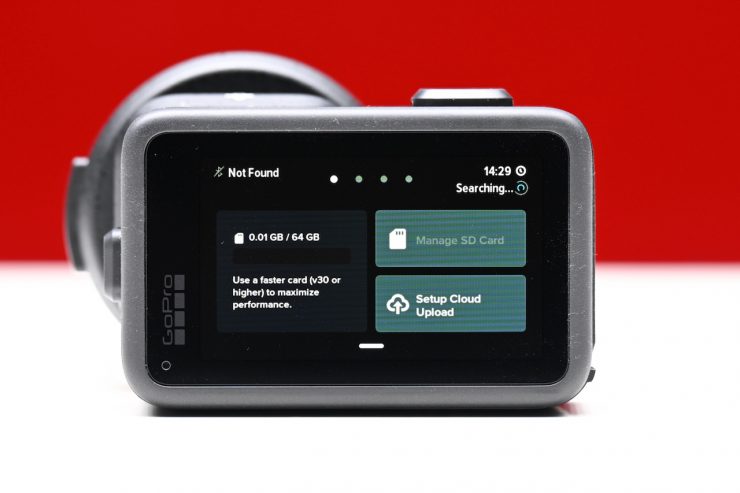
Footage is recorded to a microSD card. In the menu, you can see how much storage space you still have available, manage the SD card, and set up a cloud upload. GoPro recommends that you use a microSD card with at least a V30 rating, especially if you are doing high resolutions or frame rates. If you try to use cards that are too slow, you won’t be able to record. The camera only supports select microSD cards with a capacity up to 1TB.
GoPro also offers Live Protune Metering, which gives users real-time on-screen readouts for white balance, EV, ISO, and shutter values
You can also do Timecode Sync to sync multiple MISSION 1 Series cameras together for multi-camera editing in Final Cut Pro, Adobe Premiere, DaVinci Resolve, etc.
The optional Media Mod for MISSION 1 Series Cameras has a Micro HDMI that can output 4K up to 60p, so you can record externally or use a monitor, etc.
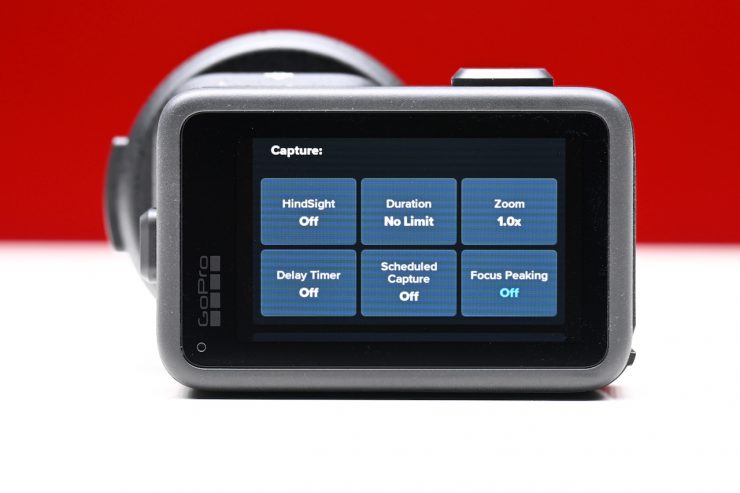
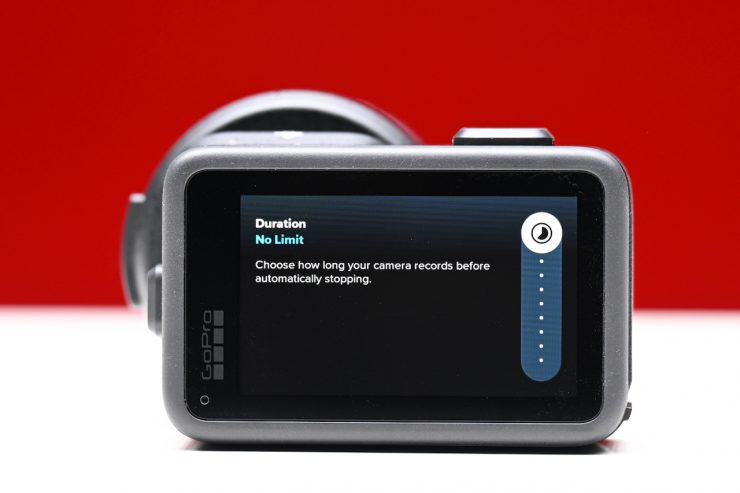
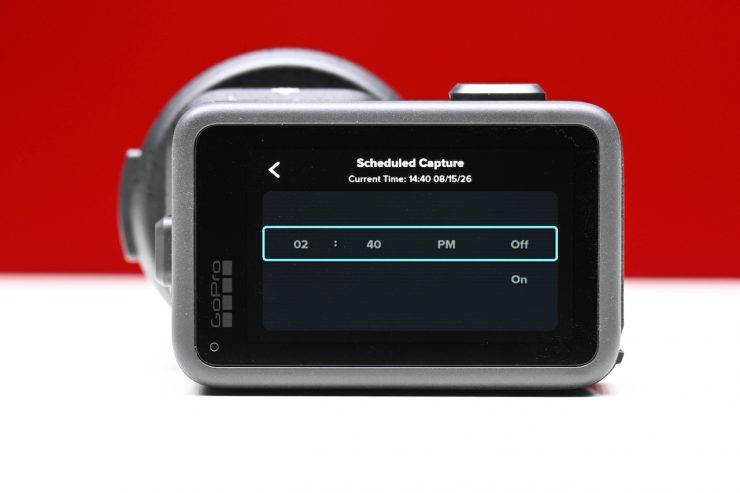
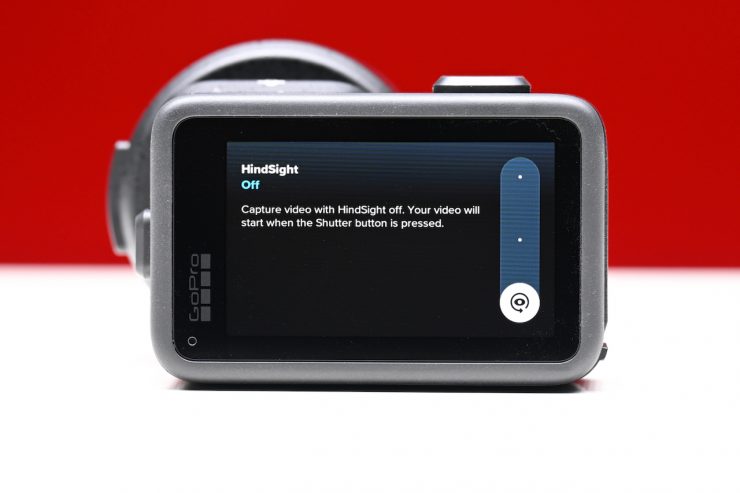
GoPro gives you the ability to set the Duration of a recording, set a Delay Timer for when recording starts, or set Scheduled Capture.
GoPro Labs
As I mentioned previously, GoPro Labs extends camera capabilities beyond the stock firmware features, allowing full user control and further features, including:
- Increased bit rate up to 300Mbps
- Display on-screen histogram to evaluate exposure and prevent clipping
- True 24.0 fps capture
- Chapter files up to 100GB
- On-screen spirit level
Dynamic Range
The dynamic range is ok, especially for an action camera, but the camera will hard-clip highlights. This is something you need to keep in mind when you are using it. More on this later in the review.
Rolling Shutter
The rolling shutter performance depends on what resolution and frame rate you are using. In 8K, there is certainly quite a bit of rolling shutter; in 4K there is slightly less, and in 1080 it is barely noticeable.
Front & Rear Screens
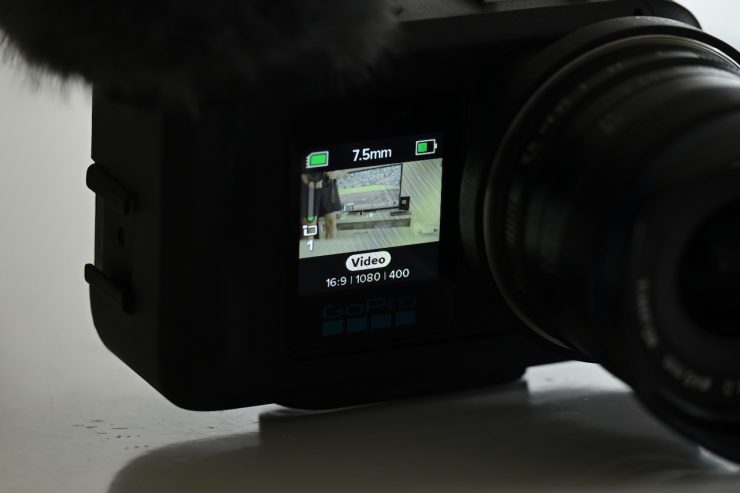
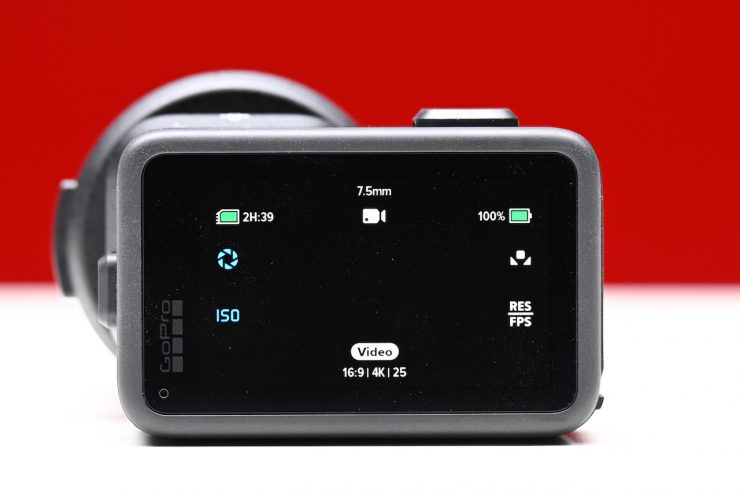
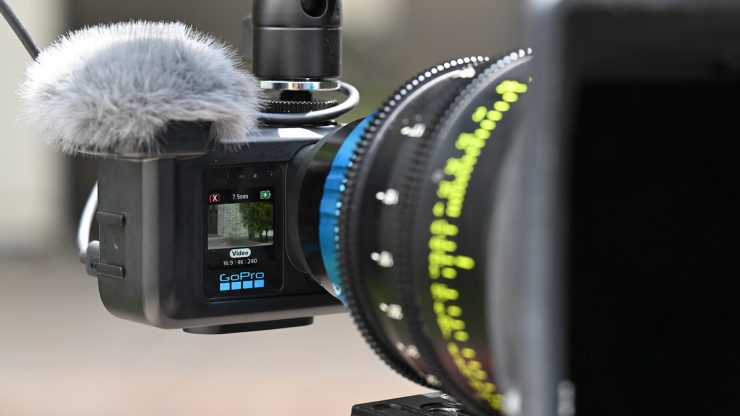
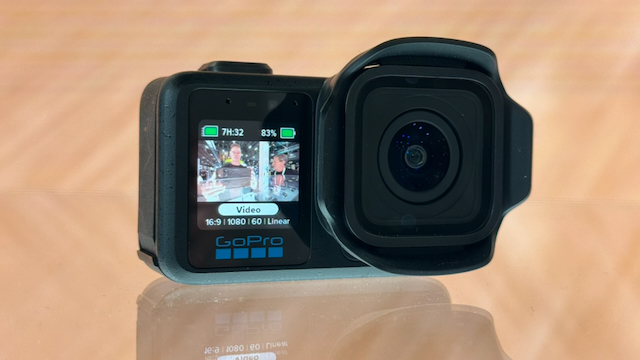
The MISSION 1 Pro ILS has two screens. The main rear screen display is a 2.59″ Touch OLED. The front screen display is a 1.4″ LCD. GoPro doesn’t state how bright the rear screen is.
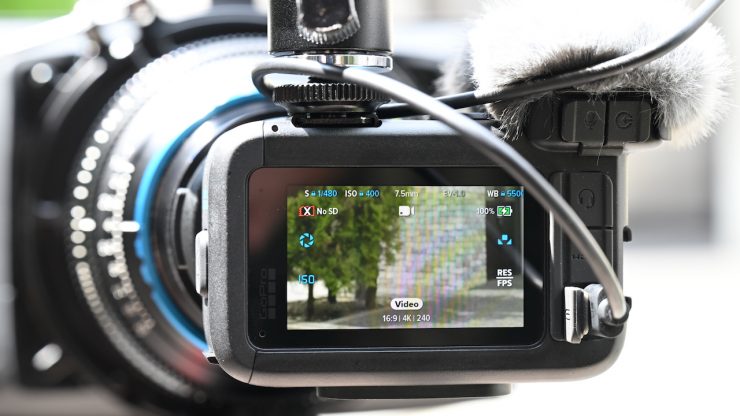
The rear screen is pretty small if you are used to using a mirrorless hybrid or smartphone. As it doesn’t flip out or articulate, it makes the camera difficult to use, especially one that only takes manual focus lenses and has no AF functionality. On the positive side, it is pretty bright.
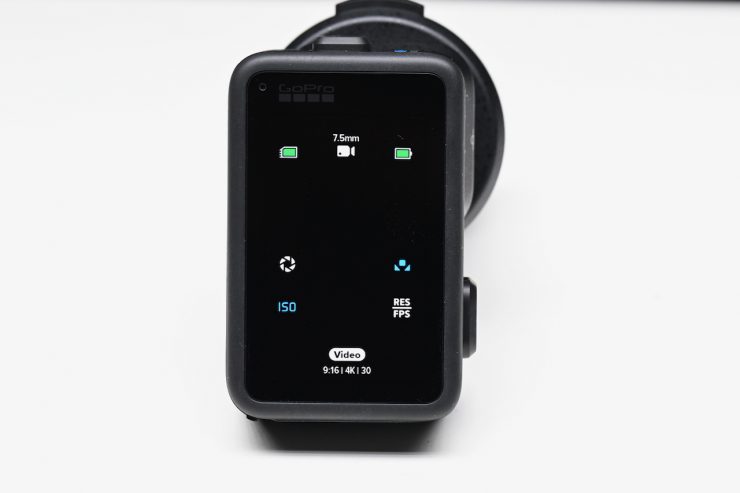
If you rotate the camera, the screen display will also automatically rotate.
Capture Modes
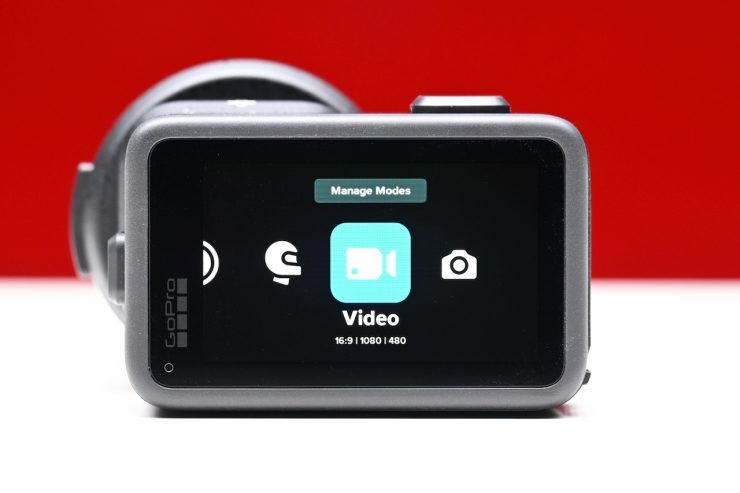
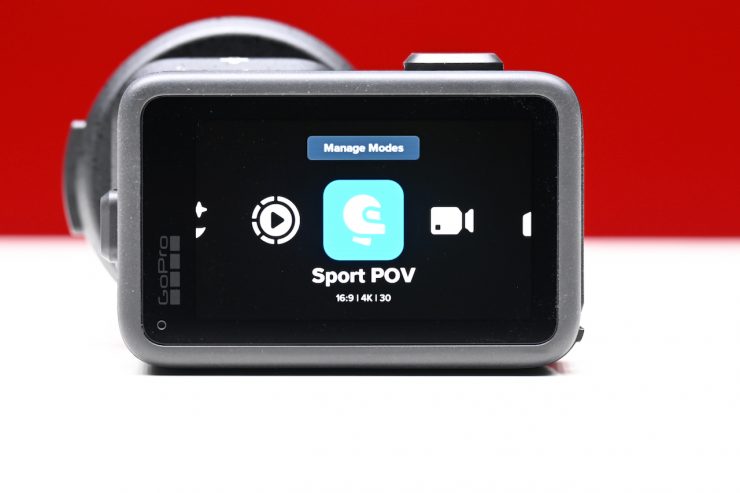
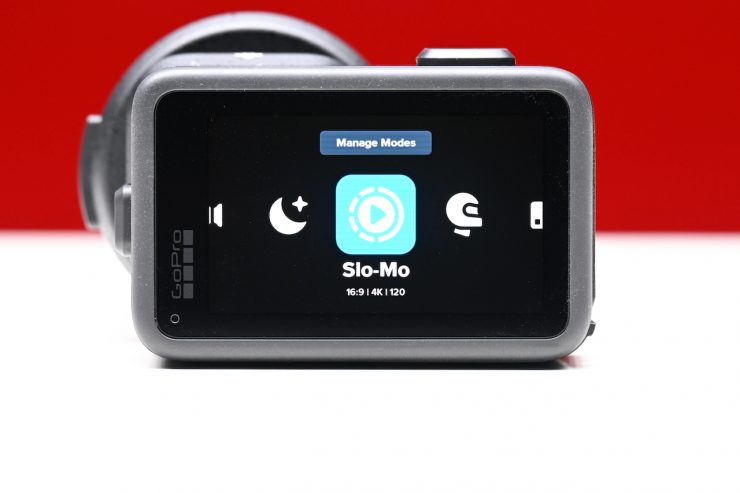
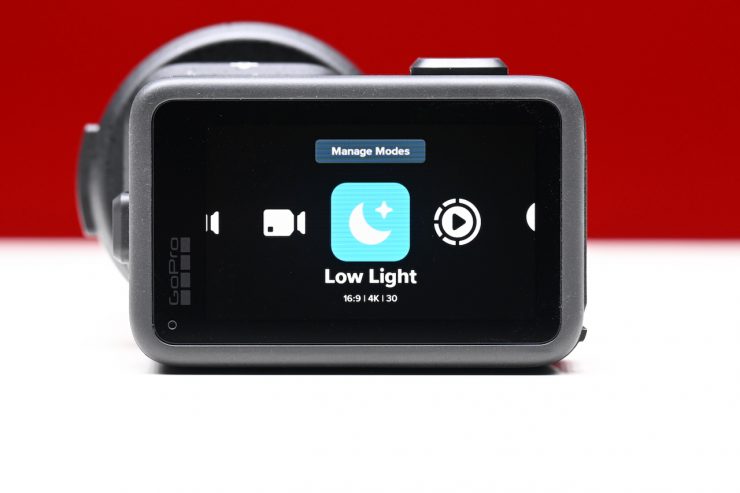
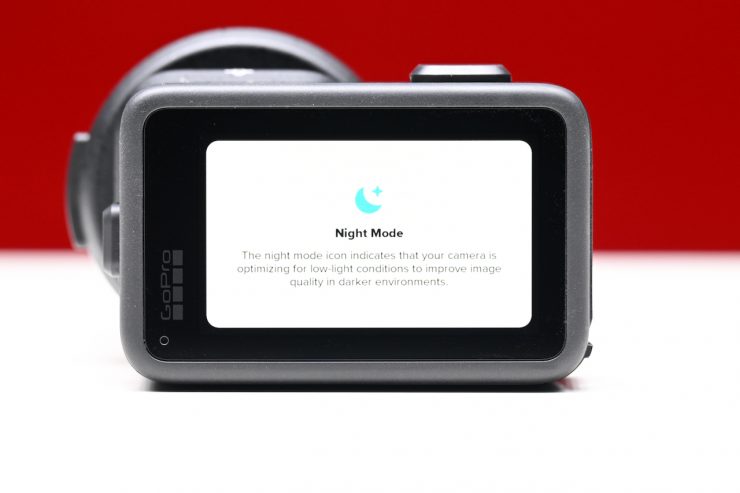
The camera has the following capture modes:
- Video
- Low Light
- Slo-Mo
- Burst Slo-Mo
- HLG HDR
- Looping
- Endurance
Time Lapse Modes
- TimeWarp / Motion Time Lapse: 8K30, 4K30, 1080p30
- Time Lapse Video: 8K30, 4K30, 1080p30/ Photo: Up to 44MP (Standard + RAW Output)
- Night Lapse: Consolidated With Time Lapse
- Star Trails, Light Painting, Vehicle Lights: 8K30, 4K30
ISO
In video mode, the camera can use ISO 25 to 6400. In photo mode, it is ISO 100 to 3200.
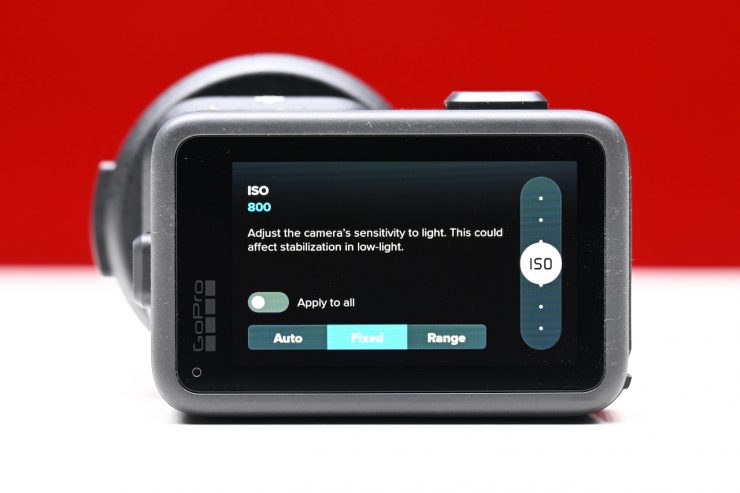
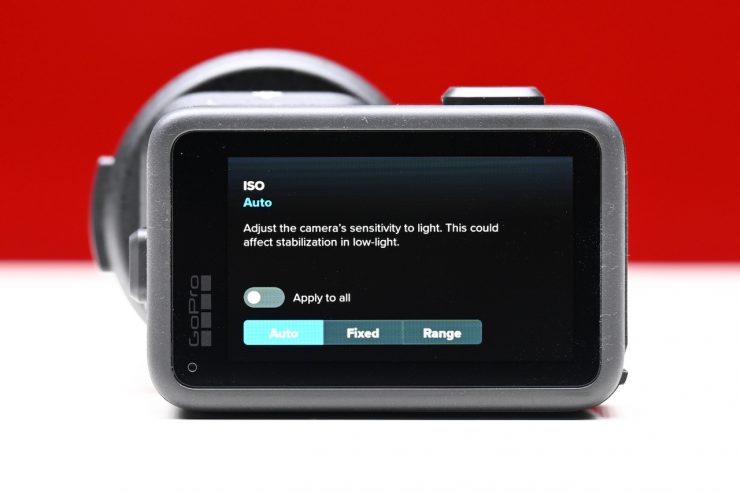
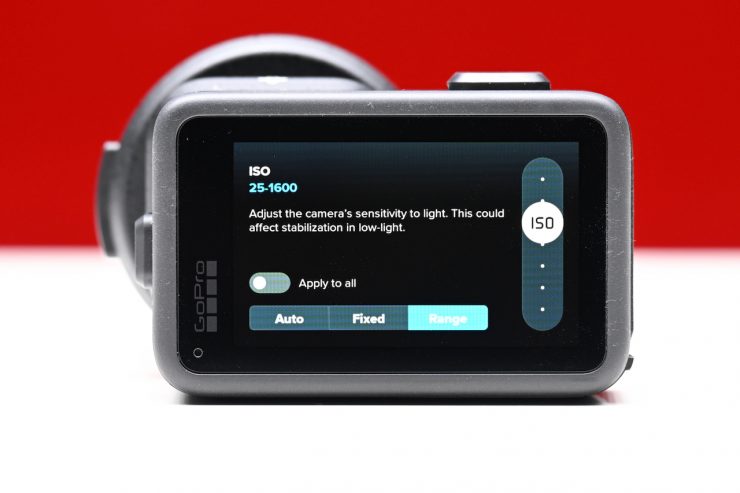
You have three options when it comes to ISO:
- Auto
- Fixed
- Range
I just set it to fixed. If you have it on Fixed, the lowest ISO you can set is 100. In Auto, it can go as low as 25.
Shutter Speed
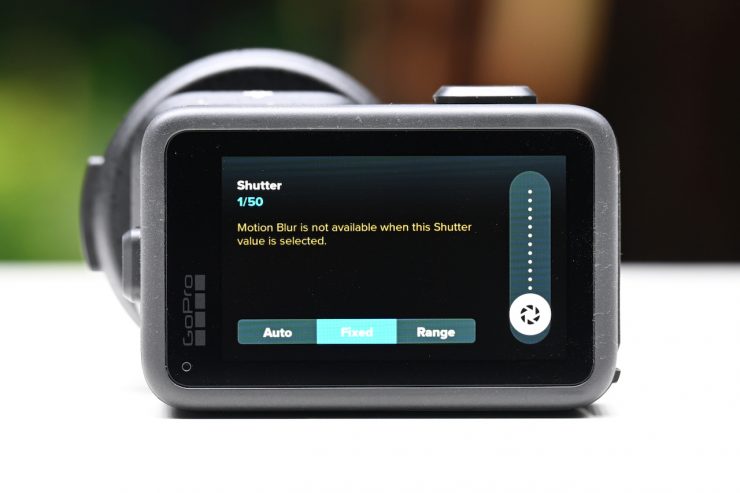
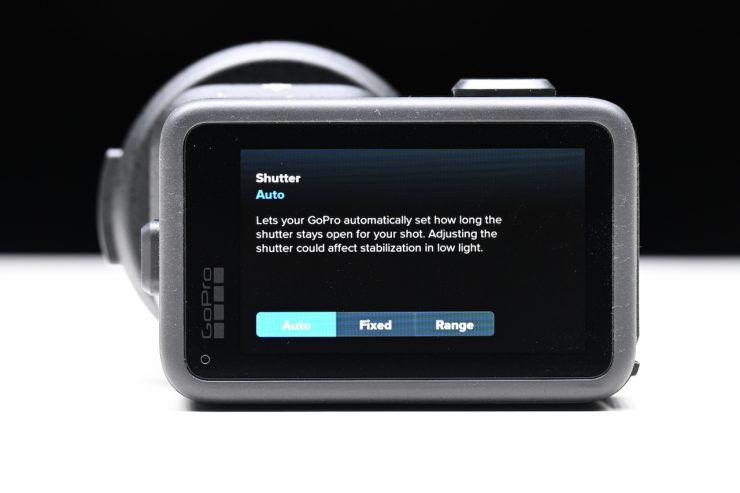
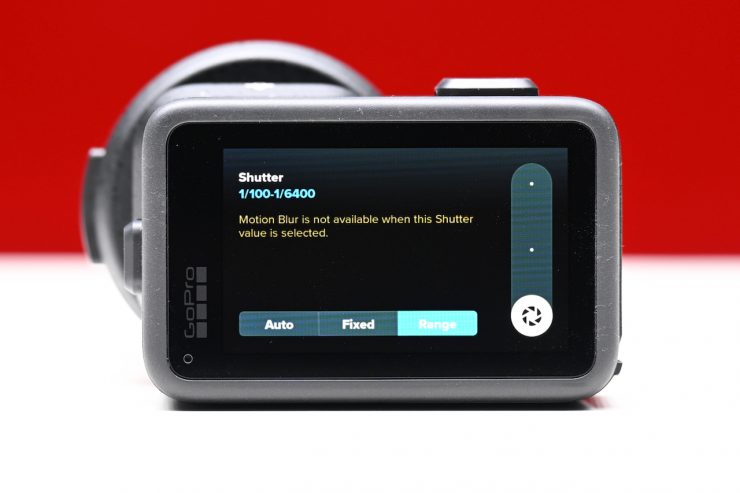
When it comes to shutter speed, just like ISO, you have three options:
- Auto
- Fixed
- Range
Unfortunately, there is no option to set the shutter speed to degrees. It would be nice if you could do this so you don’t have to manually adjust the shutter speed every time you set a different frame rate.
White Balance

The white balance can only be set between 2300K and 6500K. There is no way to manually set the white balance and no CC offset. At least in my opinion, you really need to be able to do a proper white balance if you are shooting using baked-in picture profiles.
HyperSmooth
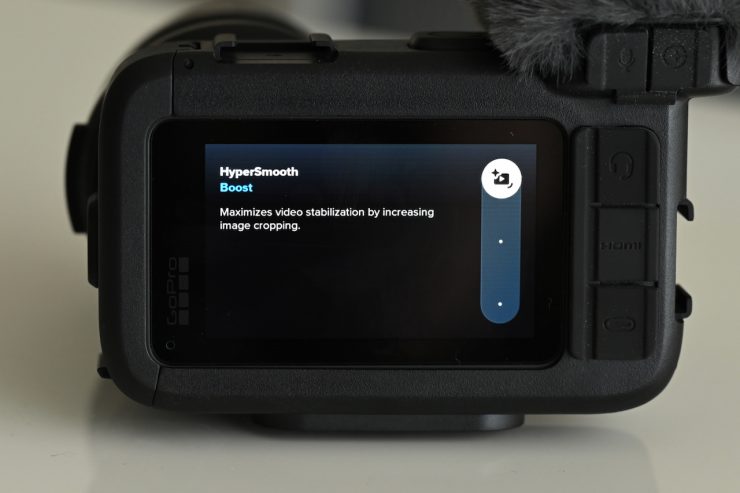
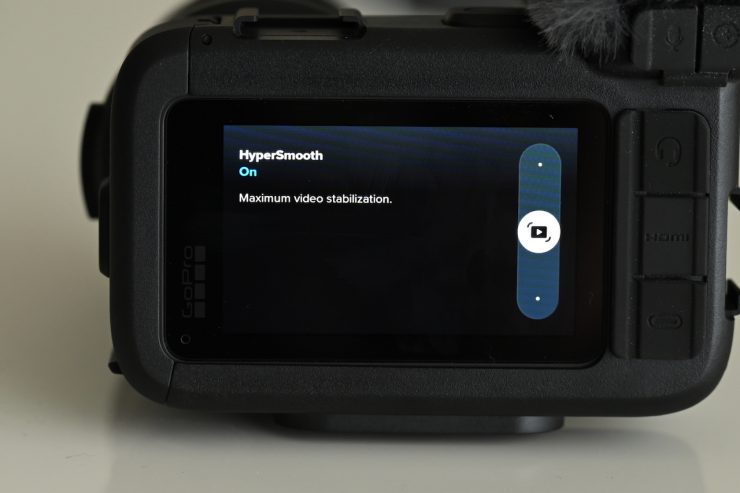
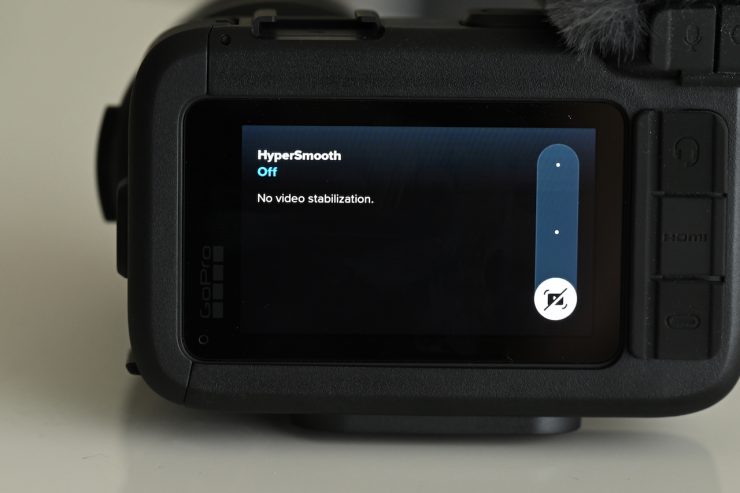
In HyperSmooth, you can select from Boost, On, or Off. HyperSmooth does a really good job, especially if you have the camera mounted on a bike, vehicle, etc.
- OFF = 0% stabilization
- ON = 10% stabilization crop
- Boost = 20% (for high-movement activities)
The HyperSmooth works really well for a lot of applications, but is doesn’t do much if you are using longer focal lengths and non-MTF lenses.
Region Settings
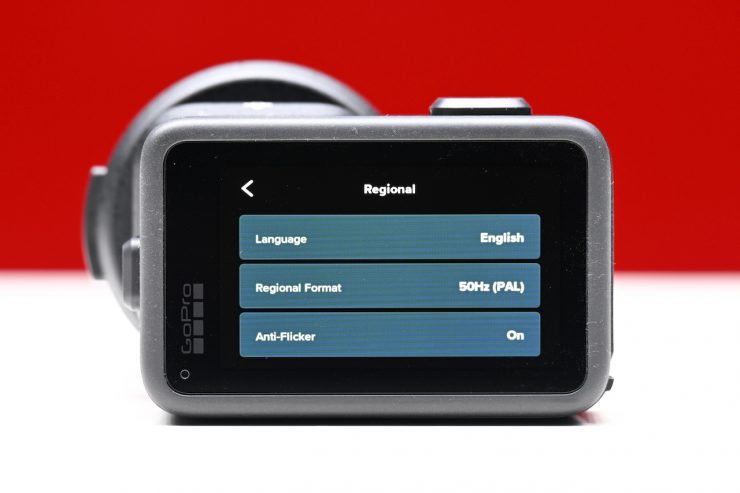
I don’t like that you have to change the Region Settings if you want to use various frame rates. For example, if I have the camera set to 50Hz (PAL), I can’t select frame rates like 23.98p, etc.
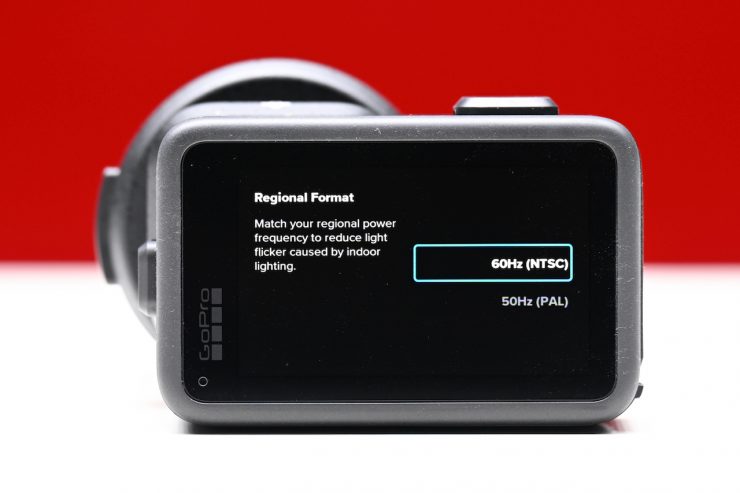
I would need to change it to 60Hz (NTSC) to be able to do that.
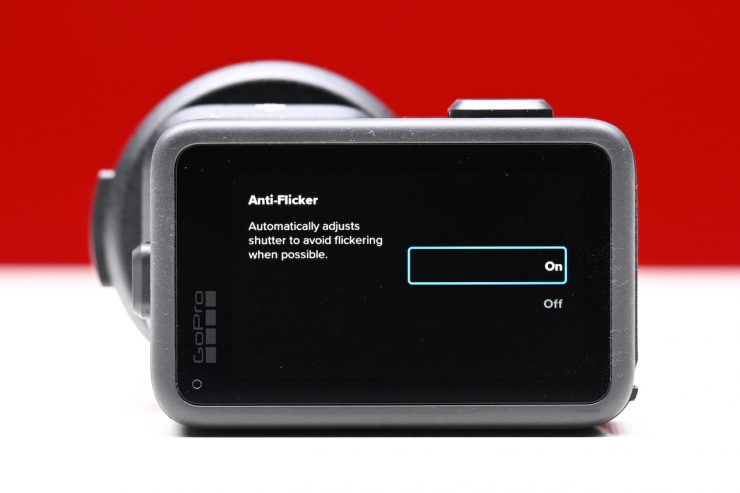
I can understand why GoPro has done this, as it’s more to do with the Anti-Flicker settings than anything else, but nonetheless, it’s still a pain.
Battery Life & Heat Management
One of the biggest complaints from users of GoPro cameras was arguably battery life, so GoPro has looked at this carefully, and you can now record up to 5+ hours in 1080p30 using the fast-charging 2150mAh Enduro 2 battery. This is approx. 70% longer than the HERO13. If you switch to 4K30, you can record up to 3+ hours, which is approx. 80% longer than the HERO13. In 8K open gate on the MISSION PRO ILS, you can record for up to 96 minutes at 30fps.
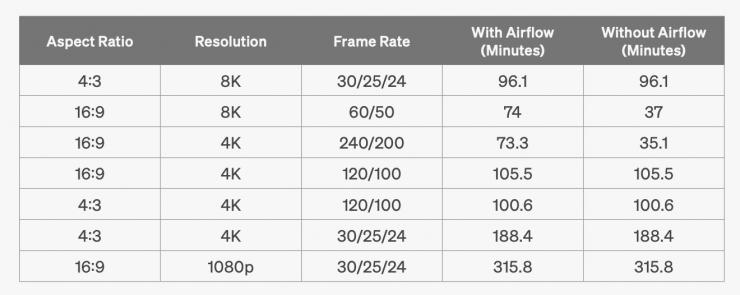
Above, you can see GoPro’s claimed runtimes when shooting in various resolutions, aspect ratios, and frame rates.
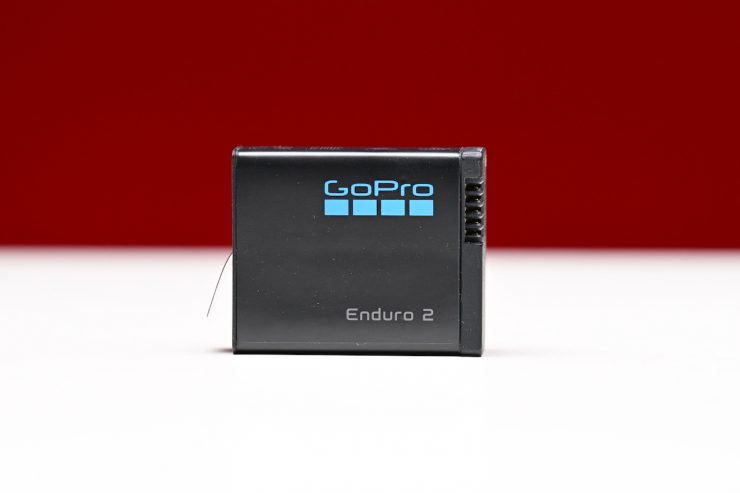
This is all possible due to the improved power efficiency of the GP3 processor and the 13% higher capacity of the 2150mAh Enduro 2 battery. GoPro has also improved the hardware heat management, which helps prevent thermal shutdown.
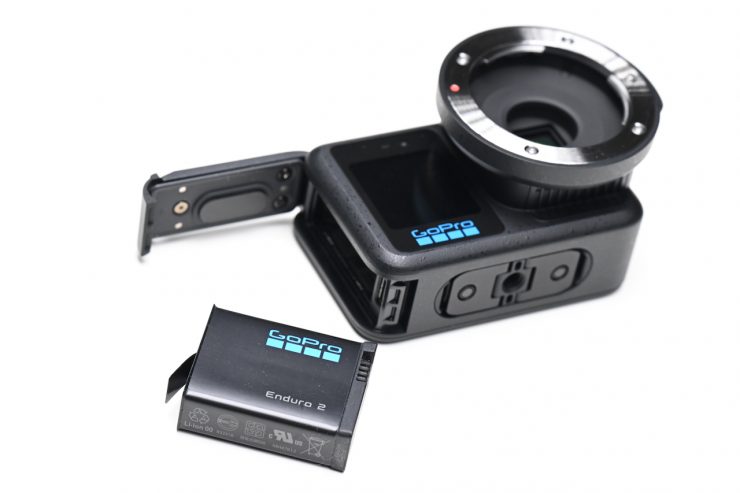
The Enduro 2 battery is also compatible with HERO13 Black cameras, and likewise, the MISSION 1 Series cameras can work with the older HERO13 Black Enduro battery, albeit with shorter runtimes
Faster charging can be done using PD2.0 with PPS technology. GoPro Enduro 1 batteries can be used with MISSION 1 Series cameras, but they will deliver slightly decreased performance.
Now, the record times do change depending on the recording modes you are using. In 4:3 8K at up to 30p, you can get around 96 minutes of record time. If you are recording 16:9 8K 50/60p or 4K 19:6 200/240p without the camera having any airflow, the record times drop down to around 35 minutes. These runtimes were measured at a temperature of 77° F (25° C) with a wind speed of 0.6m/sec with the Wide digital lens; wireless connections, Bluetooth, and HyperSmooth on; front and rear LCD screens on with a 1-minute screensaver; and voice control and GPS off.
Now, I did run into thermal issues when using the camera in the Media Mod and recording 4K 240fps for more than about 3-4 minutes. It came up with a warning message saying that the battery needed to cool down. Most users are arguably not going to be recording for long periods of time when shooting in 4K 240fps, but if you do, you could run into heat issues. I also had some issues when doing back-to-back-back recordings in 4K 240p where the camera wouldn’t let me record until it cooled down. This was when shooting using the Media Mod outside in an ambient temperature of around 32 Celsius.
As the Media Mod attaches directly to the USB-C connector (which is where the media card and battery go), the airflow gets restricted. This is something you need to consider if you are working in hot environments.
Size & Weight
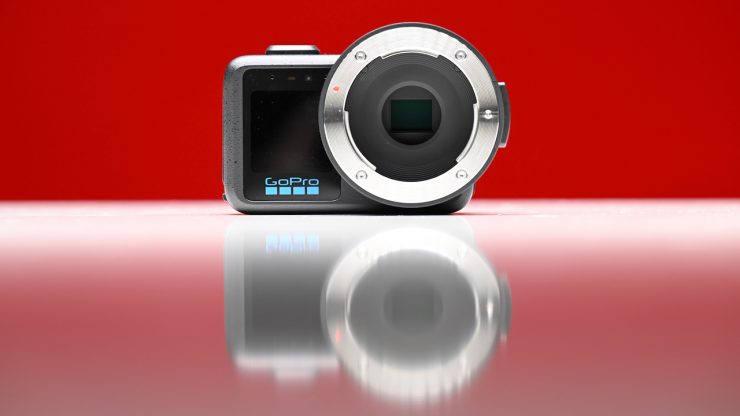
Despite the increased capabilities, the MISSION 1 PRO ILS isn’t massively bigger than a GoPro HERO13.
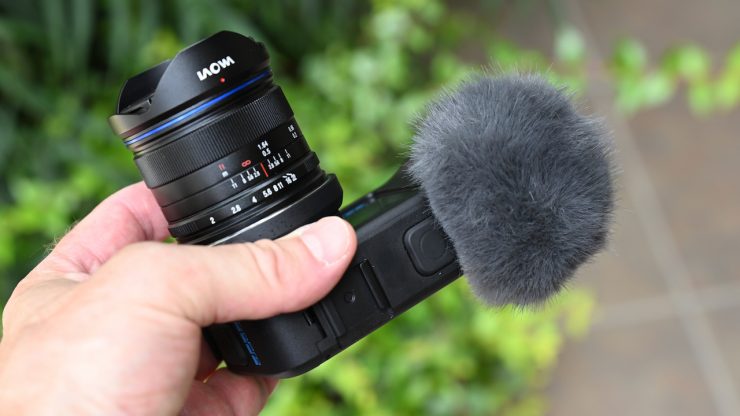
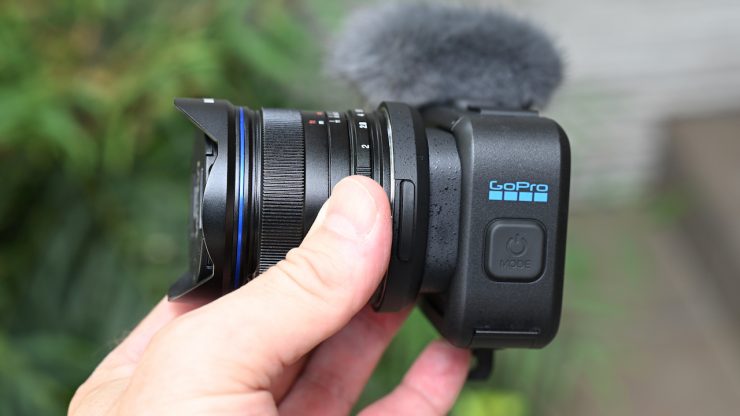
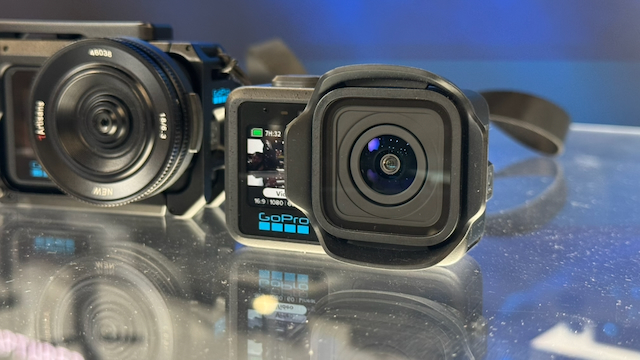
It tips the scales at 197g / 6.94 oz and has physical dimensions of 89.6 W x 58.7 H x 46.1 D (mm). As a comparison, the GoPro HERO13 Black weighs 4.3 oz / 121g and has physical dimensions of 2.8 x 2 x 1.3″ / 71.8 x 50.8 x 33.6 mm.
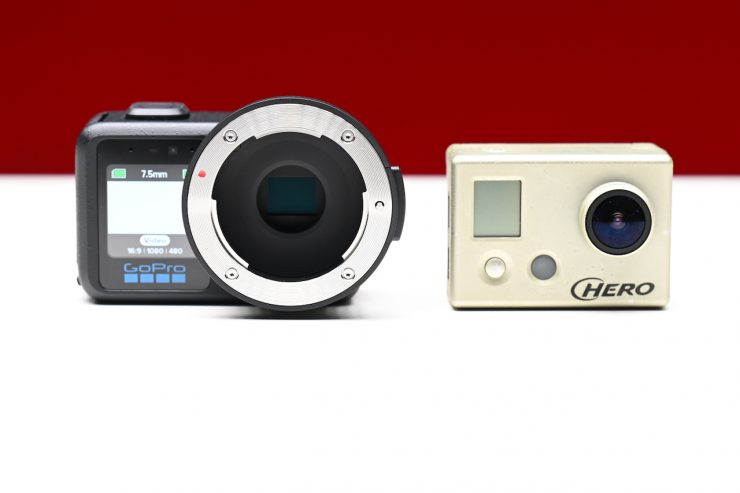
Above, you can see it next to a very early GoPro.
Build Quality
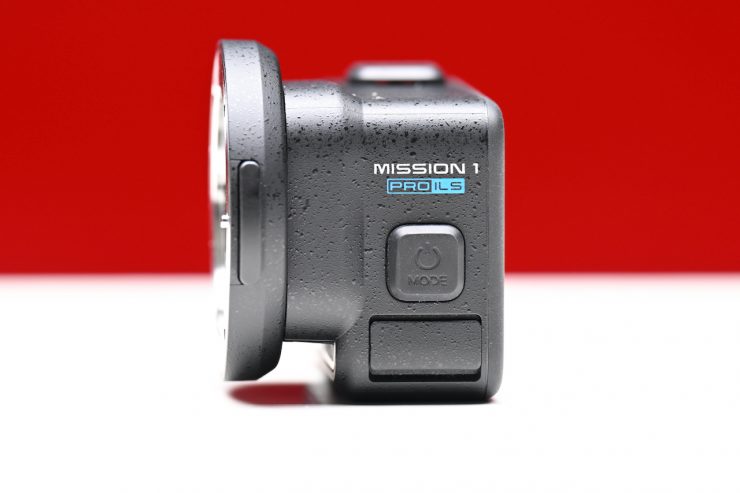
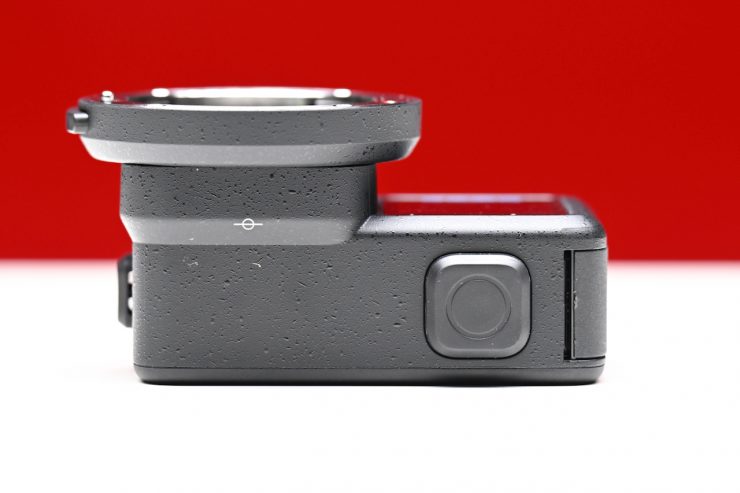
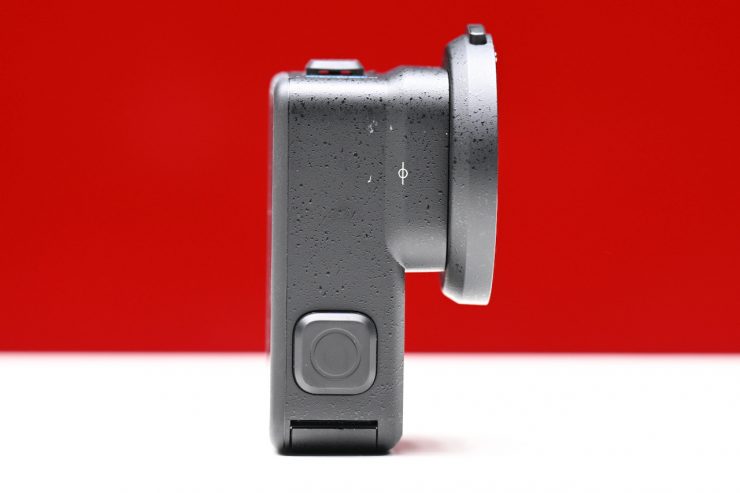
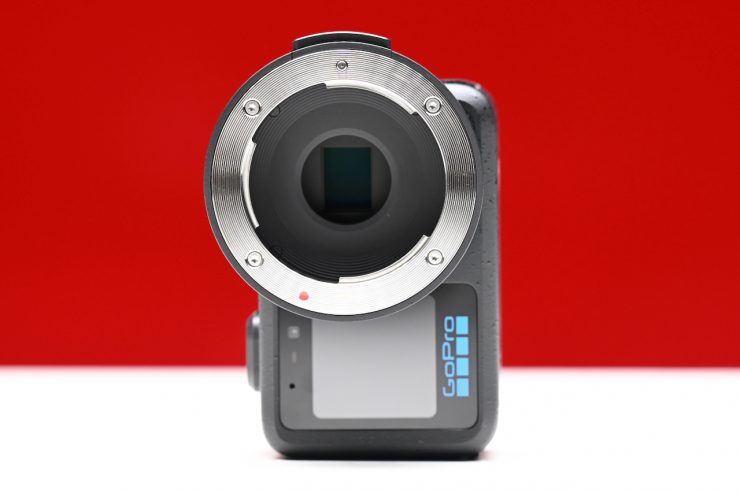
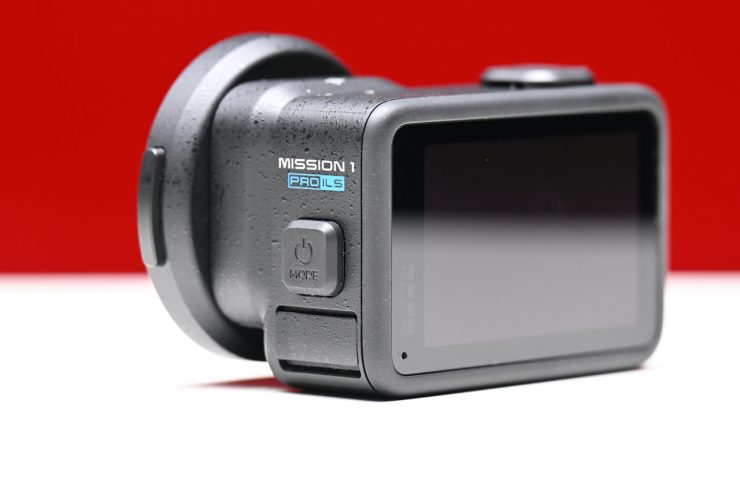
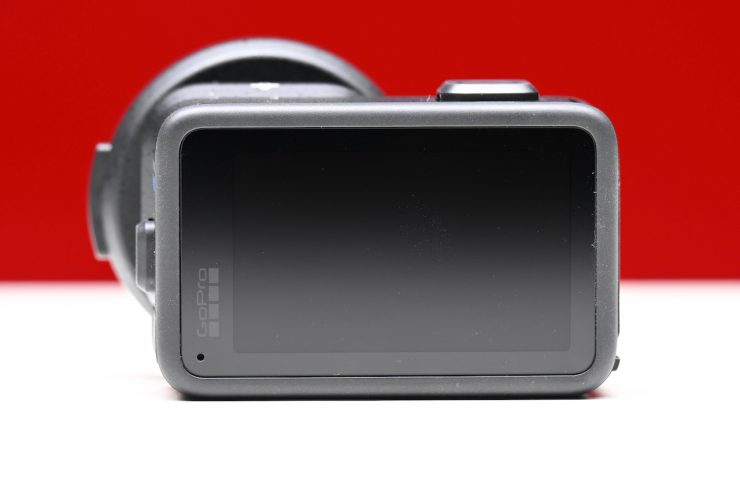
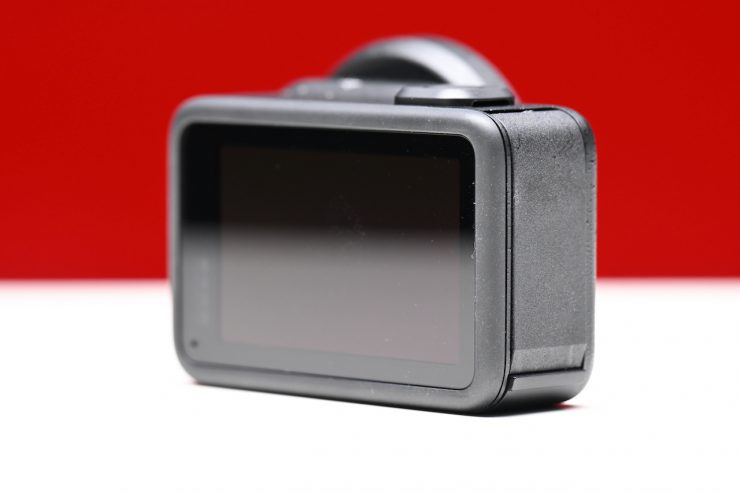
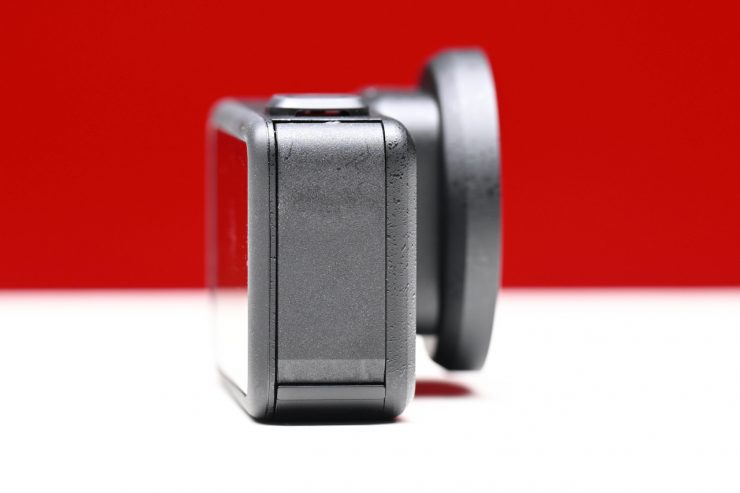
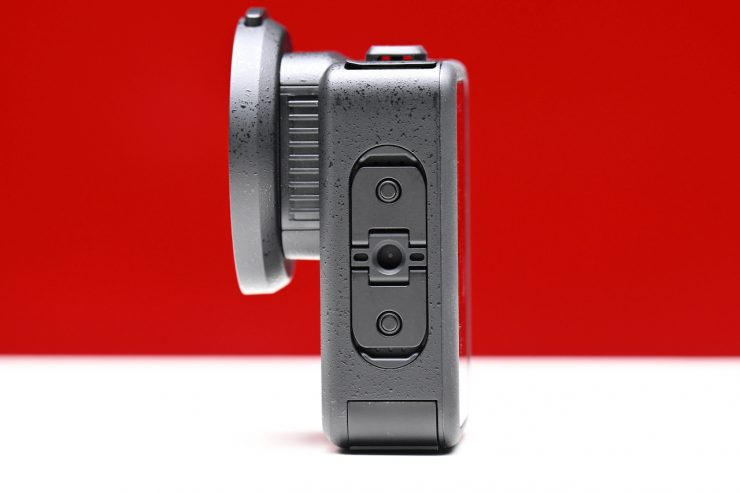
The build quality is decent enough, as after all, it is designed and built by an action camera company.
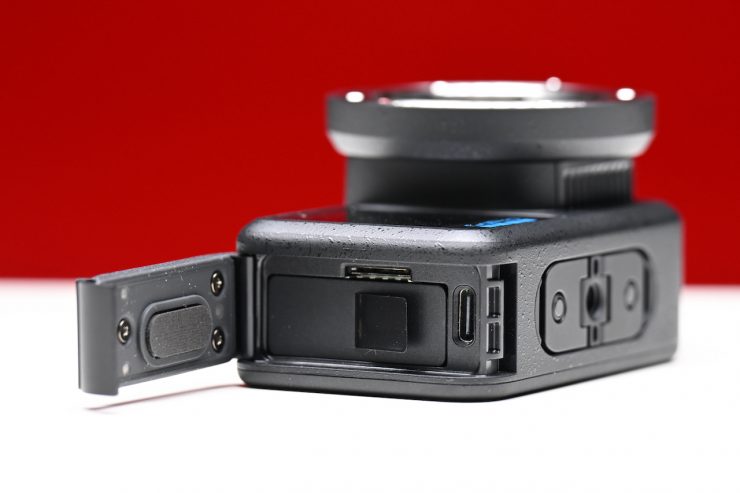
I did find opening the door where you access the battery, USB-C, and MicroSD card slot can be a little difficult.
Menus & OS
In my opinion, GoPros have far too many menus and options that can overly complicate things. I always find you have to go into the menus and check that so many parameters are set correctly before you use the camera.
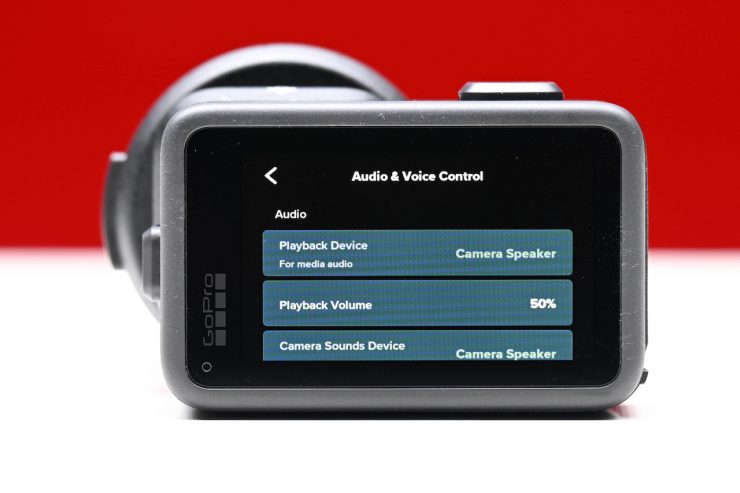
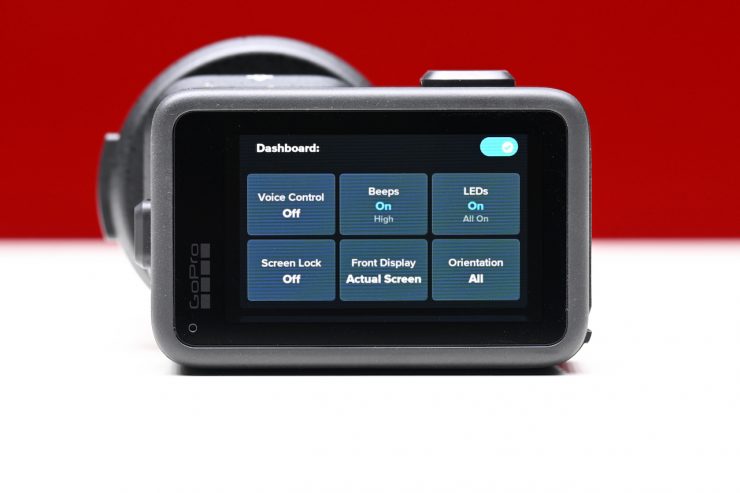
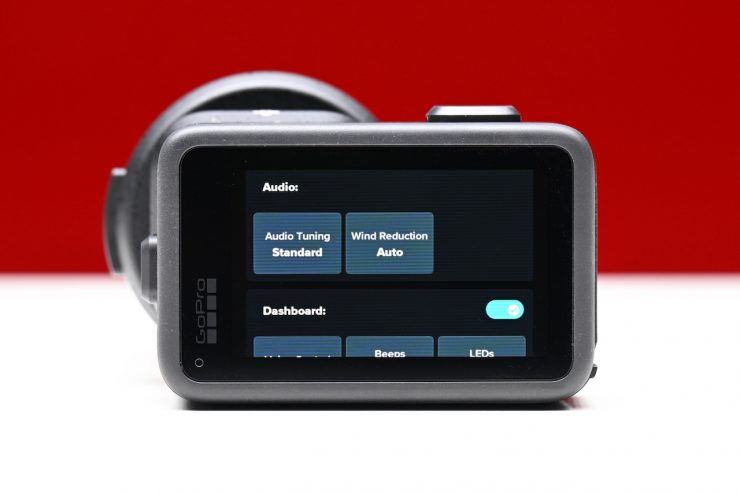
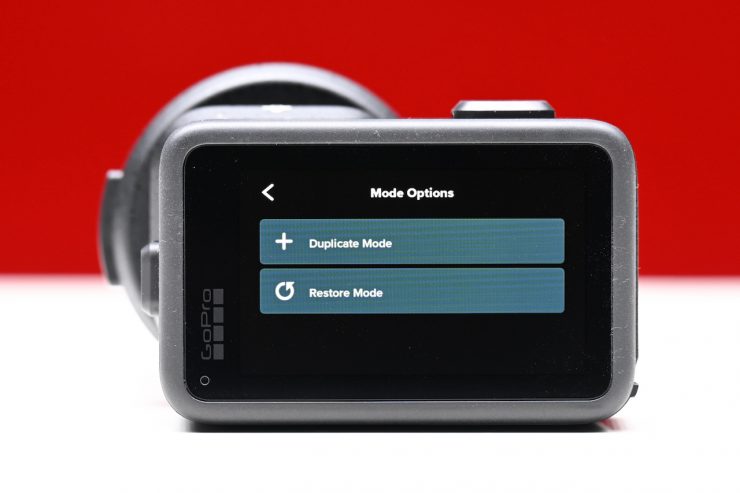
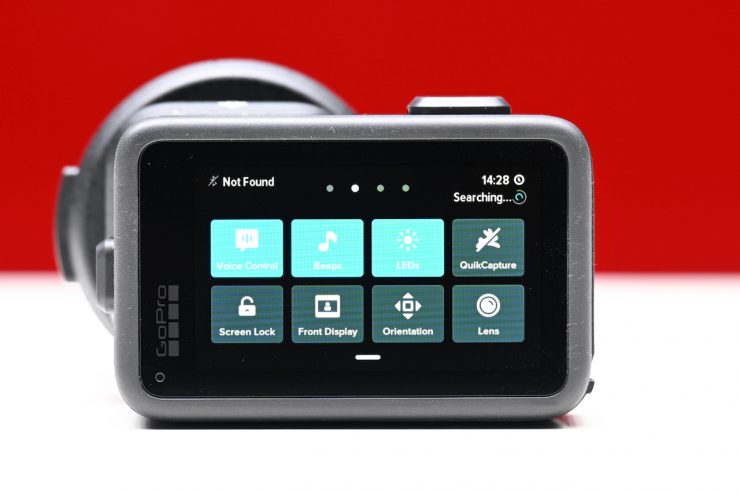
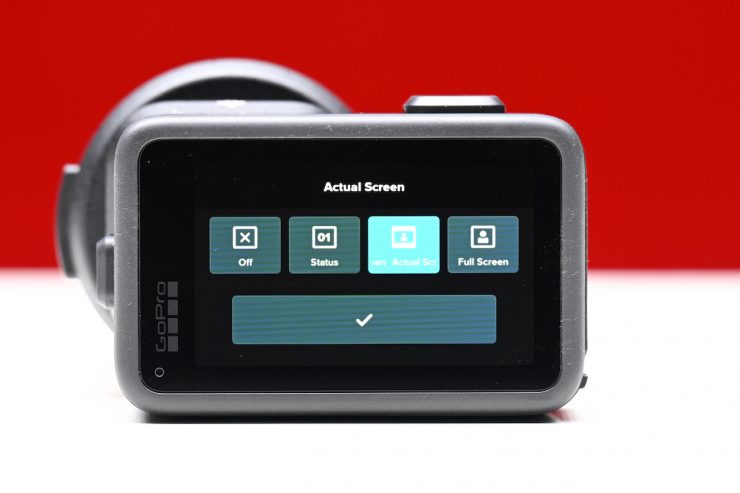
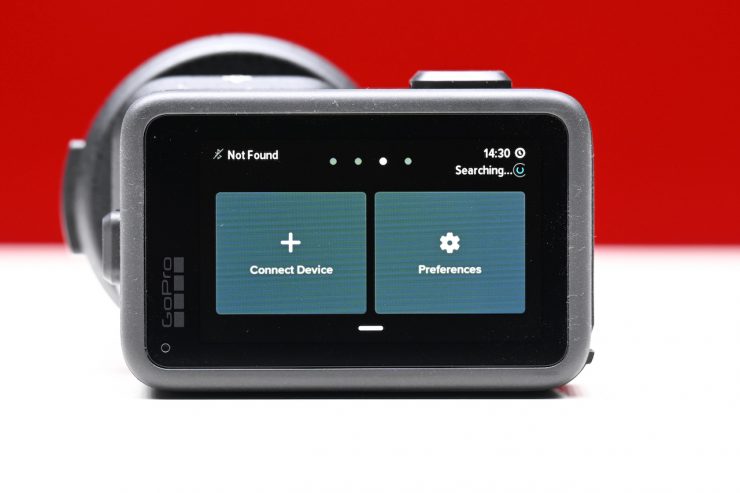
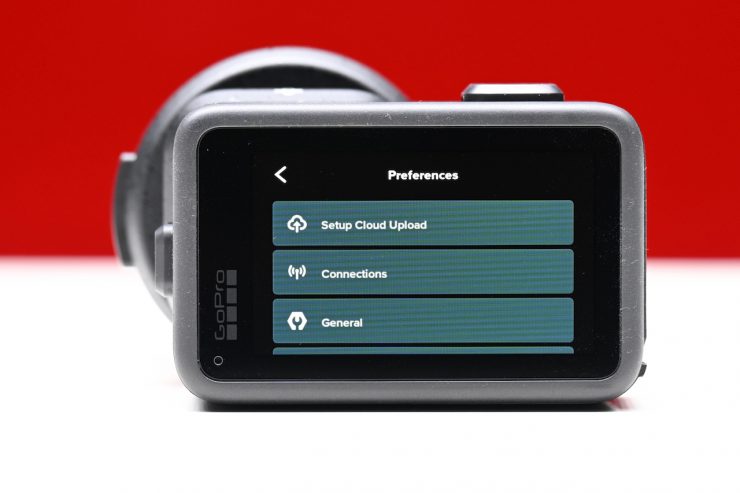
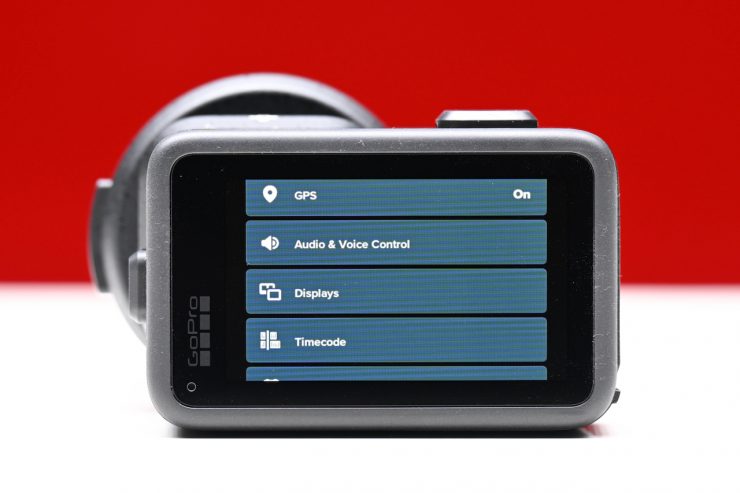
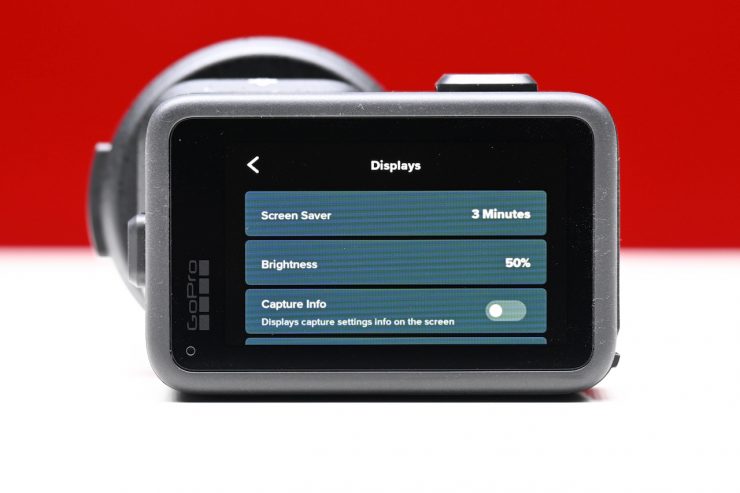
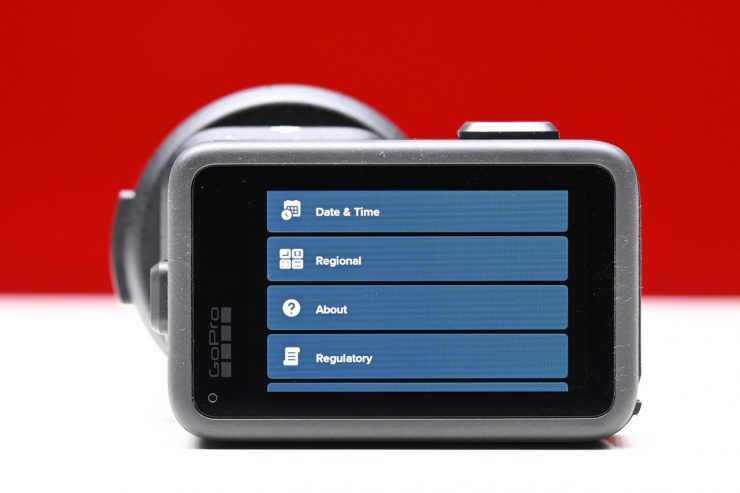
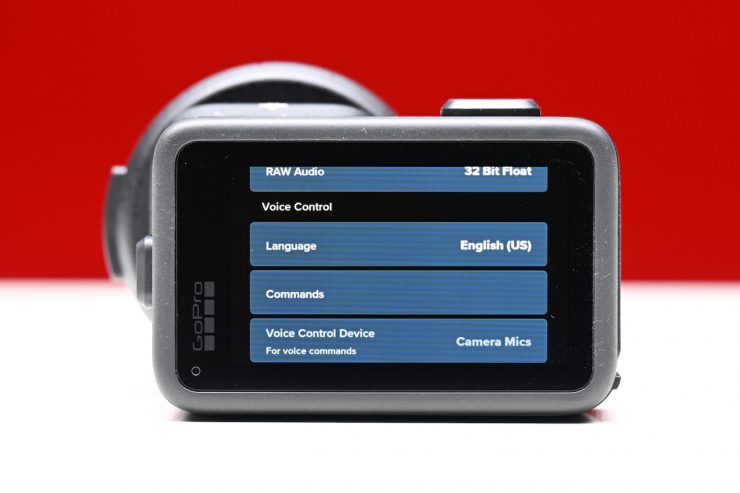
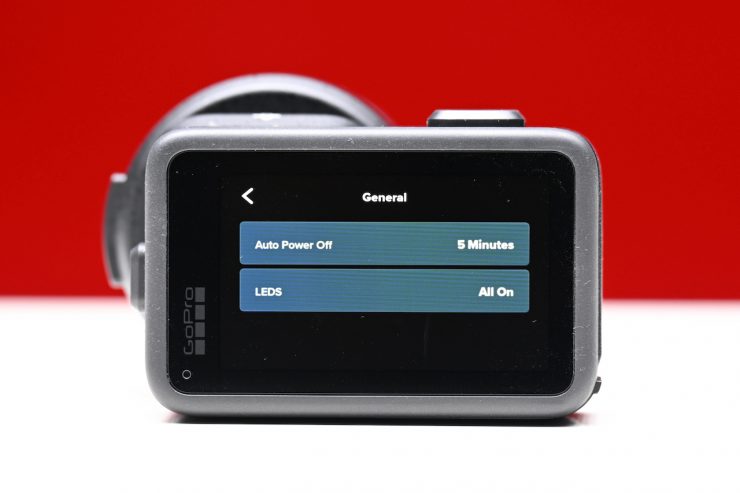
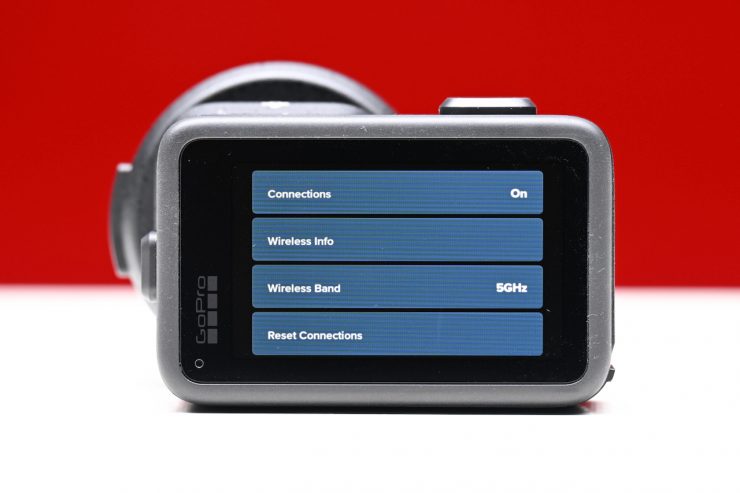
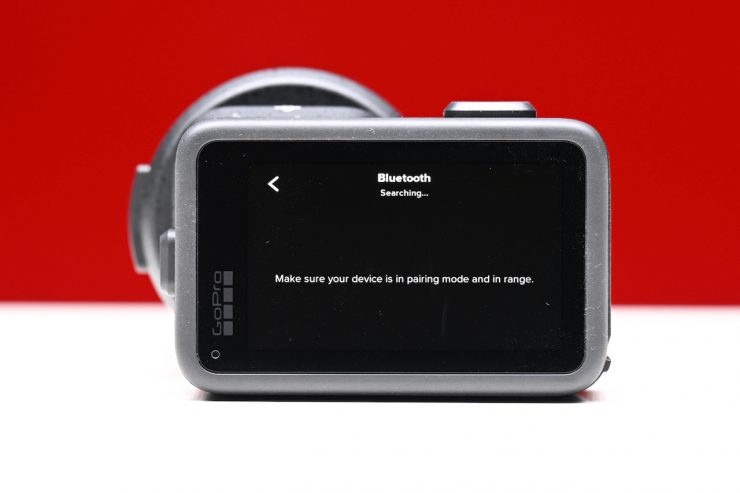
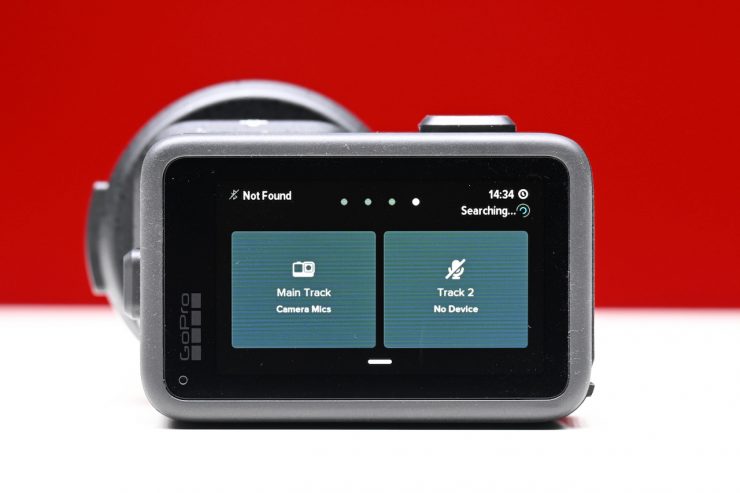
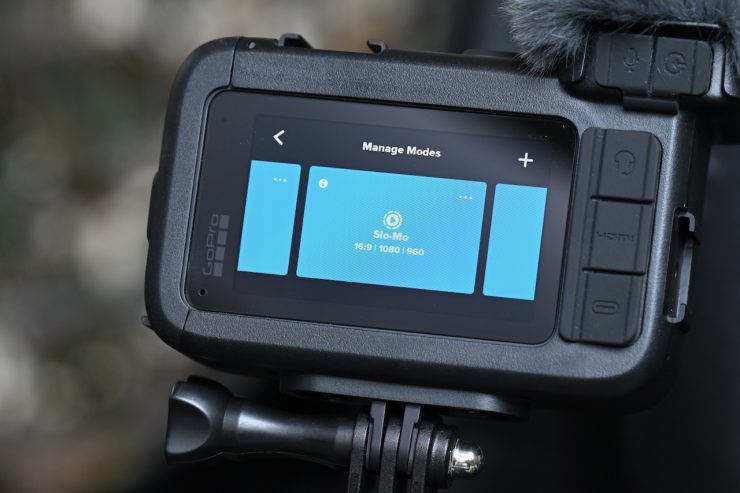
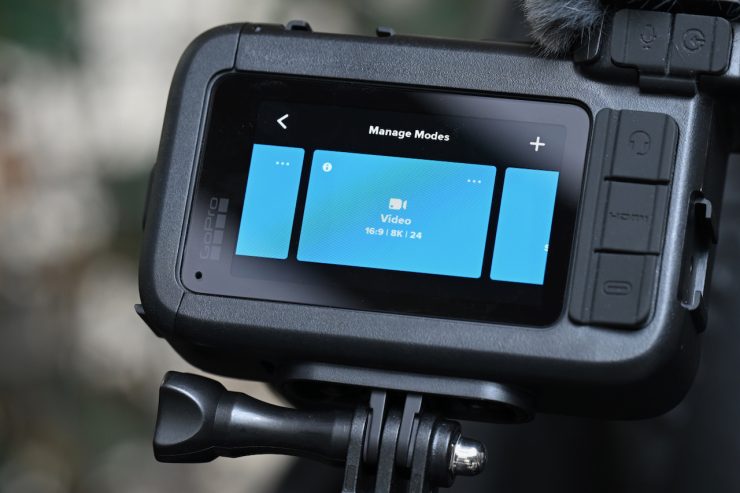
I am not going to go through all of the menu settings, as there are far too many options, as you can see above.
I would have preferred to have seen a dedicated information screen when shooting video that shows you:
- Resolution
- Aspect Ratio
- Frame Rate
- Color Depth
- Bitrate
- Picture Profile
- Shutter Speed
- ISO
- WB
This would massively simplify things.
You can save your favorite shooting parameters so you can recall them.
Mission Monitor
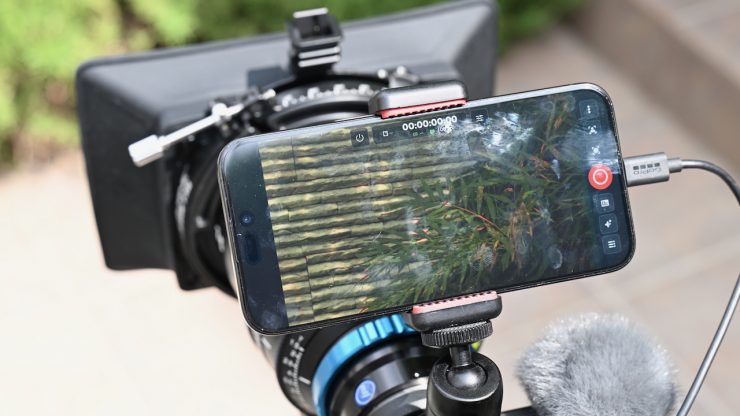
Mission Monitor is a new upcoming app that allows you to plug your iPhone directly into the Mission 1 Pro ILS so you can use your phone as a monitor and control system. As it’s a wired connection, the latency is very minimal. I did, however, find that the resolution wasn’t great. Please note that when I was testing Mission Monitor, it was still in Beta.
The MISSION Monitor app is free and will be available on the Apple App Store on September 2nd. It is compatible with devices running iOS 18 or later.
Features include:
- Focus Peaking highlights in-focus elements, with the option to adjust sensitivity, intensity, and color.
- Focus Assist lets filmmakers pinch to zoom in on the shot and check focus on a larger screen.
- Zebra Pattern overlays diagonal strips over the shot preview in real time as a visual guide to help avoid overexposure and dial in precise settings.
- Real-Time LUT Preview shows how a GP-Log2 shot will look after grading with provided MISSION 1 Series or custom LUTs.
- Shot Overlays display aspect ratios, customizable grid lines, and center point to make it easy to line up and frame the shot for the intended output or platform.
- Integrated Camera Controls let filmmakers start and stop recording and switch capture modes right from their device.
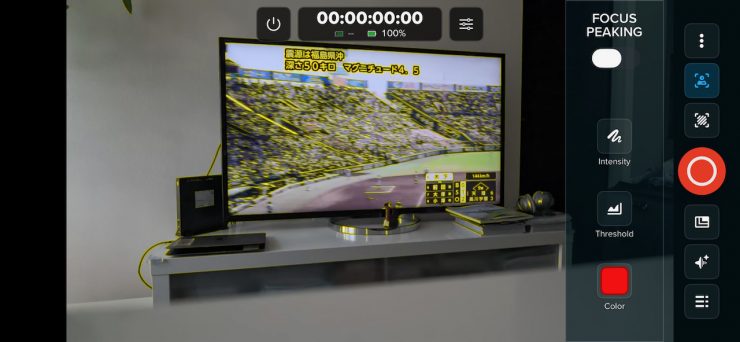
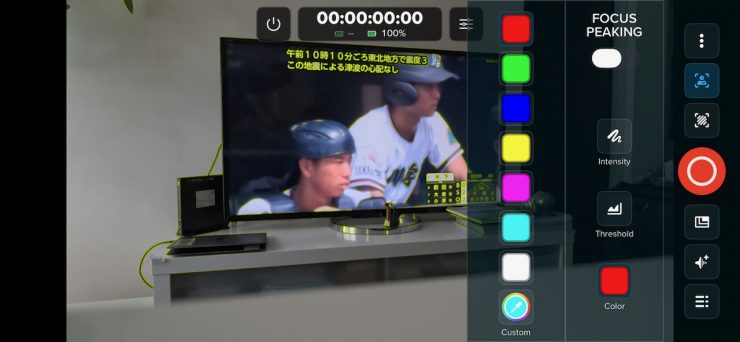
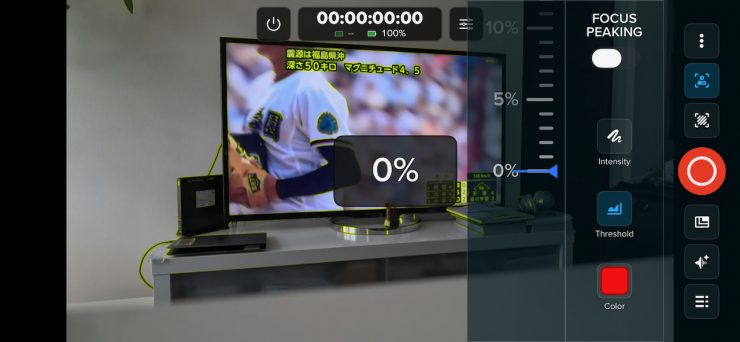
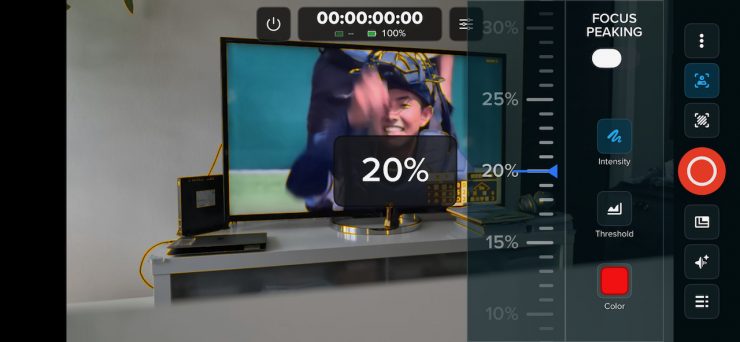
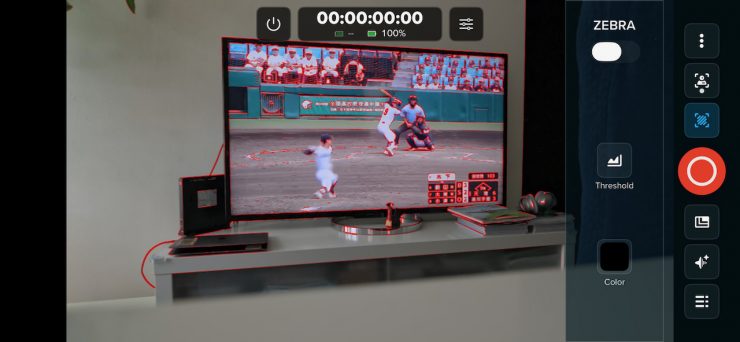
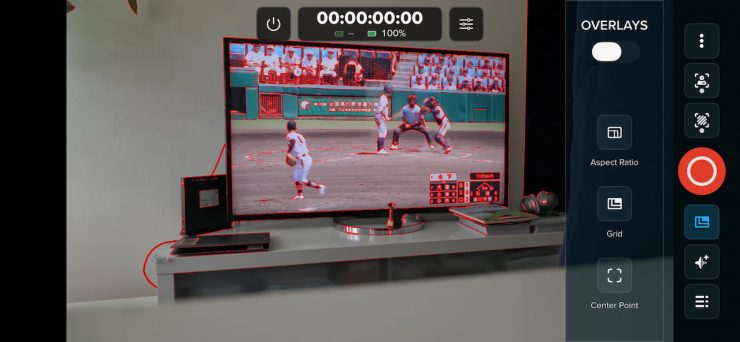
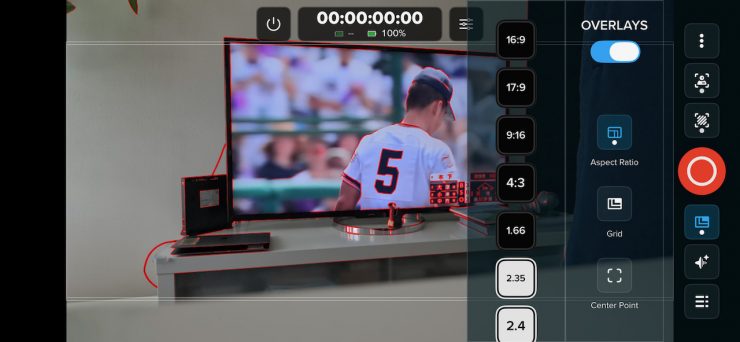
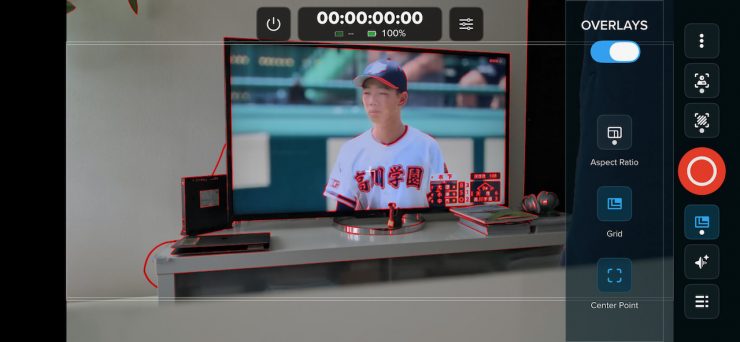
You have access to a range of monitoring assist tools such as peaking, zebras, overlays such as aspect ratios, grids (which didn’t seem to be working yet), and a center point. There was no false color, no waveform, and no anamorphic de-squeeze options. There is also no way to control camera parameters such as ISO and shutter speed, etc. All you can do is switch into various shooting modes.
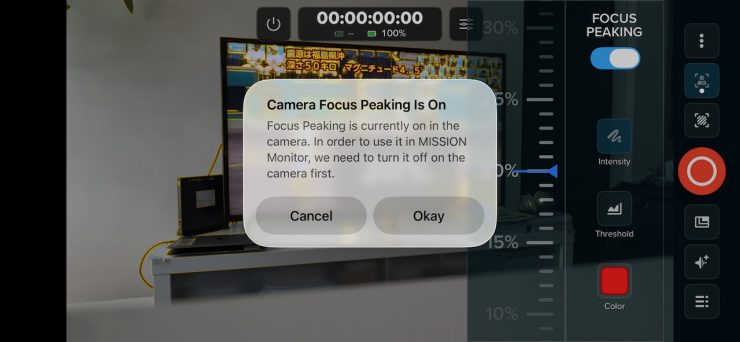
Now, if you have focus peaking activated on the camera itself, you won’t be able to turn it off using the Mission Monitor app.
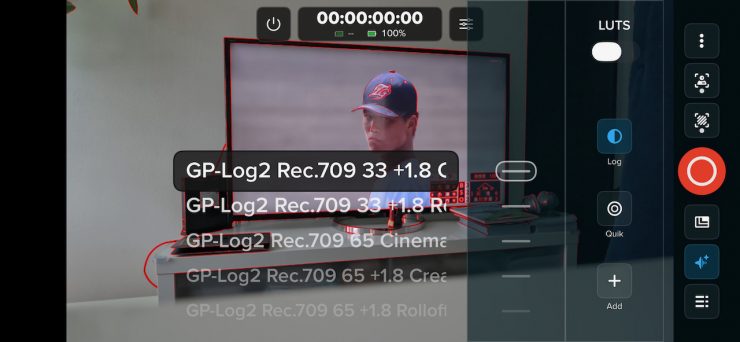
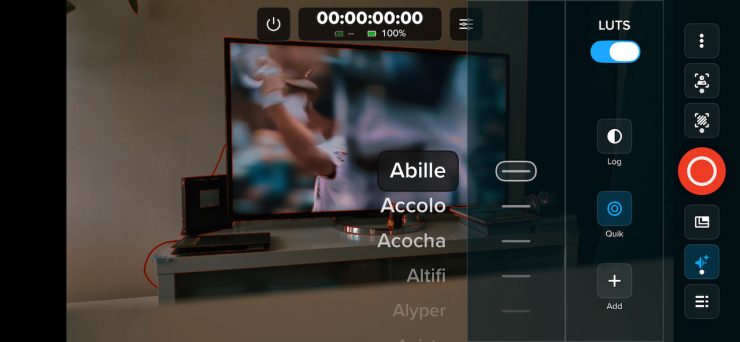
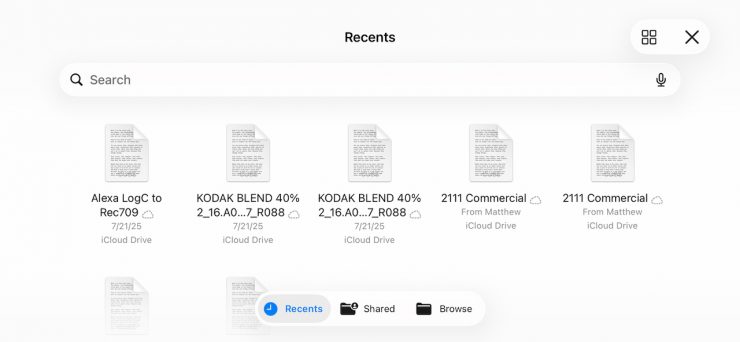
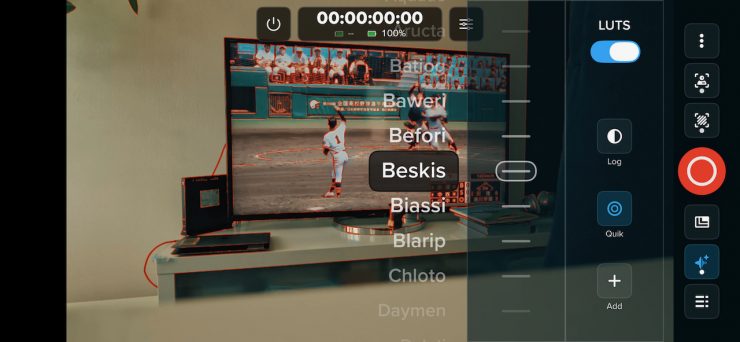
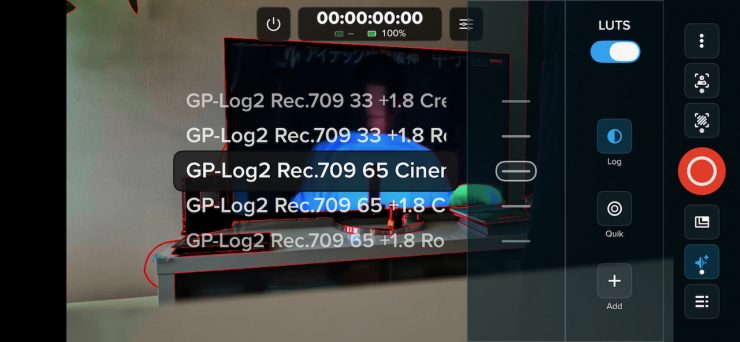
You can also use a range of pre-installed LUTs, choose to monitor in LOG, add a range of looks, or even load up your own LUTs. As this is just a monitoring app, none of these get burnt into your footage.
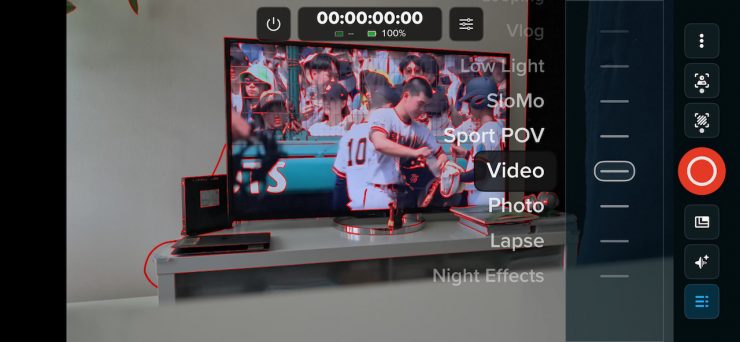
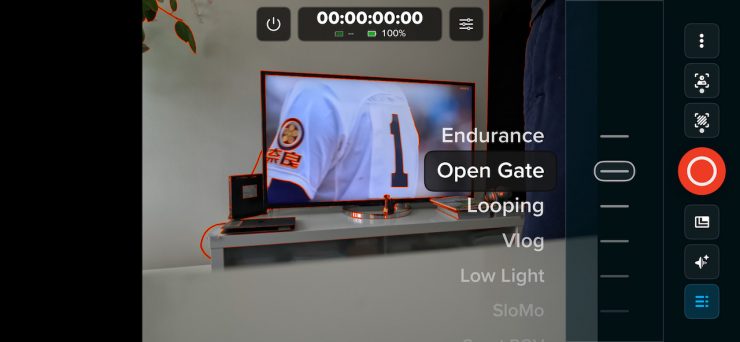
There is also the ability to switch between the various operating modes.
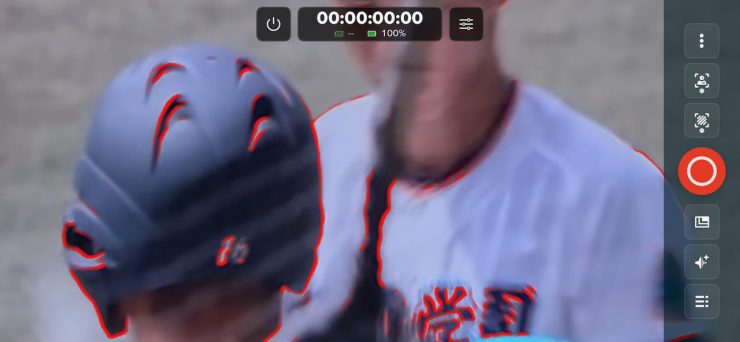
If you want to zoom, you can do the pinch-in with your fingers on the screen.
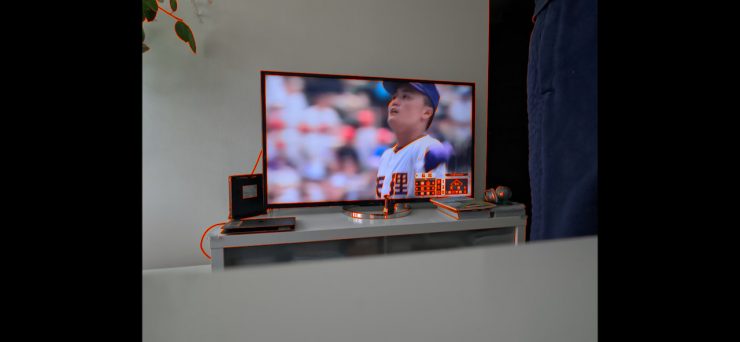
If you want a clean view of what you are recording, you can tap on the screen to remove the OSDs.
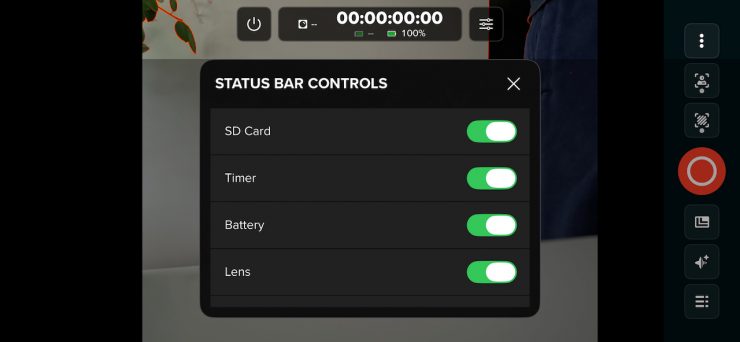
You also have the ability to show what is in the status bar on the main screen.
Stills
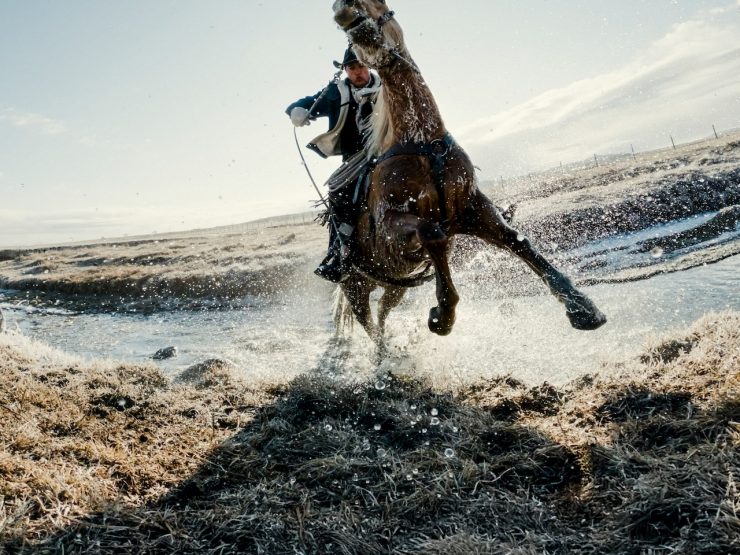
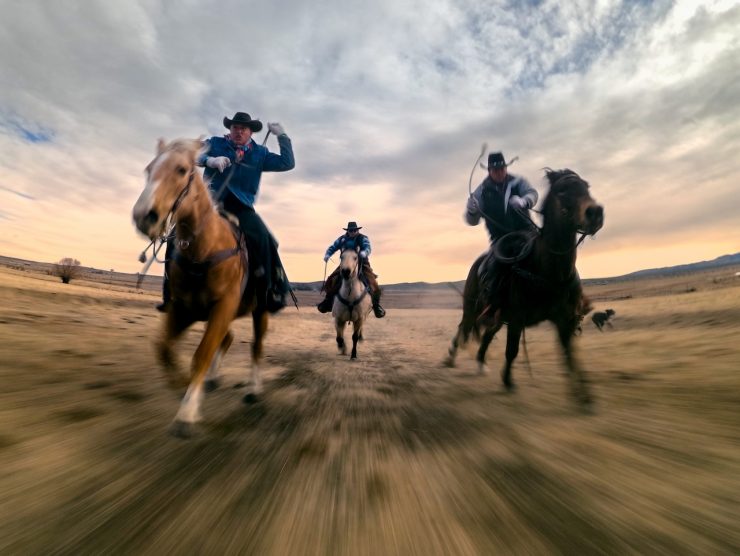
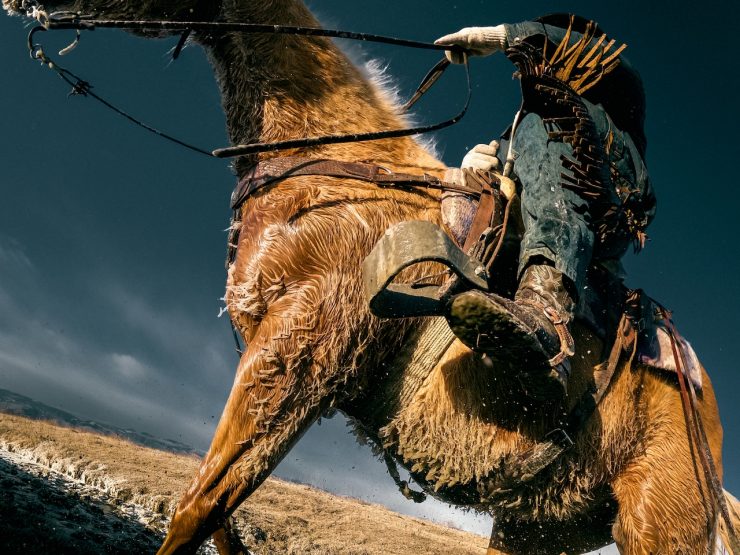
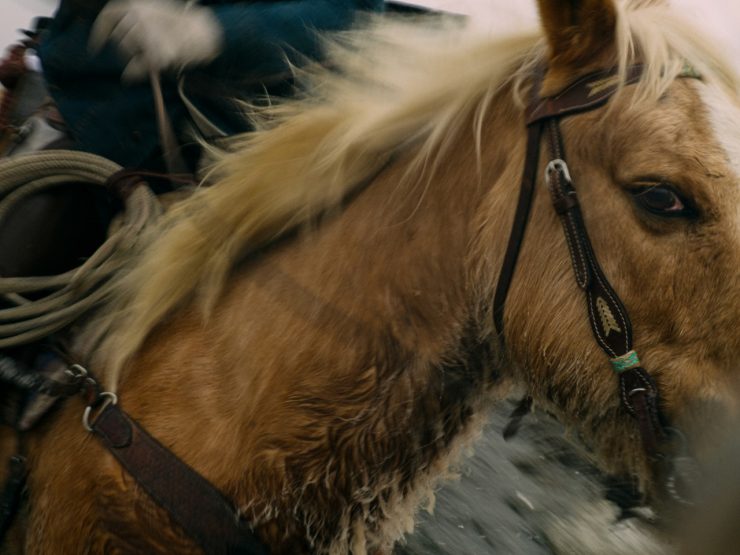
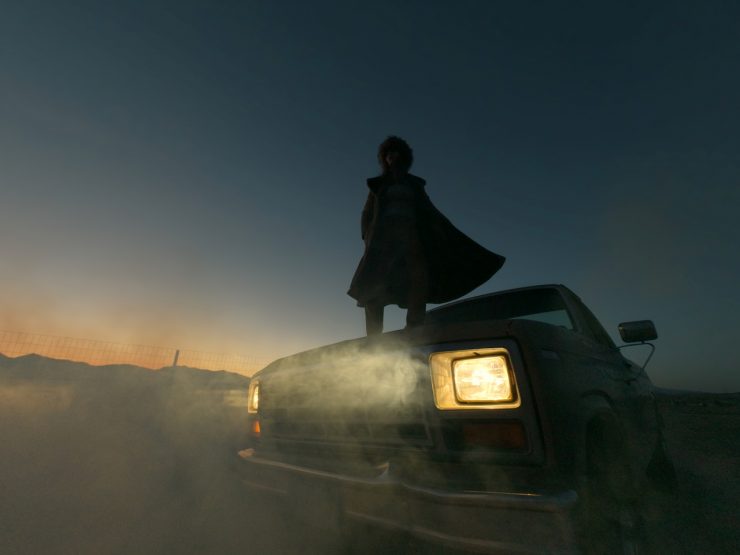
The MISSION 1 Series offers a 50MP Photo Mode. You can utilize manual control of ISO, Shutter Speed, White Balance, and Exposure Compensation while shooting 50MP RAW images.
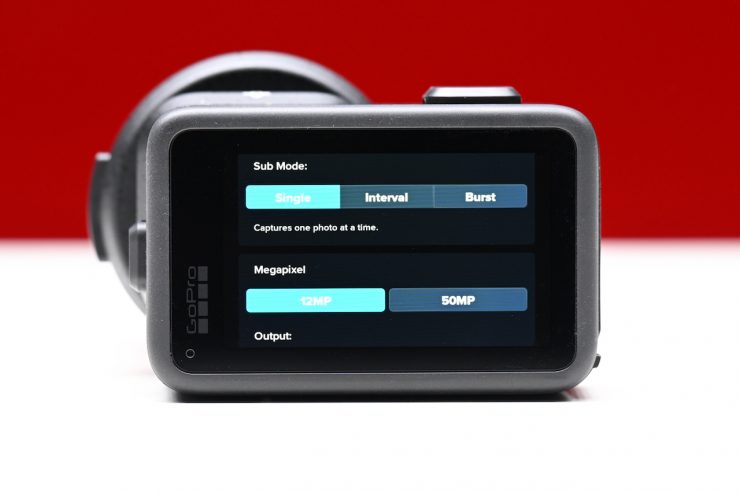
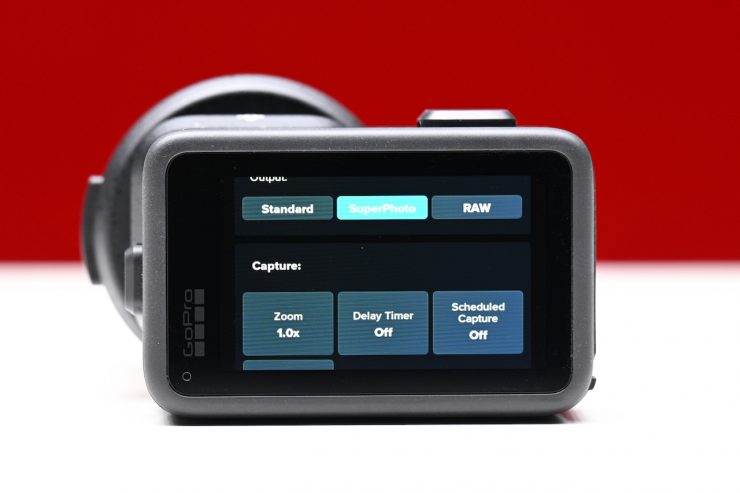
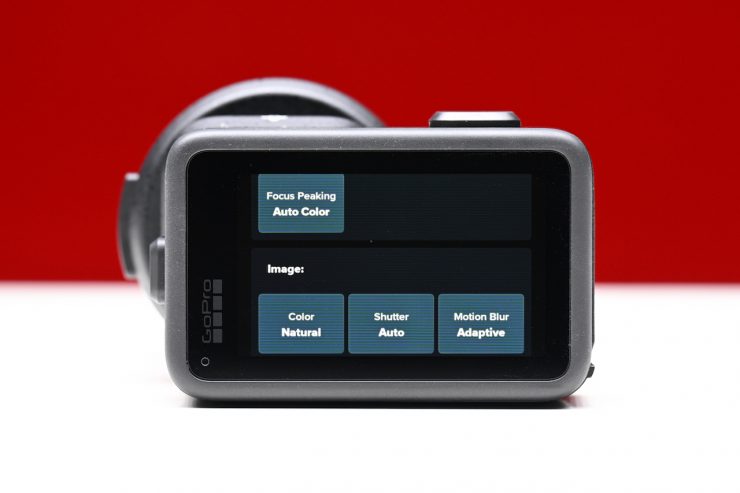
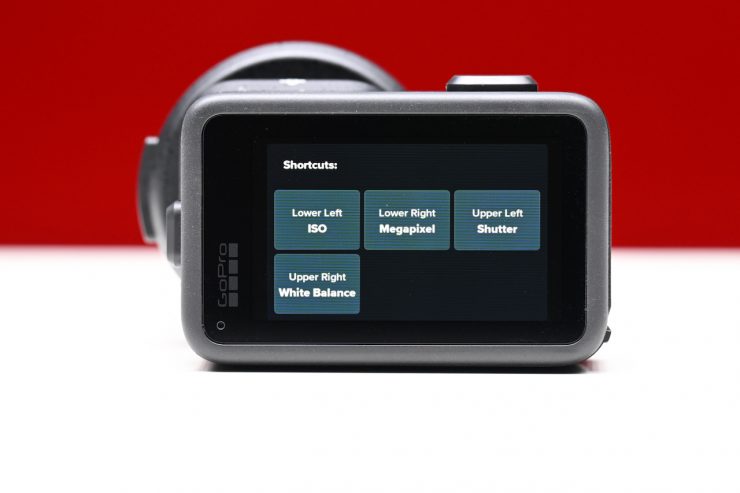
For casual users, there is a SuperPhoto mode that leverages GP3’s advanced image-tuning algorithm to determine the best settings based on conditions to deliver ready-to-share 12MP images.
Timecode
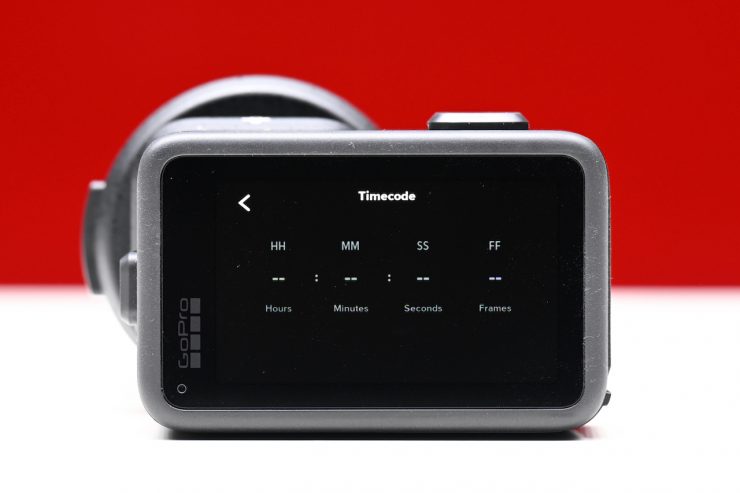
The first thing to do is to go to the Timecode part of the menu, which can be located in Preferences.
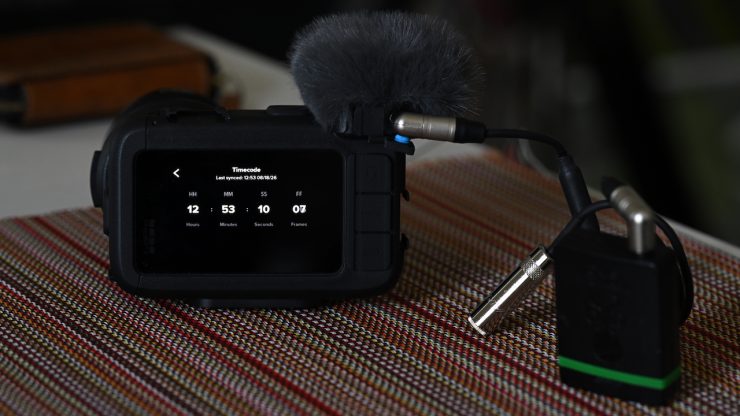
If you are using the Media Mod, you can simply run timecode into one of the two 3.5mm mic inputs, and the timecode will start showing on the screen.
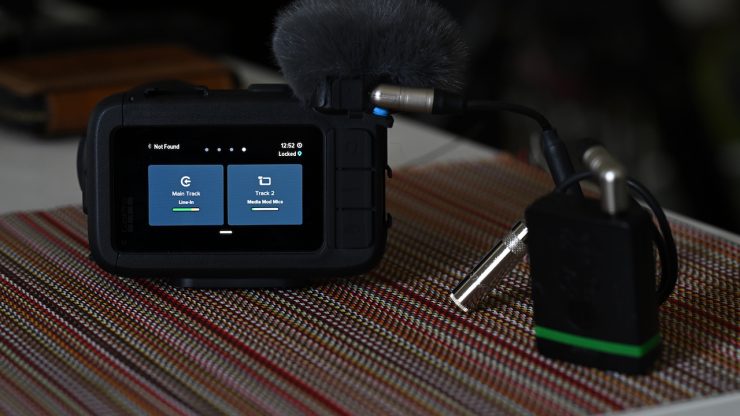
Even though the LTC timecode is going into the Main Track on the camera, you don’t have to keep it attached for the timecode to work.
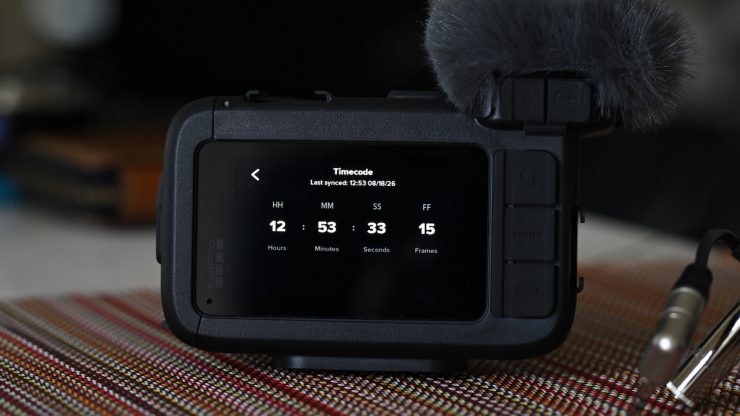
Once you have synced the timecode, you can then remove the 3.5mm cable, and the timecode will be embedded in your recording. It will also tell you when it was last synced. If you turn the camera off, the timecode will disappear, and you will need to sync it again.
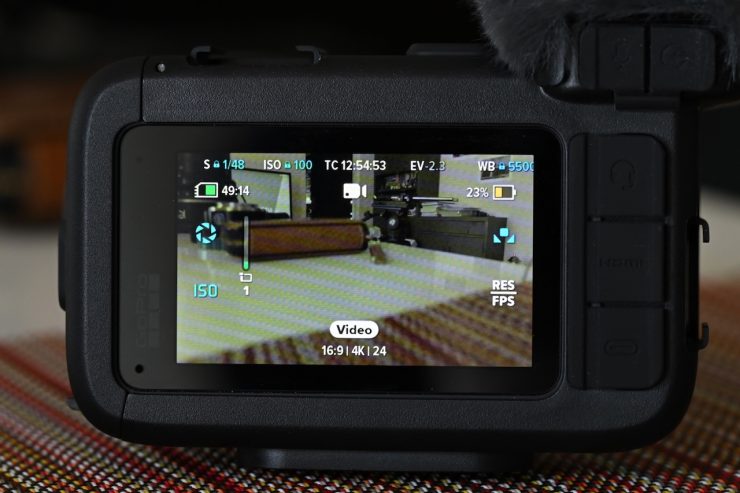
In the Display settings, you can enable timecode in the display so you can see it, but it will only show you hours, minutes, and seconds, and not the frames.
Audio
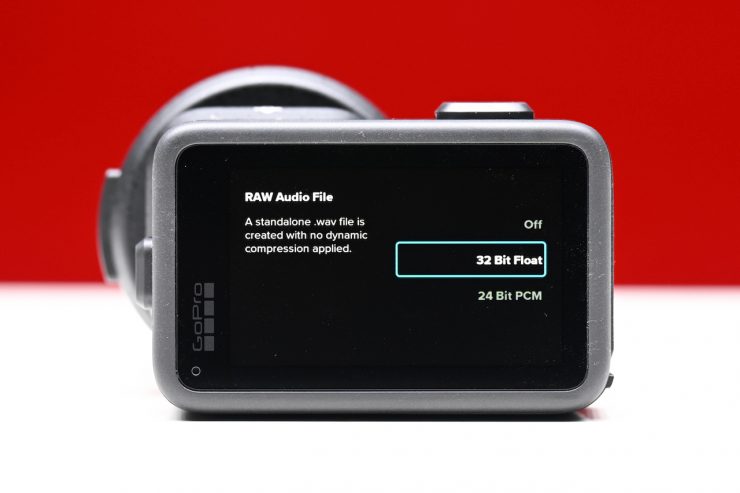
GoPro has added some decent audio recording options, including the ability to capture 32-bit float, and you can also use Bluetooth 5.3 connectivity to pair various wireless devices, including GoPro’s new Wireless Mic, which I will talk about in a bit.
- 4 Mics: Record improved stereo audio signal with advanced wind noise reduction
- 32-Bit Float: Record audio with an extended dynamic range without distortion or clipping (I believe this is only possible with the optional Media Mod)
- Bluetooth 5.3 Connectivity: Pair wireless mics for social content or pair earbuds for voice commands far from the camera. The new Wireless Mic Complete Kit is the perfect companion to capture crystal-clear audio
- USB-C Audio Support: Plug an external USB-C microphone or USB-C to 3.5mm adapter into the camera’s USB-C port for an easy plug-and-play way to add a separate mic or headphones to your setup
Media Mod for MISSION 1 Series Cameras
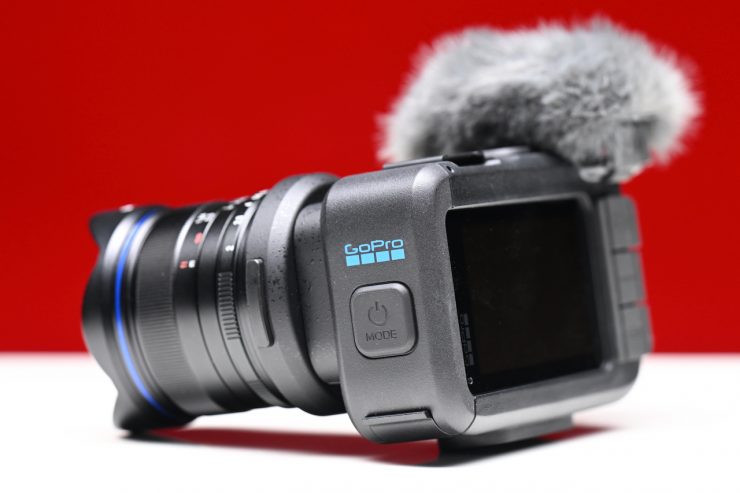
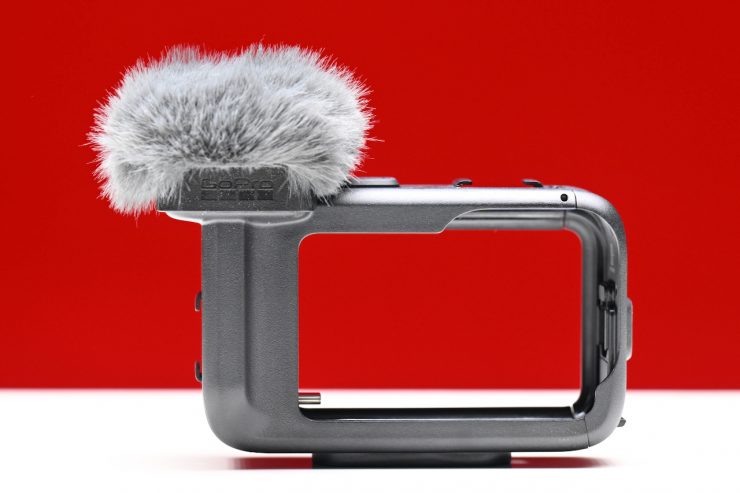
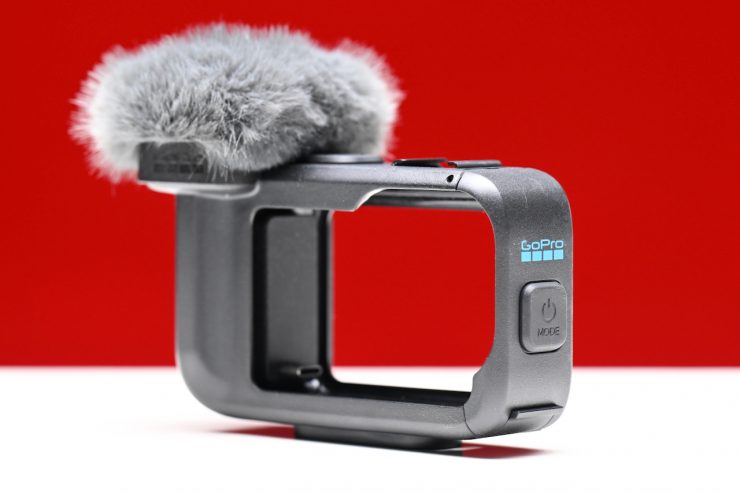
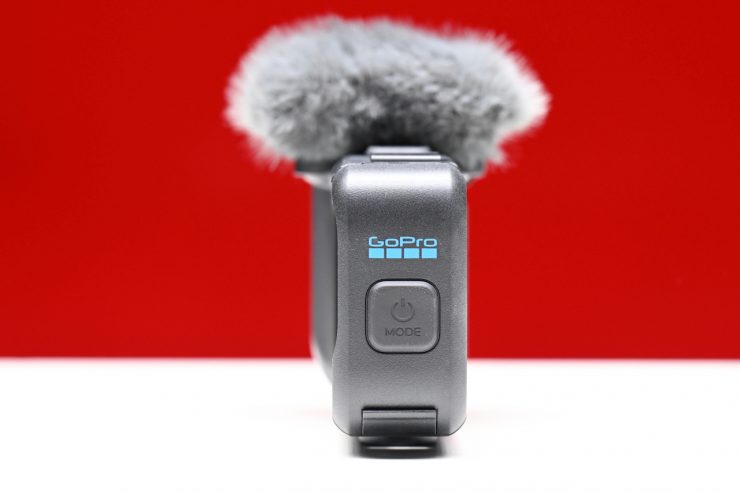
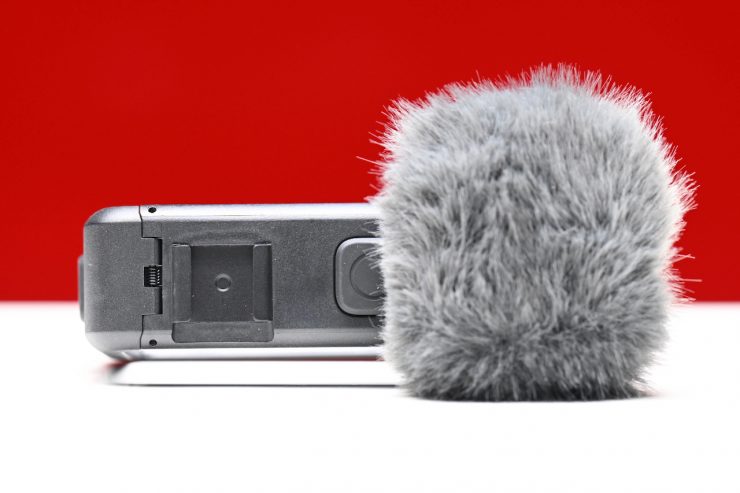
The optional Media Mod for MISSION 1 Series Cameras is probably worth getting as it features an integrated 3-mic array, three 3.5mm audio ports for microphone input, timecode input, live headphone monitoring, and a 4K Micro HDMI-out.
The audio quality captured by the 3-mic array is actually pretty good, and it surprised me. I am used to action cameras having pretty ordinary audio quality.
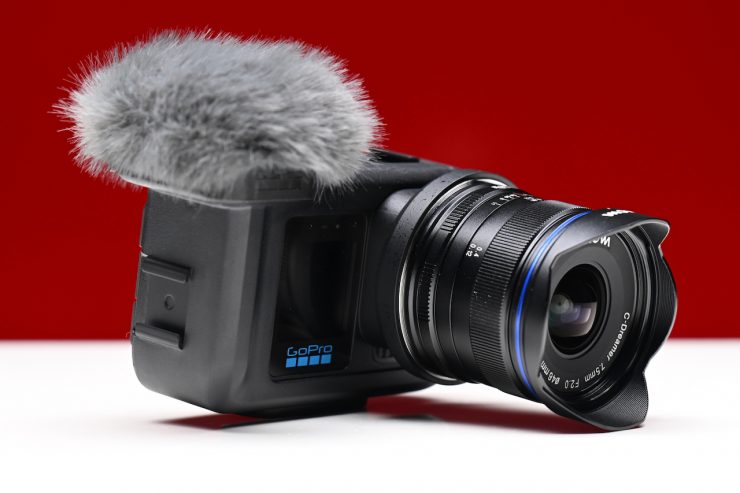
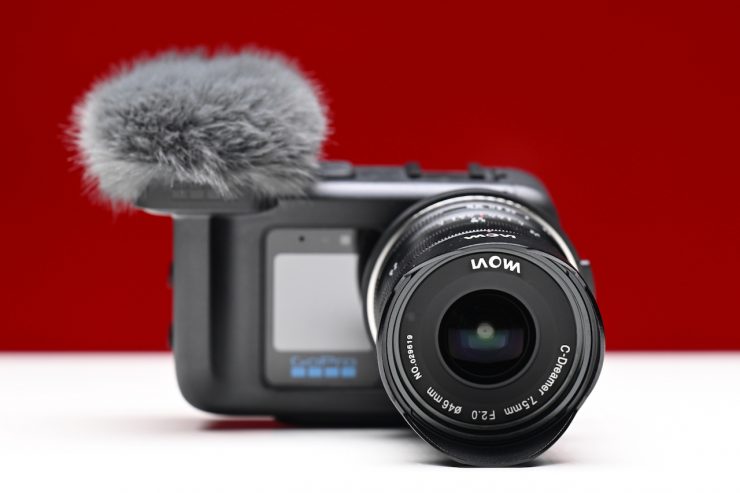
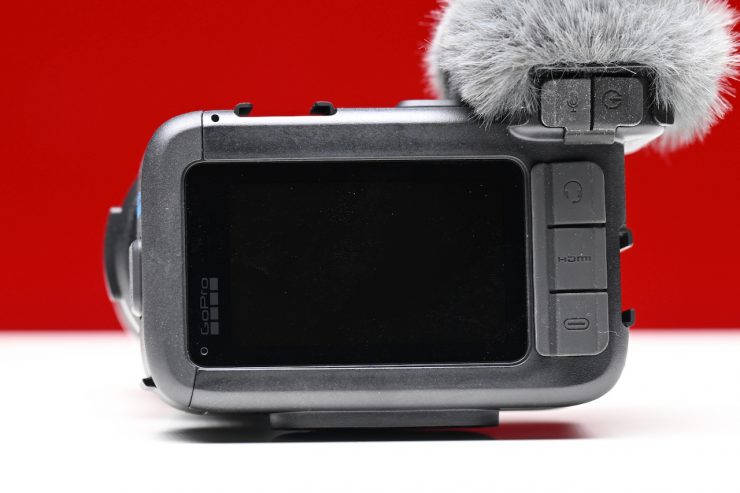
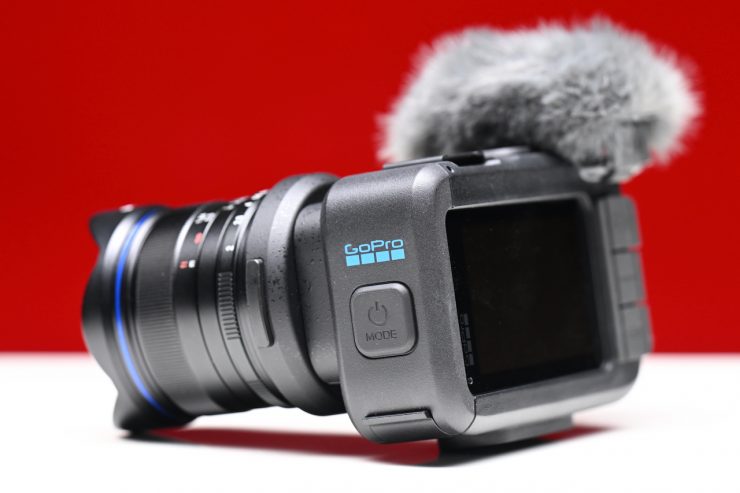
If you are going to buy a GoPro MISSION 1 Pro ILS to use in professional environments, I would recommend you buy the Media Mod ($149.99 USD), as it adds a lot of increased functionality.
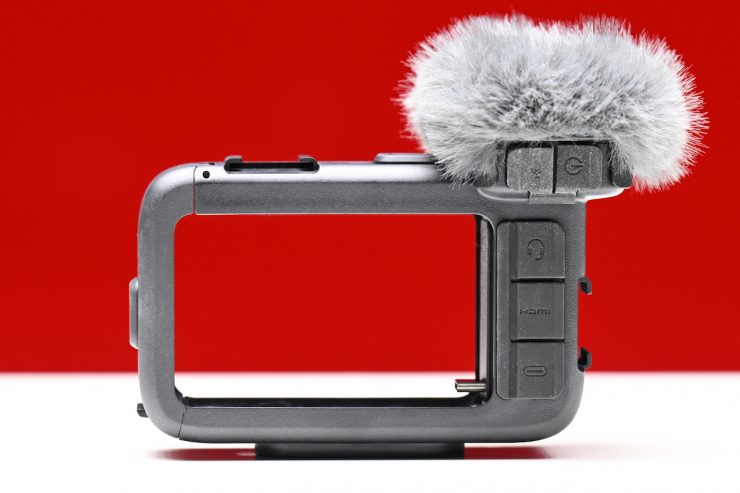
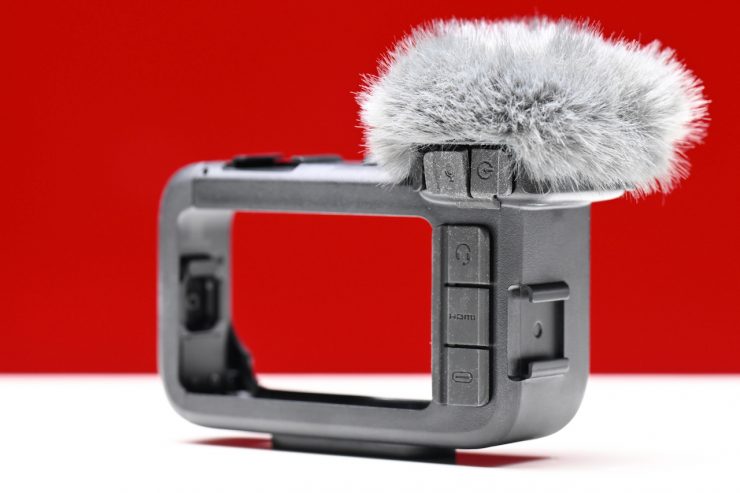
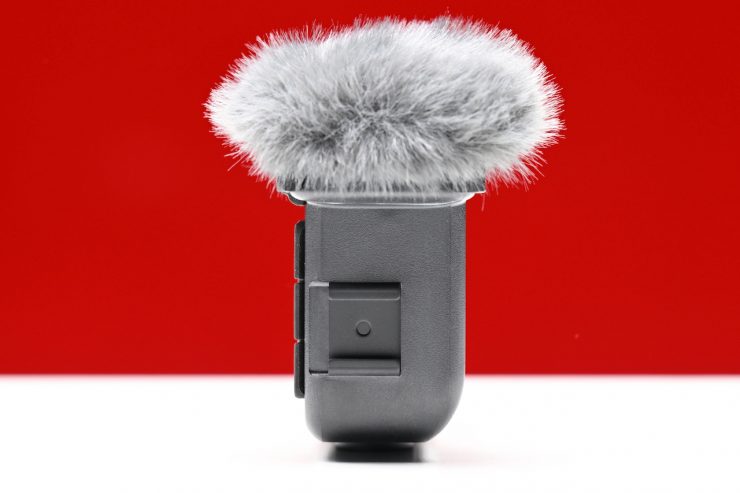
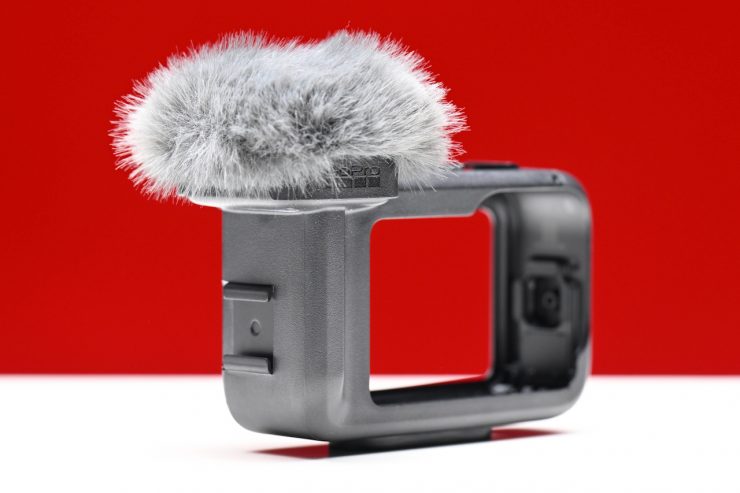
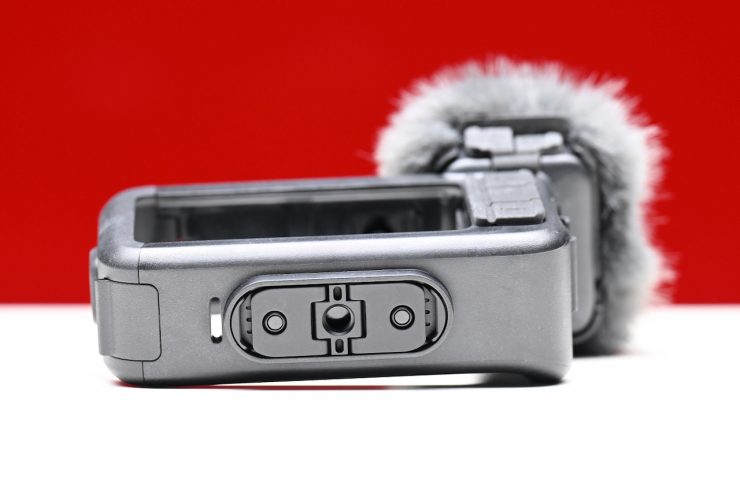
Key features
- 3-Mic Array, Beamforming Technology
- Multiple 3.5mm Ports, Micro-HDMI Output
- 32-Bit Float Recording
- Supports up to 4K60 Video Output
- Linear Timecode
- Magnetic Mount, 2-Prong & 1/4″-20 Thread
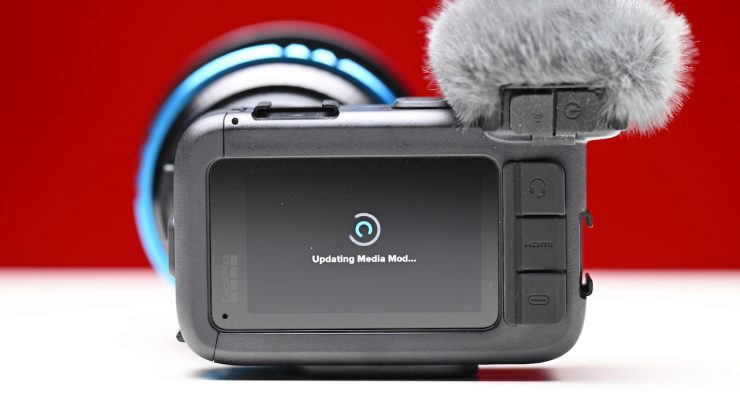
The first time you attach the camera to the Media Mod, it will perform an update. This does take a few minutes.
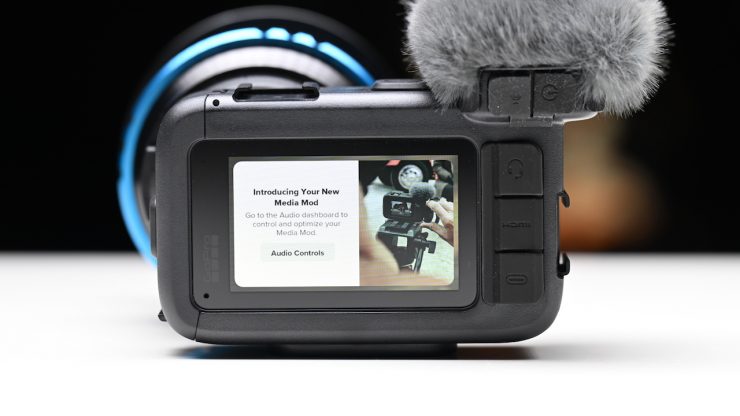
Once it has finished, you will get a little welcome message on the back of the camera’s screen, with a direct link to the audio settings.
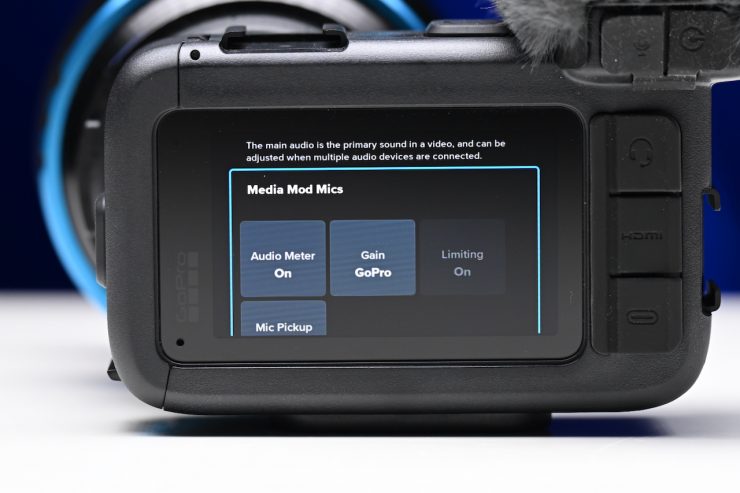
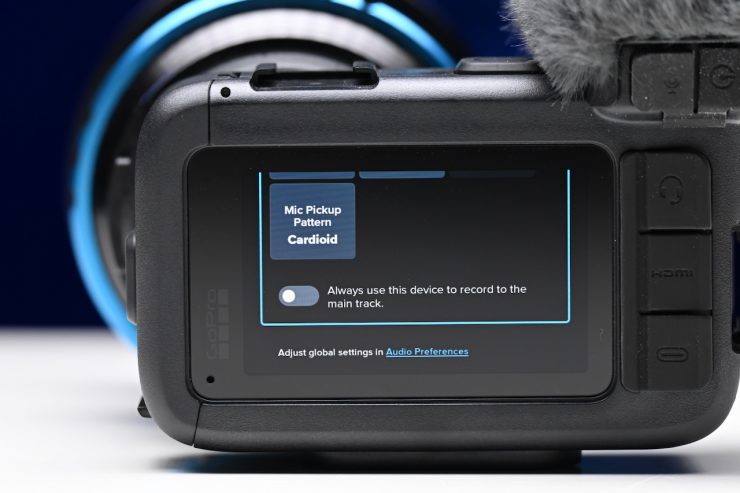
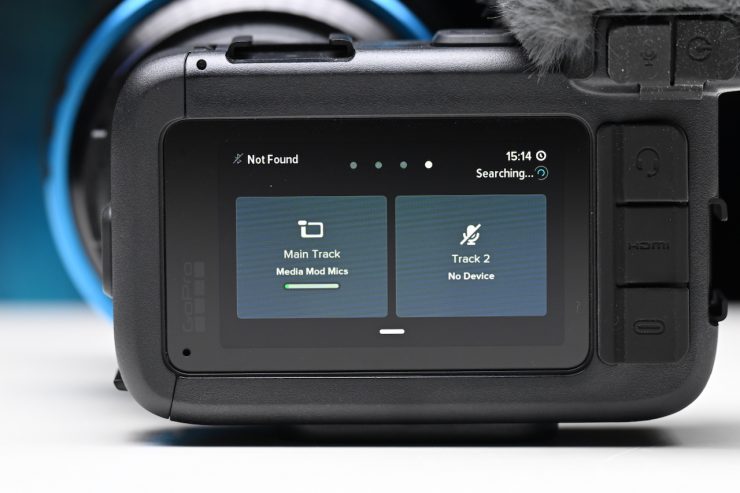
If you click on it, you will be taken to the section where you can make changes to the Media Mod Mics.
Unfortunately, you can’t manually adjust the recording level of the onboard Media Mod Mics. You can turn on an audio meter, but that honestly doesn’t show much.
The other issue I had with the Media Mod is that it doesn’t offer anything other than two cold shoe mounts for accessories. I would have preferred to have seen something with more of a cage design with 1/4-20″ and 3/8″ mounting points.
Wireless Mic Complete Kit
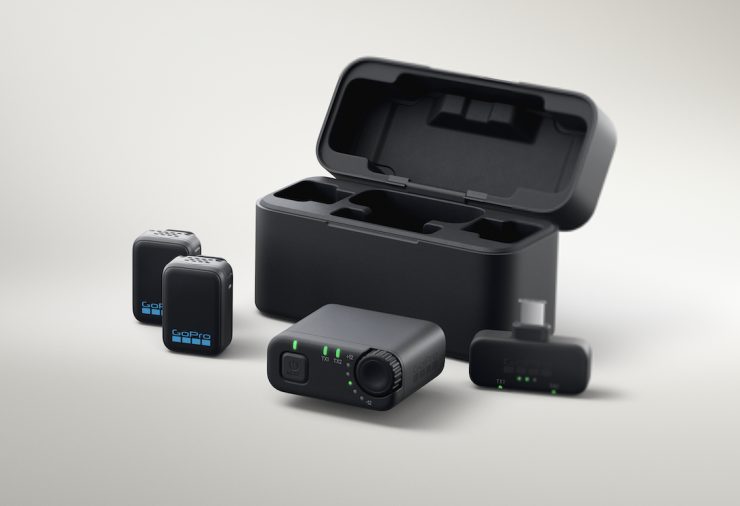
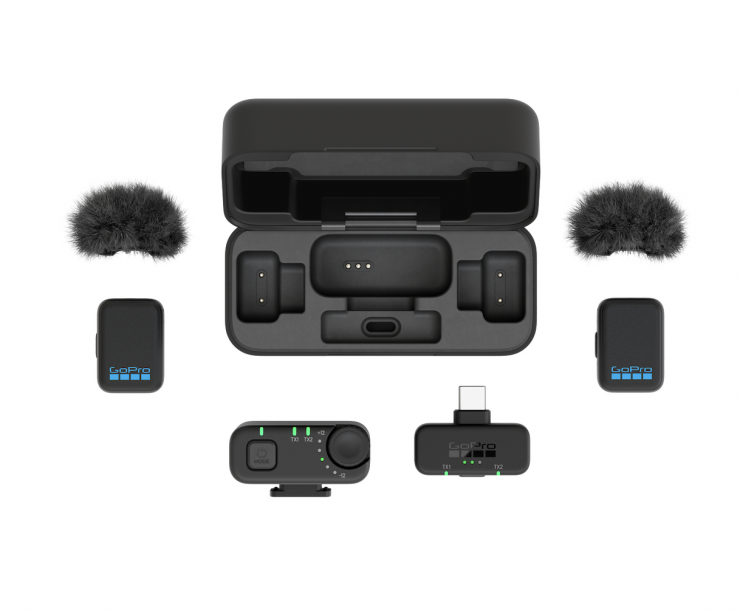
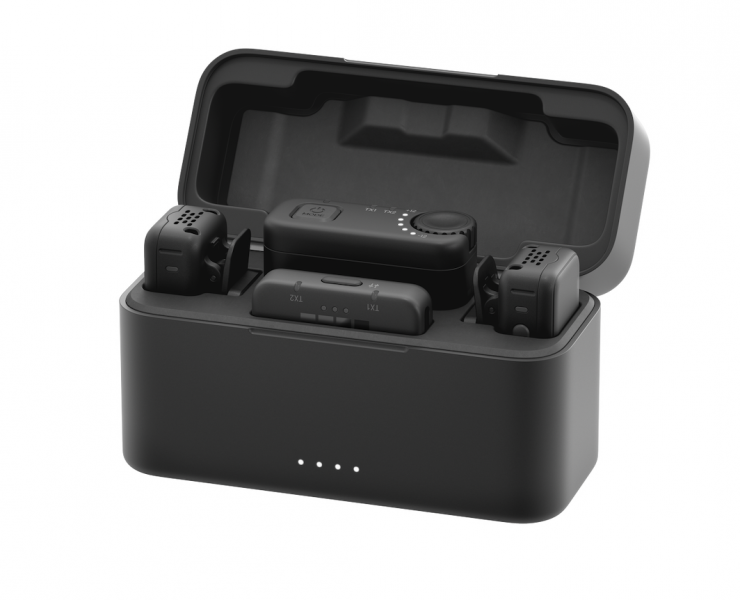
GoPro is also entering the wireless microphone market with its own Wireless Mic Complete Kit that comes with 2 transmitters and a combo TRS/USB Receiver, as well as a charging case.
The two ultra-compact microphone transmitters can be worn or hidden.
- Compatible with smartphones, mirrorless, and GoPro cameras
- Ultra-lightweight mic transmitters weigh less than 10g (two sheets of printer paper) for easy wearability
- Capture high-quality 24-bit (wide dynamic range) audio at 48 kHz sampling rate (high-frequency response)
- Connect from up to 492ft (150m) away
Usability
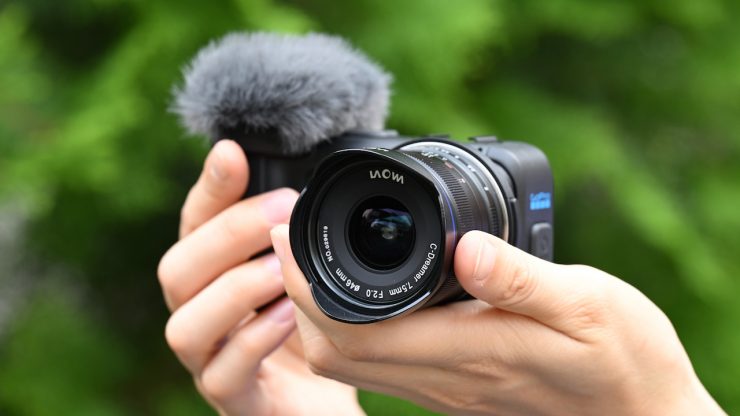
Because GoPro has essentially kept the same form factor as the other MISSION and HERO series cameras, there are some usability issues. The problem with a camera that has been designed specifically to be used with manual focus lenses is that you clearly need to be able to see a screen for focusing, exposure, and composition. As the MISSION 1 Pro ILS has a small, fixed screen, this can be difficult, to say the least.
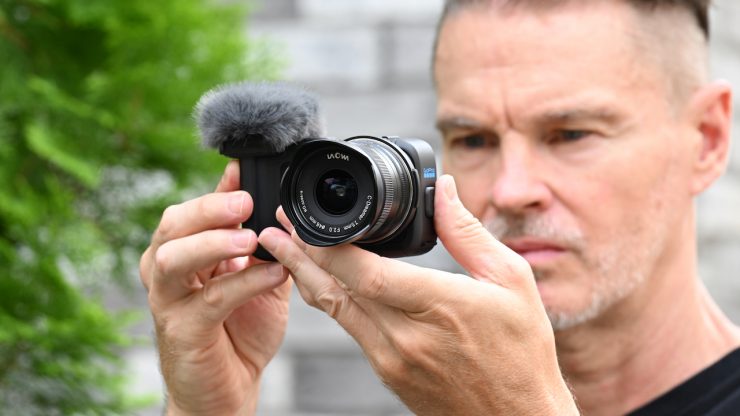
I found I had to put the camera up in front of my face to shoot, which isn’t always ideal.
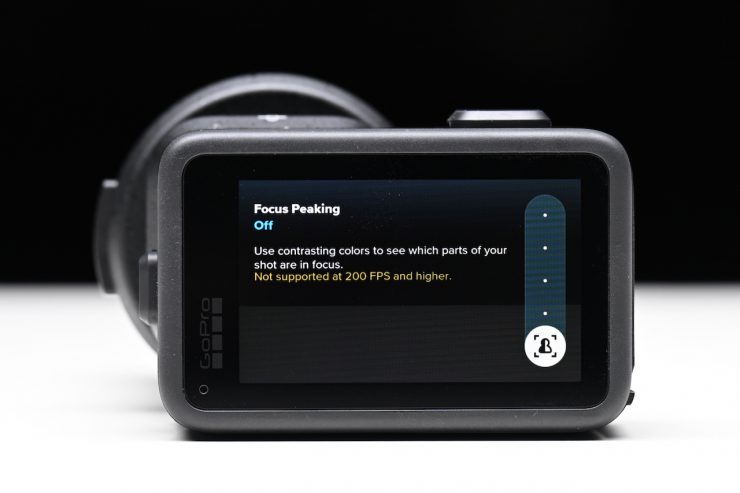
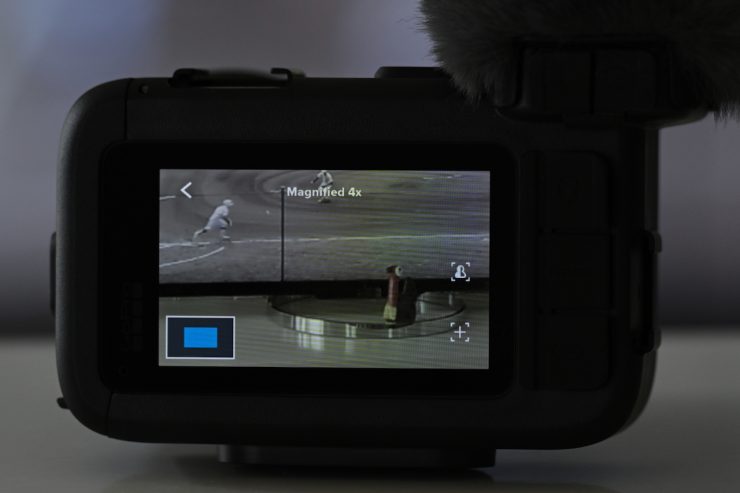
While there is peaking (which doesn’t work at frame rates of 200fps and higher), and the ability to punch in to check focus, it is very difficult to shoot unless you have the camera right in front of your face. At least in my opinion, GoPro should have at least made an articulating screen design for the camera, even if that came at the expense of waterproofing, etc. There are also no waveforms or false color, etc.
The Focus Assist lets you magnify your shot up to 8x on the rear touch screen. You simply double-tap anywhere on the rear touch screen from your camera’s capture screen or while your camera is recording. You can also double-tap the screen to cycle through zoom settings (4x, 8x, back to 1x). You also have the ability to tap and drag the pan window to check focus in different areas of your frame.
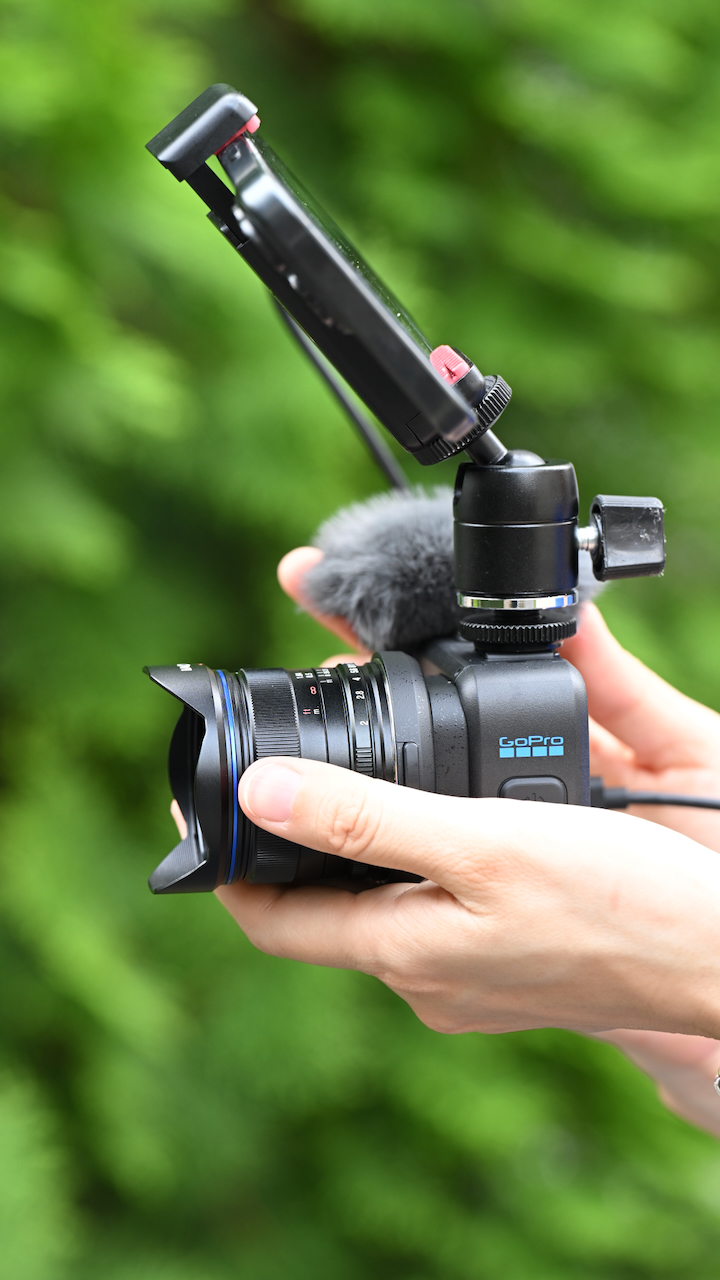
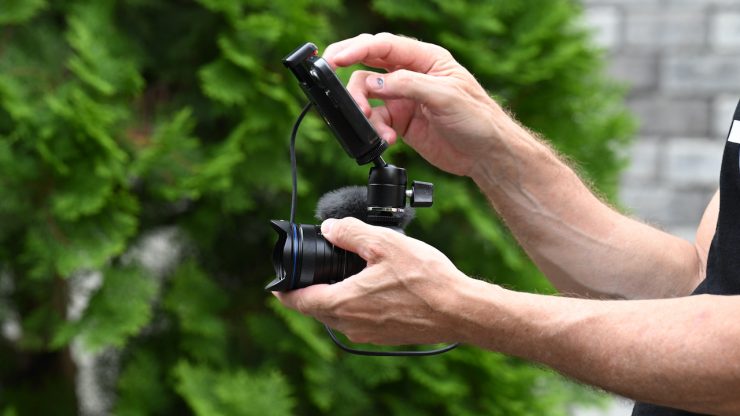
To use the camera, you really need to add an external monitoring solution, and that requires the optional Media Mod and a monitor or, at very least, a smartphone.
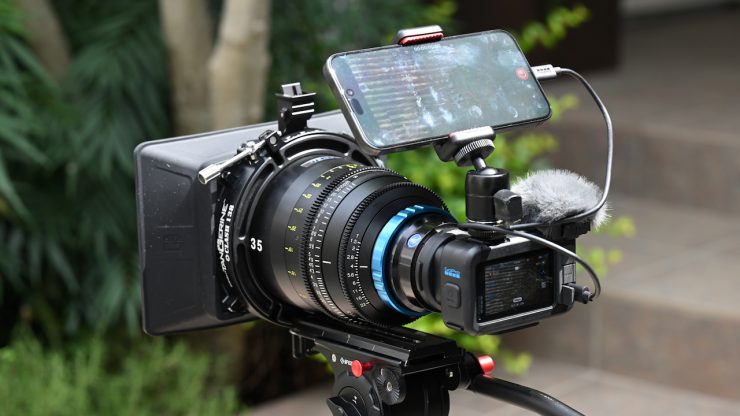
As it’s a very small and lightweight camera, once you start adding a larger-sized lens or any accessories to it, the advantage of having a smaller-sized camera starts to disappear. Also, because of the camera’s design, you can’t just attach it to a bigger tripod with a larger lens because the camera needs to be raised up to provide clearance for the lens. Additionally, because the lens mount isn’t centered on the camera body, the camera needs to be offset if you are going to use it with rods.
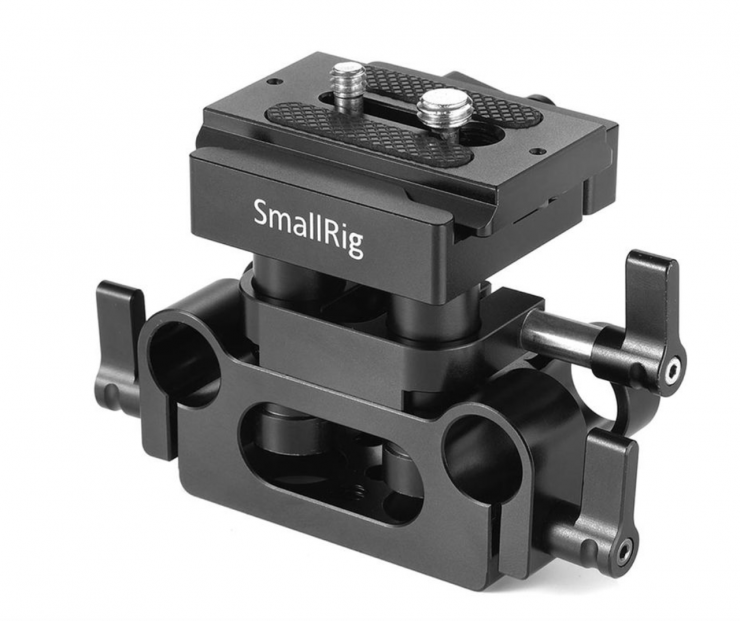
You would need to purchase something like the SmallRig Universal Baseplate with 15mm LWS Rod Support to solve this issue. This is a pretty small plate, and I am not sure how confident I would be attaching a large and heavy lens.
I would have liked to have seen GoPro make their own riser plate/baseplate system for more professional applications where you want to use larger lenses on bigger tripods.
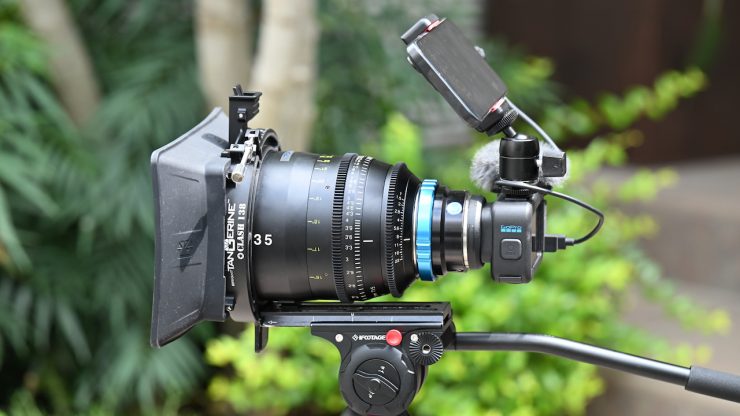
I didn’t have anything on hand that would work well, so I simply attached a baseplate directly to a larger lens and then attached the camera. While this is far from being a great solution, it does work.
With a lack of exposure tools and no waveform or false color, I originally found myself underexposing images, especially when shooting in GP-Log2. Images that looked well exposed when I was shooting turned out to be underexposed once I added the conversion LUT.
Here is what GoPro states when shooting in GP-Log2:
Because GP-Log2 compresses tones non-linearly, the exposure strategy you use at capture time has an effect on the quality of the final grade. Unlike JPEG or standard gamma video, where exposure mistakes are largely permanent, GP-Log2 gives you significant latitude — but only if you make deliberate choices about where you place your exposure.
GP-Log2 will appear brighter on the LCD or timeline. The GoPro exposure logic is protecting about 1.8+ stops of highlights above reflected white. This is why the LUT Generation tool defaults to adding 1.8EV to Rec709 output. If you create a monitoring LUT for a Rec709 display, +1.8EV within the LUT will match the GoPro’s exposure.
If you set the camera to -1EV, or a manual setting to a similar effect, to protect an additional stop of highlights, you could compensate with an additional stop into the preview LUT (set +2.8 EV). You can then expose for 18% grey through your monitor LUT, knowing the amount of highlight protected.
Below are the three exposure strategies GoPro recommends
Strategy 1: Expose for Middle Grey (Balanced)
Place 18% grey at the GP-Log2 midpoint, approximately code value 554 out of 1023 (roughly 54%). This gives the maximum balanced latitude.
Best for: Scenes with balanced dynamic range, controlled lighting, and predictable content.
EV Compensation in the LUT: Moderate positive offset (typically +1.8 EV) to restore the camera’s intentional underexposure relative to display gamma.
Strategy 2: Expose to Protect Highlights (ETTR — Expose To The Right)
Allow the mid-tones to fall slightly lower than nominal, keeping highlights from clipping. Since the GP-Log2 curve is flat in the highlights, even severely bright areas can be recovered if they remain below the digital clip point.
Best for: High-contrast outdoor scenes, sunlit environments, any scenario where blown highlights are unacceptable (e.g., sky, windows, specular reflections).
EV Compensation in the LUT: A higher positive offset (e.g., +2.0 to +2.5 EV) to restore underexposed mid-tones. The highlights, which were preserved in the log signal, will now be correctly rendered.
Strategy 3: Expose to Protect Shadows
Allow the mid-tones and highlights to sit higher, ensuring shadows are lifted above the noise floor. This sacrifices highlight headroom in exchange for cleaner, less noisy shadow detail.
Best for: Night scenes, dimly lit interiors, situations where shadow noise is the primary concern.
EV Compensation in the LUT: A lower positive offset (e.g., +1.0 to +1.5 EV) since the camera exposed brighter than nominal.
While it’s nice to have an HDMI output on the Media Mod, it’s Micro HDMI; these are very fragile and, at least in my experience, always end up breaking.
Now, if you do use the HDMI output, there are some caveats you need to keep in mind:
- Focus Peaking is not available when using 4K video output.
- Live preview is not available when capturing Lapse, Night Effects, or Interval Photo shots.
- There will be a delay when watching live 4K video while recording with HyperSmooth video stabilization on.
- Focus Assist is not supported on HDMI displays. Focus Assist will be shown on your camera’s rear touch screen while the live preview is shown on the external monitor.
A few features found on MISSION 1 PRO are not present in MISSION 1 PRO ILS:
- MISSION 1 PRO ILS is not waterproof, and therefore does not support Dive mode or Underwater Image Tuning. The camera body is weatherproof.
- MISSION 1 PRO ILS does not support subject tracking due to the interchangeable lens support.
- MISSION 1 PRO ILS does not support Horizon Lock due to the interchangeable lens support.
For shooting at high frame rates, especially the Burst SloMo at 960fps, you really need good lighting to maximize the image quality. GoPro recommends full sun/daylight. If you don’t have tons of light, or are shooting with a higher F/T stop, then the camera will increase ISO to compensate even in lighting conditions that might seem good enough.
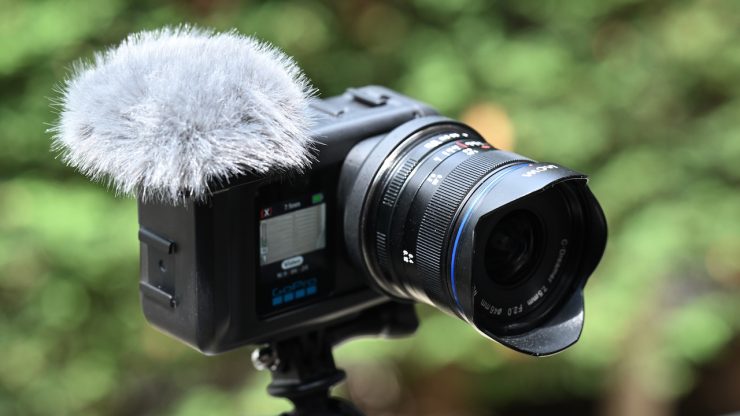
If you use the camera in an action camera capacity, it can still work well, but it really depends on the application. As it becomes significantly larger, even with a small-sized M4/3 lens, it can be trickier to mount, especially in situations where there is more vibration, etc. This is because the weight distribution is no longer centered as it would be with a regular GoPro or MISSION 1 Pro. This is something you need to factor in.
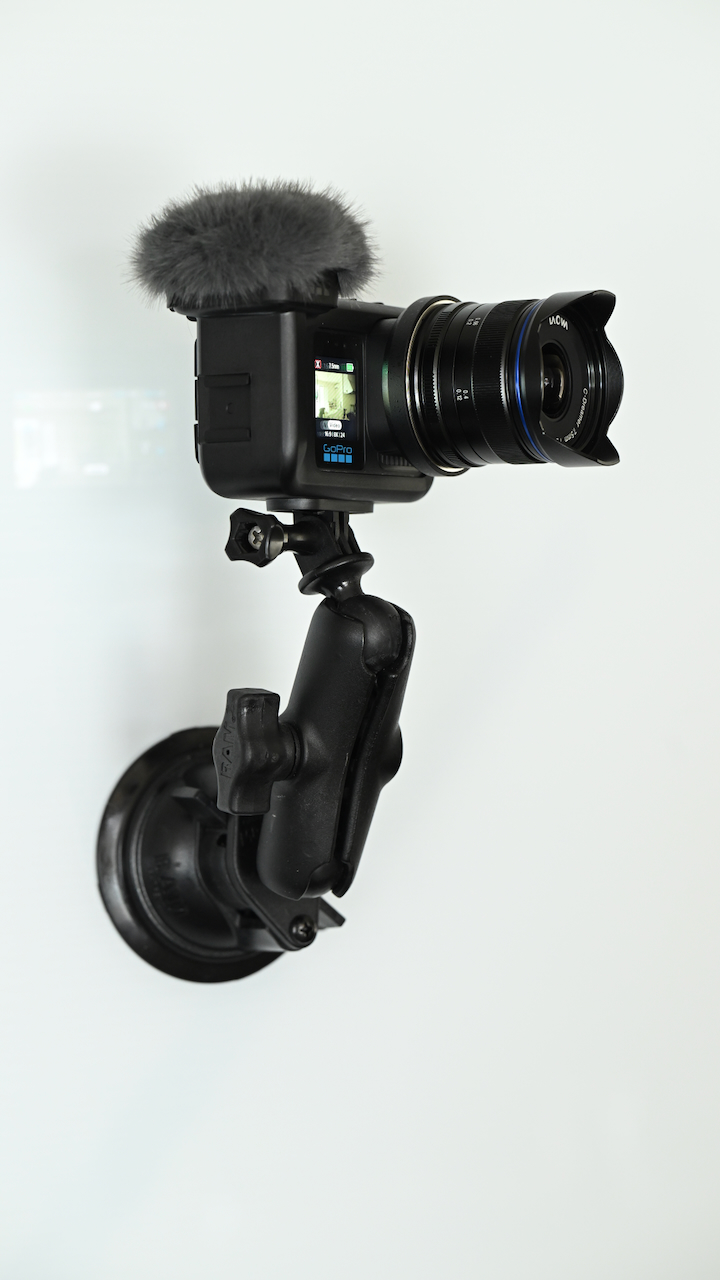
If you are just mounting the camera to something that is fixed and not moving, then as long as you use a relatively lightweight or small-sized lens, most existing GoPro accessories will still work.
If, however, you are using bigger and larger lenses, then you need to factor in combining it with more robust mounting gear that can handle larger payloads. I wouldn’t be using the built-in 2-prong mount with GoPro accessories if I was running anything larger than a small M4/3 lens for obvious reasons.
Having a very small and compact camera with an interchangeable lens mount that you can just tuck away in a bag is nice, even if you just want to have a backup or emergency camera. However, you could well make an argument that one of the latest smartphones or something like the DJI Osmo Pocket 4P could be used in a similar capacity.
For me personally, I don’t own or want to purchase M4/3 lenses just to use with one camera. I would only be using the MISSION 1 Pro IL with an adapter to run lenses I already own. This is something you need to think about clearly when deciding to buy the camera.
Image Quality
So what are the images like? I have to admit that I haven’t used an action camera, let alone a GoPro, in many years, so I was interested to see what the video quality was like.
First up, my general impressions. I personally didn’t find the imagery to look overly natural or organic (for lack of a better word). The images feel overly processed, and this didn’t matter what resolution or frame rate I was shooting in, or if I was shooting in GP-Log2 or not. This is just my impression; others may disagree.
Like a lot of action camera footage, it looks good when you are viewing it on a small-sized screen like an iPhone, but as soon as you view it on a larger screen, any image issues become very apparent. Like most action cameras, footage looks good in nice, even lighting, but it struggles when put into bad lighting or high-contrast conditions.
The 8K and 4K shooting modes at normal frame rates produce decent enough imagery, and it’s good for an action camera, but nothing special when you compare it to regular cameras. I did find that when shooting in 8K 4:3 in GP-Log2, the dynamic range wasn’t as good as when shooting in 4K, and it seemed to clip highlights pretty aggressively. If you want better dynamic range, you need to shoot in 4K.
What I found odd, and maybe I am just imagining this, is that the dynamic range seemed to be better if you set the ISO to Auto and not to a fixed value. Maybe this has something to do with the Simultaneous Dual-Gain Readout; I’m not sure.
I also don’t like that you can’t do a manual white balance and that there is no CC correction. The sensor and image processing certainly lean a little green, and that is quite evident when you look at footage.

HD 16:9 
HD 9:16 
HD 1440 4:3 
4K 16:9 
4K 9:16 
4K 4:3 
8K 16:9 
8K 4:3
What surprised me is that when I wasn’t shooting in GP-Log 2, there didn’t appear to be as much sharpness or detail when shooting in 4:3 as there was in 16:9 or 9:16. This was the case regardless of whether I was shooting in HD/1440, 4K, or 8K. For the tests, the ISO was at 400, and the Sharpness was set to medium.
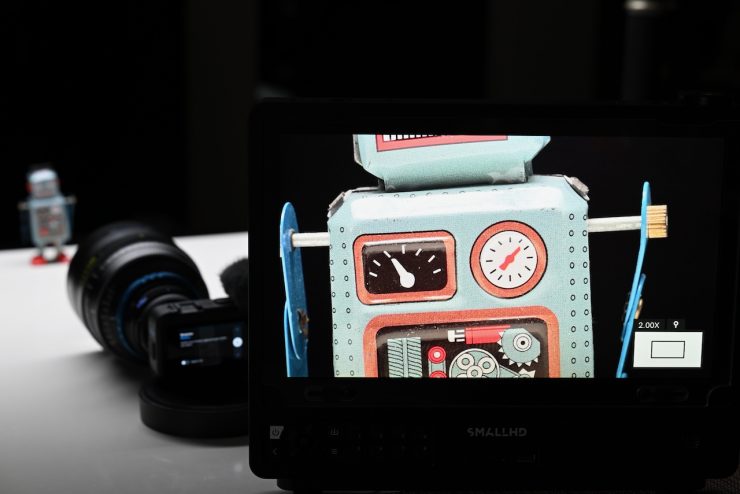
I set up a test to see how the Sharpness settings affected the image. In High, everything is overly sharpened. Conversely, if you switch to Low, everything starts to look a little soft, and you lose detail. I found it was best to just keep it at Medium. I got the same results regardless of whether I was shooting in GP-Log2 or a regular picture profile. I also got the same results whether I was shooting in 4K or 8K.
Now, in the real world, when shooting in GP-Log2, I didn’t notice the difference as much. However, when I tried shooting wide open at T1.5 with a Tokina Vista 50mm T1.5 lens, with the Sharpness set to Low (as reccomended by GoPro), there was not a lot of detail, as you can see in the image quality tests.
Above, you can see a comparison between a few of the available GP-Log2 LUTs and the various picture profiles on the GoPro MISSION 1 Pro ILS.
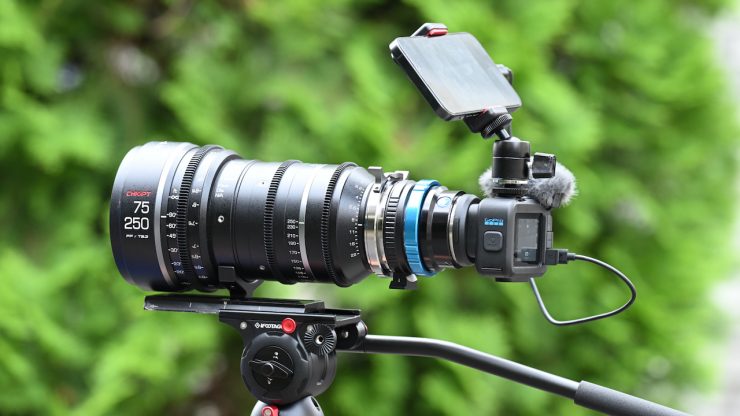
Where having a smaller-sized sensor comes in handy is if you need to shoot objects or subjects at a distance. I tried using the camera with a CHIOPT XTREME 75-250mm T3.2 and a 1.7x extender, which gave me a full-frame focal length of 425mm. There are a couple of shots using the combination in the Image Quality IQ tests video that is just above.
ISO 100 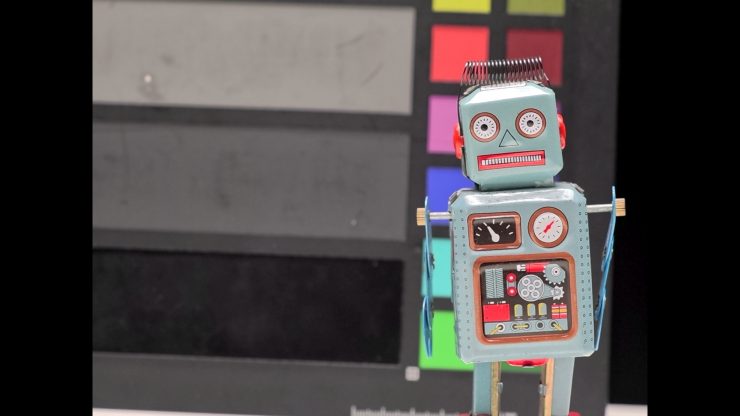
ISO 200 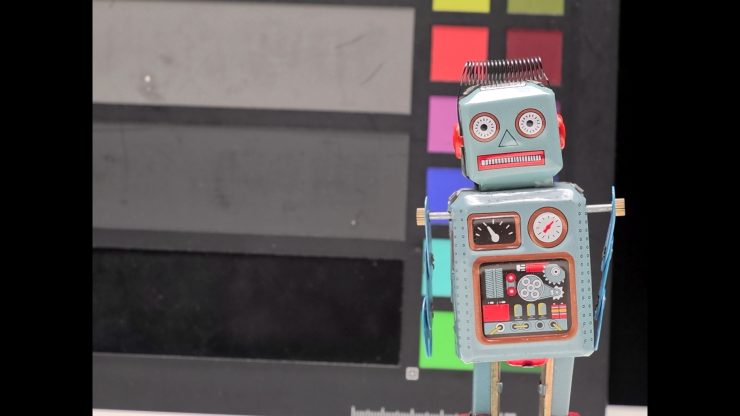
ISO 400 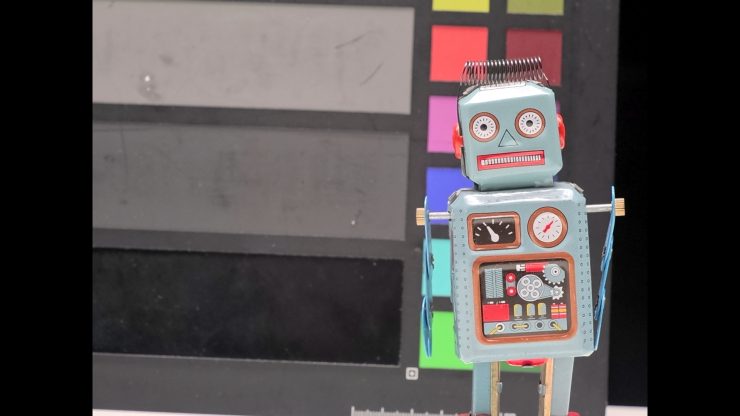
ISO 800 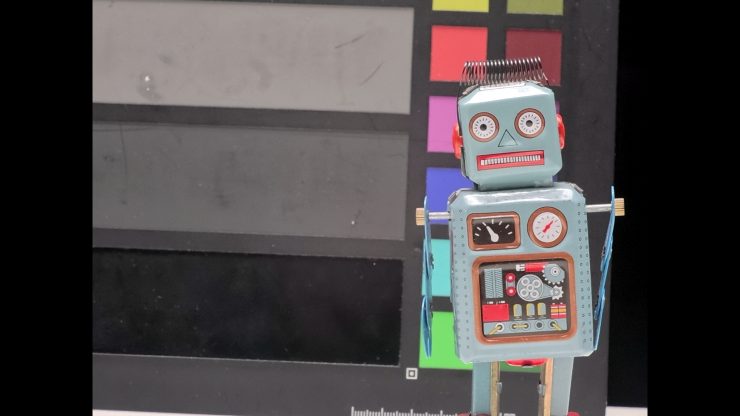
ISO 1600 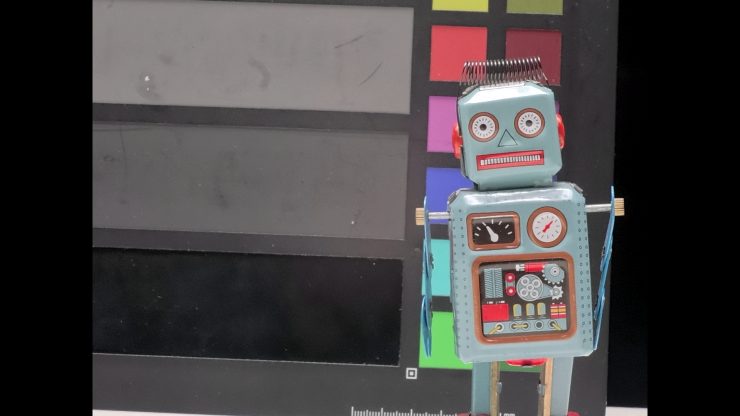
ISO 3200 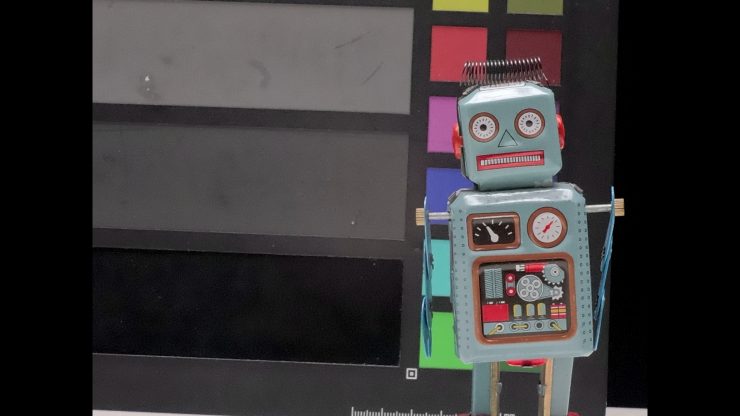
ISO 6400
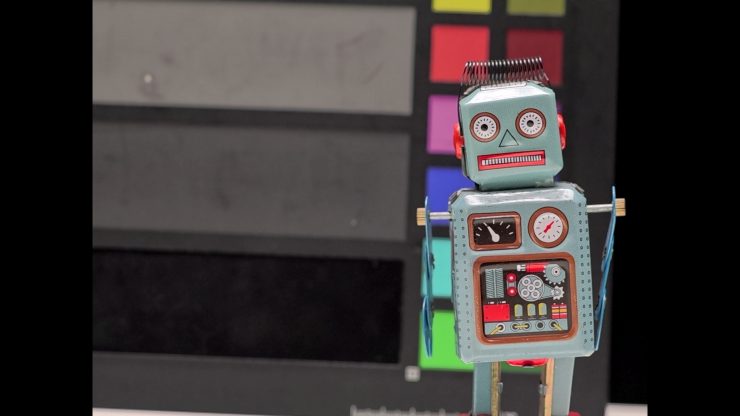
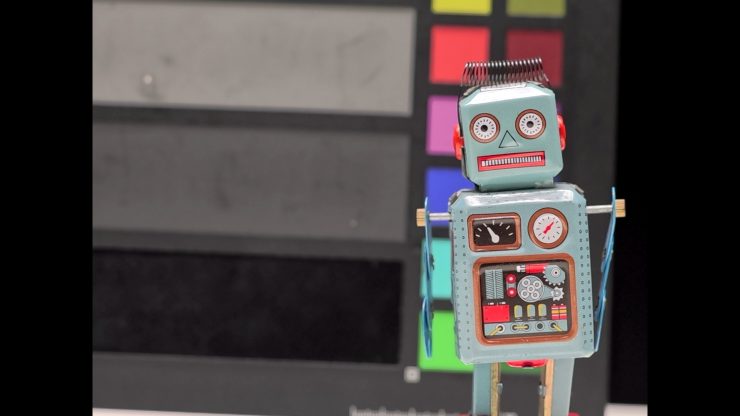
I did tests to see how much noise there was at various ISO settings. Above, you can see what images look like when shooting 4K 4:3 with the Denoise tet at Medium. These tests were done with the picture profile set to Natural. These are just live screen grabs from a SmallHD monitor.
ISO 100 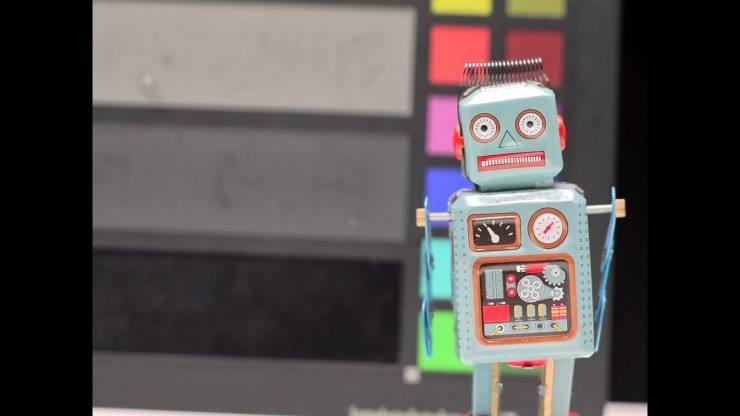
ISO 200 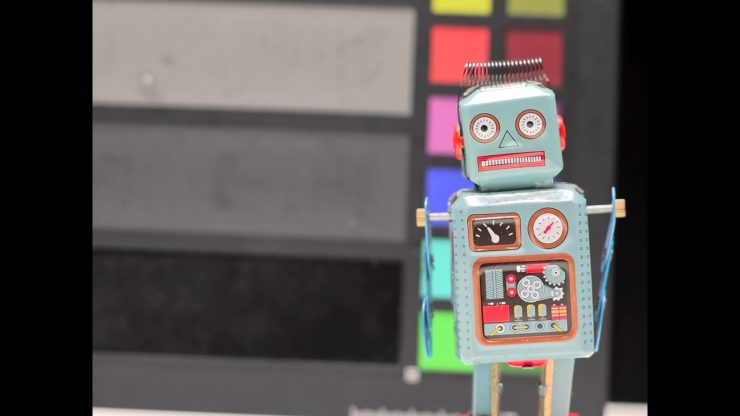
ISO 400 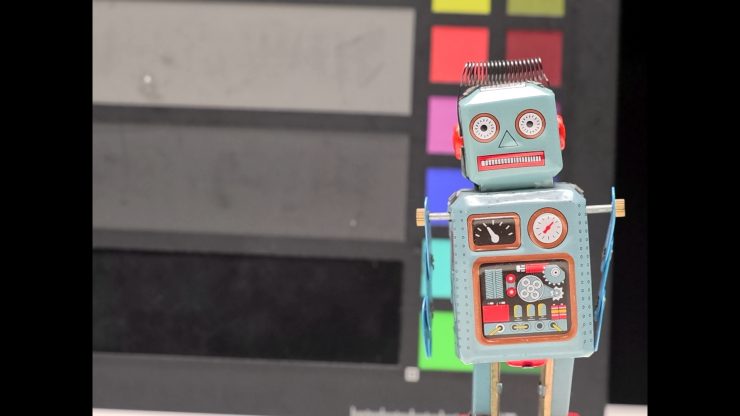
ISO 800 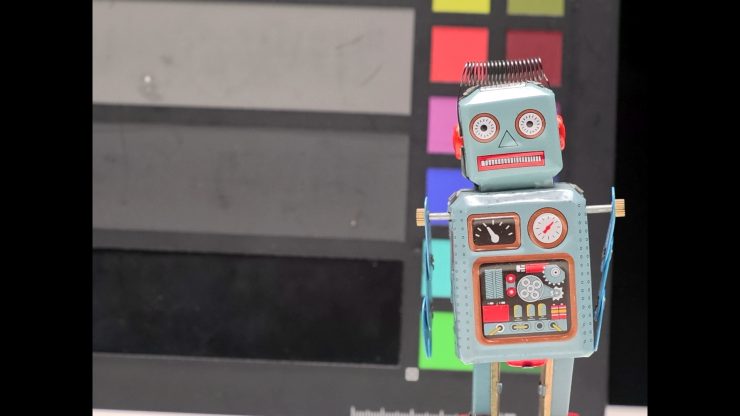
ISO 1600 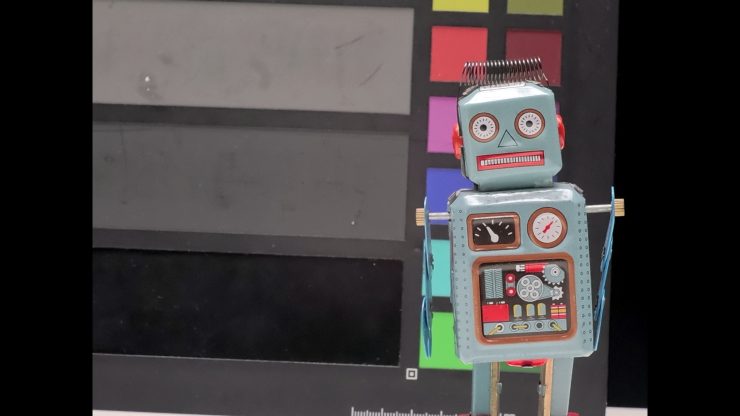
ISO 3200 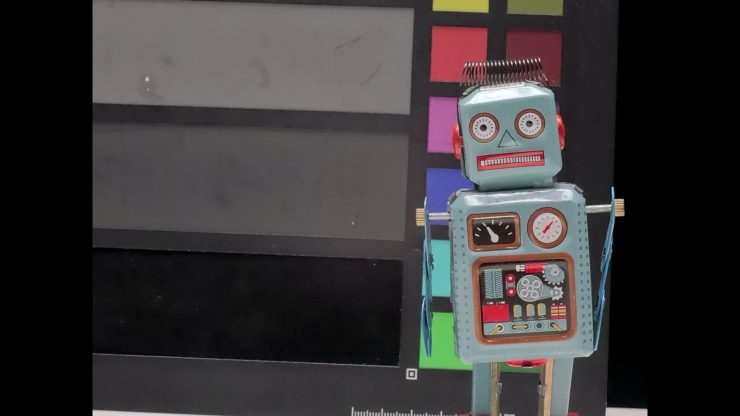
ISO 6400
Above, you can see the same test again, this time with the Denoise set to High.
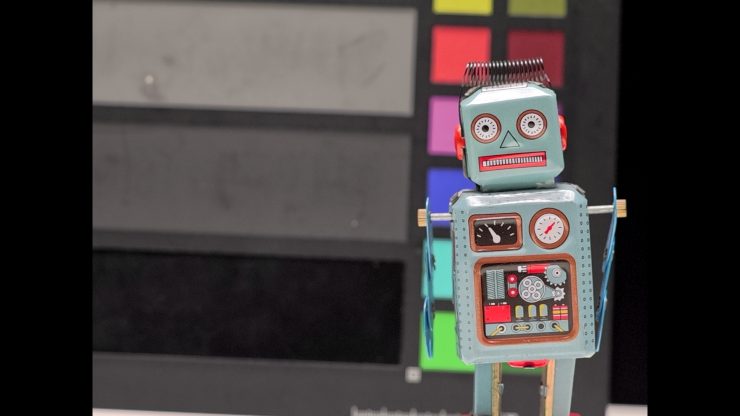
ISO 100 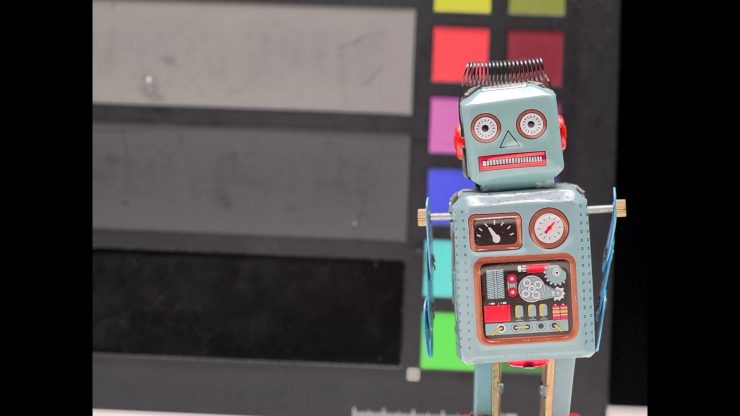
ISO 200 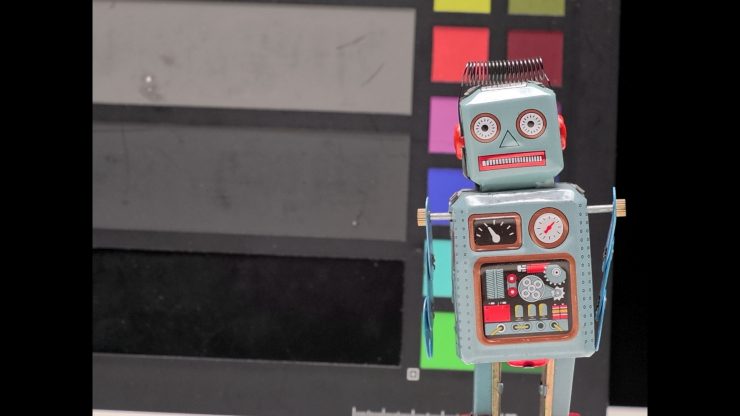
ISO 400 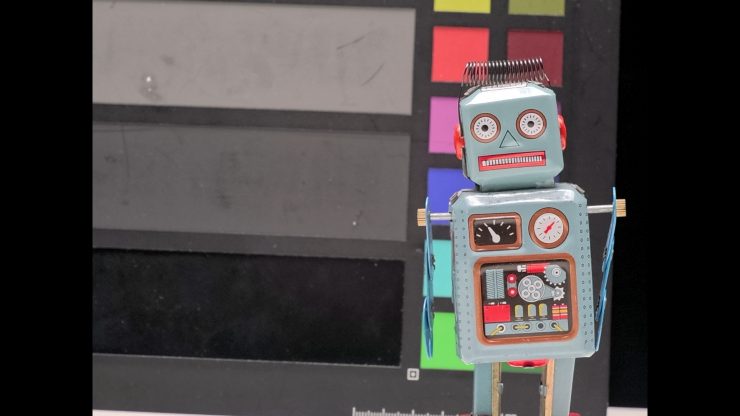
ISO 800 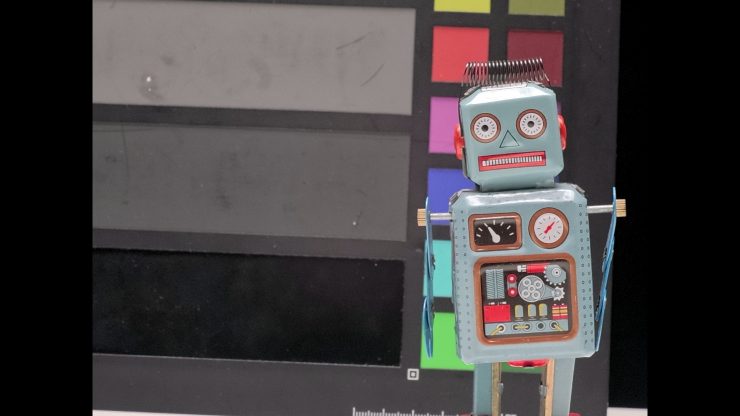
ISO 1600 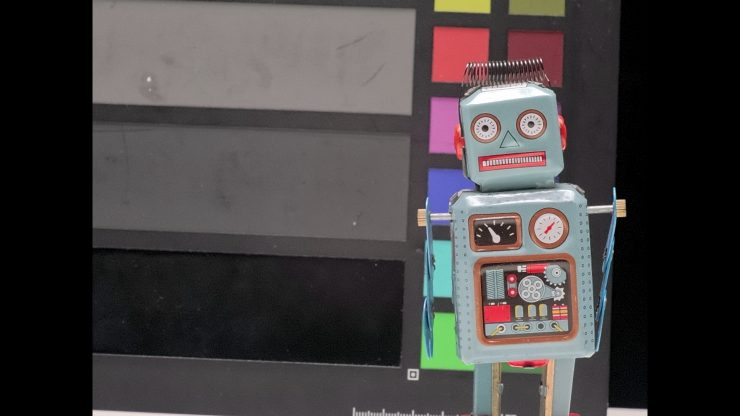
ISO 3200 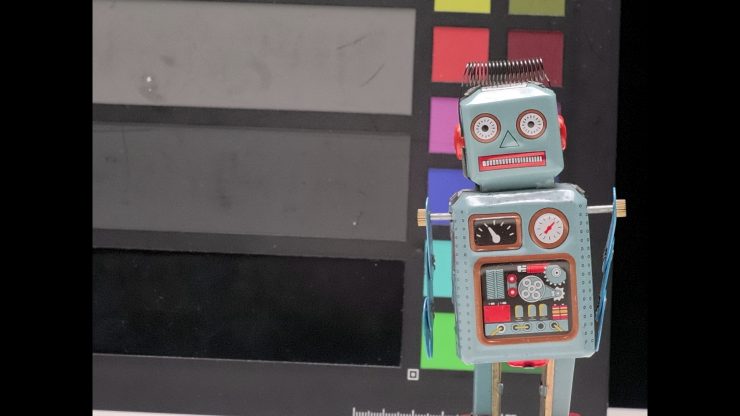
ISO 6400
Above, you can see the same test, this time with the Denoise set to Low.
I also did the same test in 8K 4:3, and I found the results to be very similar.
Above, you can see a test when shooting in GP-Log2 at the various ISO settings.
Overall, the low light performance is ok, and it is definitely usable at most of its ISO values. It is reasonably clean up to about 1600, and then you do get a bit of noise, but it’s fairly minimal. 6400 ISO isn’t great, but you can clean it up with noise reduction if you have to. I didn’t find that any of the Denoise modes were overly aggressive, and the difference between all three of them was reasonably subtle. If you shoot in GP-Log2, then there is more noise; however, I would probably just set the Denoise to Low, as you can easily do noise reduction in post if needed. You don’t want to underexpose material shot in GP-Log2, as it starts to get pretty noisy if you need to boost the exposure in post. GoPro recommends that when shooting in GP-Log2, you set the sharpness and Denoise both to Low. I would also recommend shooting at the lower ISO’s of 200 and 400 if you can.
I also did some tests with the various Image Tuning settings, but I couldn’t see any real-world noticeable difference.
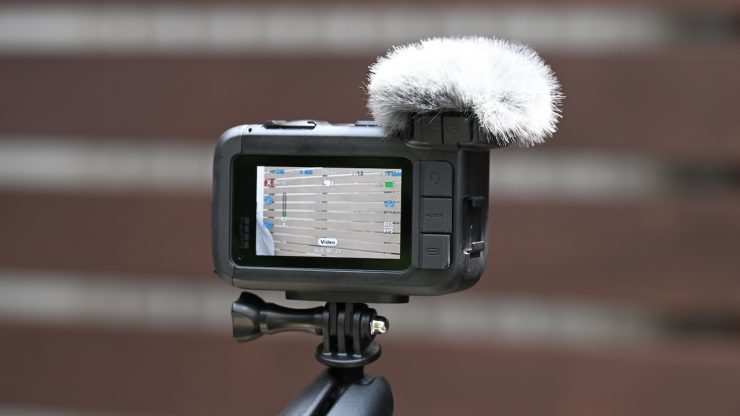
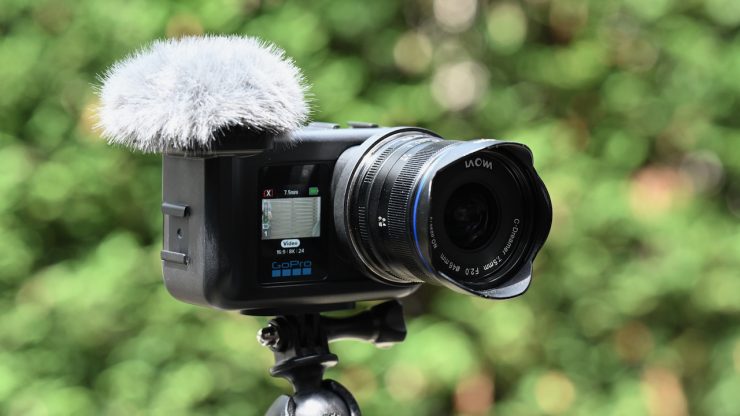
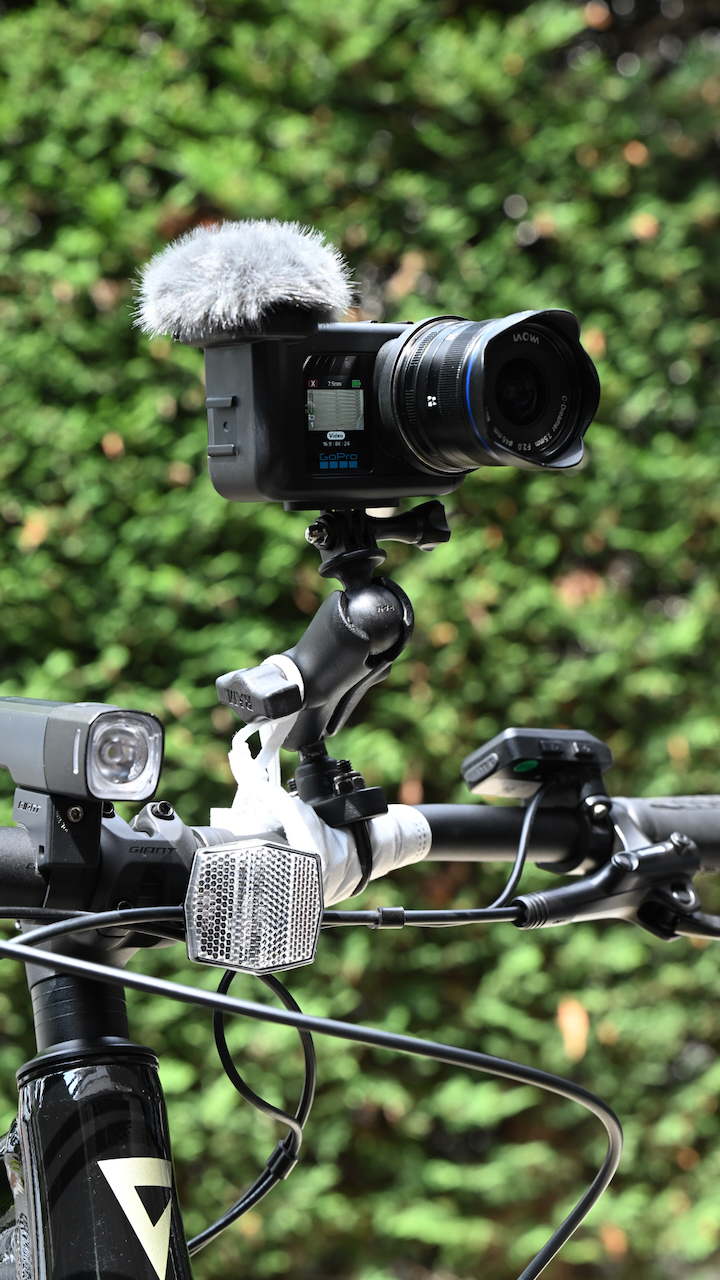
When I tried mounting the camera to a bike using existing GoPro-style mounts that I had, it was pretty easy to set it up, but you do have to factor in the additional weight.
The image quality if you shoot 4K (4000 x 3000) 4:3 at 60p in GP-Log2 is decent. The camera showed a good amount of dynamic range and plenty of detail.
If you try to use it in an action camera capacity where there is lots of movement at frame rates of 23.98p or 25p, and set your shutter to 1/48 or 1/50th, you get too much motion blur for my liking, and the image doesn’t look good.

GoPro MISSION 1 Pro ILS 
DJI OSMO Pocket 4P
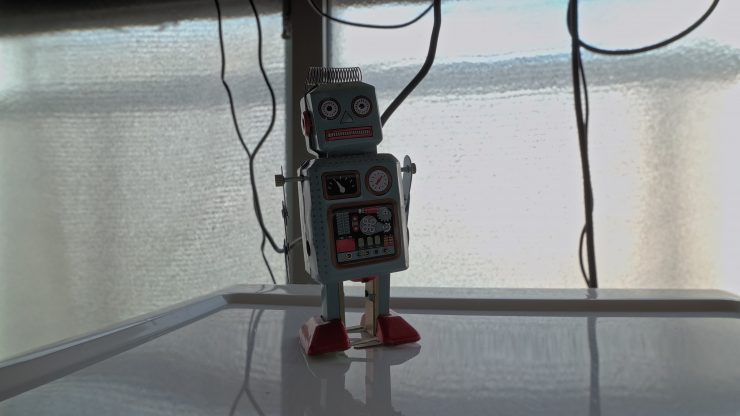
I did a quick test between the GoPro MISSION 1 Pro ILS and the DJI OSMO Pocket 4P where both cameras were set to record UHD 23.98p at ISO 400 with a shutter speed of 1/48th and the WB set to 5600K. The GoPro was in GP-Log2, and the DJI was in D-Log2. This shot was a difficult one for any camera given the conditions. Above, you can see the images when all I have done is apply the transform LUTs. As you can see, the OSMO Pocket 4P has better dynamic range and highlight handling.
GoPro MISSION 1 Pro ILS 
DJI OSMO Pocket 4P 
GoPro MISSION 1 Pro ILS 
DJI OSMO Pocket 4P
Now, if we try to recover those highlights, we can with the OSMO Pocket 4P, but with the MISSION 1 Pro ILS, a lot of the information is clipped and can’t be recovered.
Like any interchangeable lens camera, the quality of the optics that you put on the front goes a long way towards determining how your images will look.
One of the main drawcards of the camera on paper is the ability to shoot in high frame rates, and that’s why a lot of people would potentially buy it.
Above, you can see some test shots done when shooting at 3840 x 2160 and 4000 x 3000 at 120 and 240fps.
The 1080 960fps image quality is not great, and I would view it more as a novelty feature than one that could be used by professionals. If you have a lot of movement going on, the codec struggles, and I found the footage was soft, noisy, and lacked detail. You can try to sharpen it up a bit, but even material I shot with a very sharp lens at T8 still looks soft. As you can only record in 8-bit in a baked-in picture profile, you need to get it right in camera; otherwise, if you try to make adjustments in post, the image falls apart pretty quickly.
The quality of HD 240/480fps material falls somewhere between the 1080 960fps and the 4K 240fps. Above, you can see some shots I got down at the local park. The footage looked soft, mushy, and it lacked any kind of detail. The footage looks ok on the small GoPro screen when you are recording or playing back, but once you look at it on a larger screen, it no longer does. There is a reason why most cameras don’t feature the ability to record at very high frame rates, and that’s because it isn’t easy to capture good-quality imagery.
I also wanted to do a very quick test comparing the MISSION 1 Pro ILS at 4K 240fps against the DJI OSMO Pocket 4P recording 4K 240fps. The ISO and shutter speed were the same on both cameras. With the GoPro, you can still record in GP-Log2 at 4K 240fps, but with the Pocket 4P you can’t shoot D-Log or D-Log2 in 4K 240fps. The MISSION 1 Pro ILS image was pretty noisy in GP-Log 2 even at 200 ISO. I haven’t done anything to the footage (except add the transform LUT for the GoPro); the images are straight out of the camera.
Overall, I found the high frame rate material to be a bit lacking.
Now, my opinion on the high frame rate quality was probably influenced somewhat by the fact that I have been testing the PIXBOOM Spark at the same time. In no way should you expect high frame rate footage from a GoPro to even come close to what a dedicated high-speed camera can offer.
At the end of the day, you have to remember that this is a small-sized, sub-$700 USD camera, so the high frame rates should be looked at as a bonus.
Where does this camera fit?
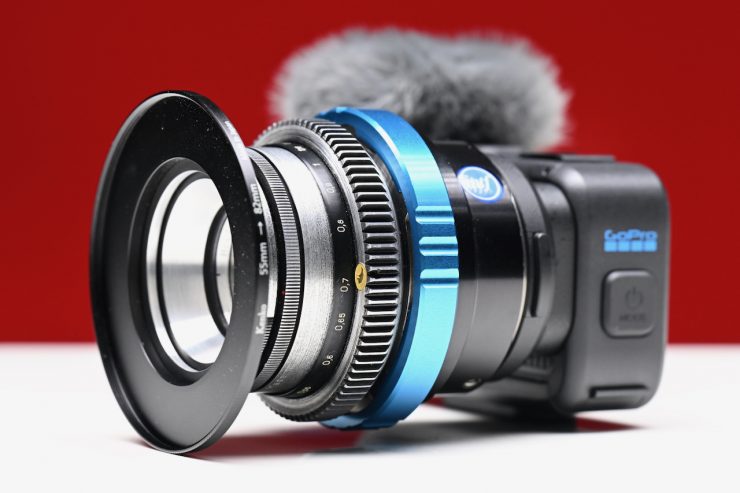
With so many affordably priced and capable mirrorless hybrids on the market, like the Canon EOS R50 V and Sony ZV-E10 and even something like the DJI Osmo Pocket 4P, where does the GoPro MISSION 1 Pro ILS fit?
In my opinion, the MISSION 1 Pro ILS could be used as a very compact B or C camera, or a crash camera, or even as a quick option if you need to capture a few shots at high frame rates. It could also make for a decent solution if you needed to use an interchangeable lens camera on a small-sized drone.
While it’s still very much a niche product, it does offer features and functionality in a form factor and size we arguably haven’t seen before. In a lot of ways it almost suffers from an identity crisis. At its very heart, it’s an action camera, but with the interchangeable lens, no waterproofing, and no AF, it arguably can’t be used in as many ways as, say, the MISSION 1 Pro. It also falls a bit short as a regular camera due to the form factor, small-sized and non-movable screen, and small sensor.
For a lot of shooters, arguably its biggest appeal on paper is if you need to get the occasional shot at high frame rates. Having an interchangeable lens camera that can shoot 4K at 240fps or HD at 960fps that costs less than $700 USD and can fit in a small bag should tick a lot of boxes for people; however, as I previously mentioned, the image quality at 480/960fps was in my opinion, not great.
The MISSION 1 Pro ILS is certainly a niche camera, but it is good to have options, because it might be a great fit for certain shooters.
Three Mounting Options
The MISSION 1 Series supports three mounting options:
- Magnetic Latch Mounting: For quick swaps between mounts
- Traditional GoPro Fingers: For a more secure mounting point in rough conditions
- 1/4-20 Mounting Threads: For full professional accessory integration
Vertical Mount Adapter
GoPro has a social media-friendly vertical mounting adapter.
- Integrated 1/4-20 locking wheel makes it easy to mount your cameras
- 3 mounting options: built-in mounting fingers,
1/4-20 mounting threads and Magnetic Latch Mount compatibility - Made of aluminum for extended durability
- Backwards compatible with all GoPro cameras with built-in 1/4-20 mounting (HER013, HERO12)
MISSION 1 PRO GRIP EDITION
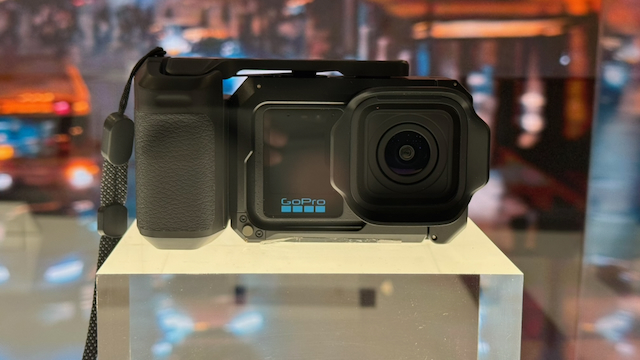
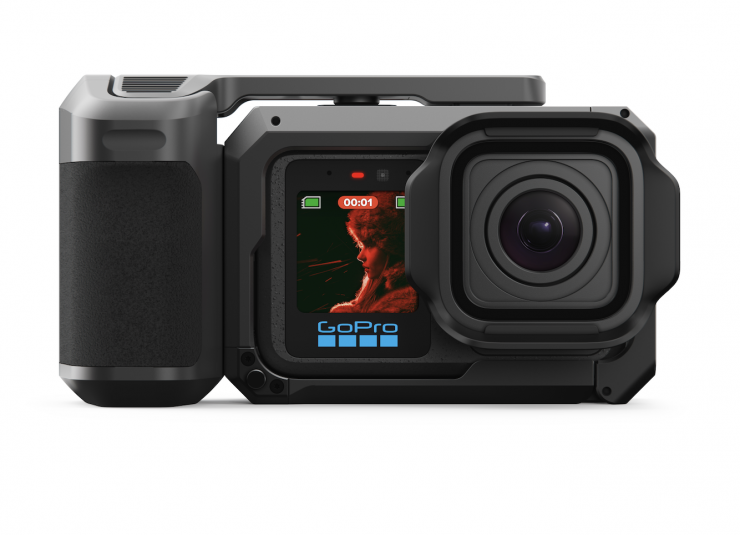
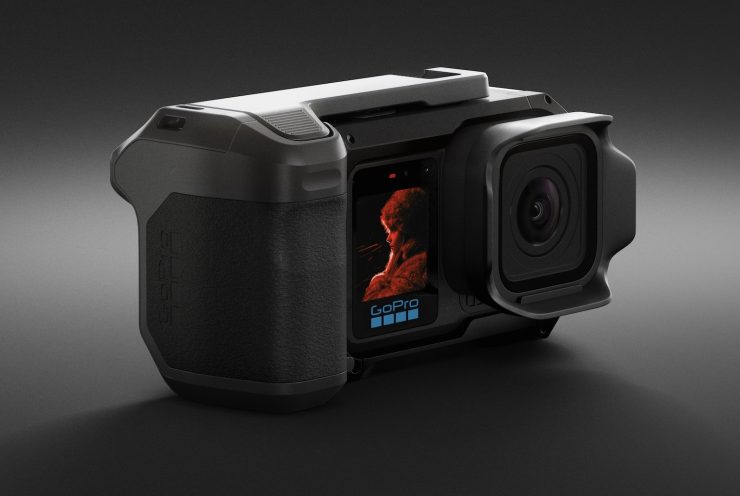
The MISSION 1 PRO GRIP EDITION was designed to help transform your GoPro into more of a point-and-shoot camera. It features a grip on the side that makes the camera easier to hold.
- Designed + optimized for photography
- Professional-style shutter button mechanism
- Integrated cold-shoe and 1/4-20 mounts for additional accessory compatibility
- Compatible with Magnetic Latch Mount ecosystem for quick and easy setup adjustments
The Point-and-Shoot Grip is also sold separately and is compatible with all MISSION 1 Series cameras.
MISSION 1 PRO CREATOR EDITION
The MISSION 1 PRO CREATOR EDITION includes the Media Mod, Volta 2 Battery Grip, Wireless Mic Complete Kit, Magnetic Latch Mount, and a Carrying case.
- Media Mod: adds essential I/O port expandability to unlock audio and video production accessories
- Volta 2 Battery Grip: A battery that delivers over 8 hours of runtime at 4K30
- Wireless Mic Complete Kit: Delivers clear, high-quality wireless, ultra-lightweight microphone transmitters
- Magnetic Latch Mount: For quick and easy setup adjustments
- Carrying Case: Keeps your entire setup organized
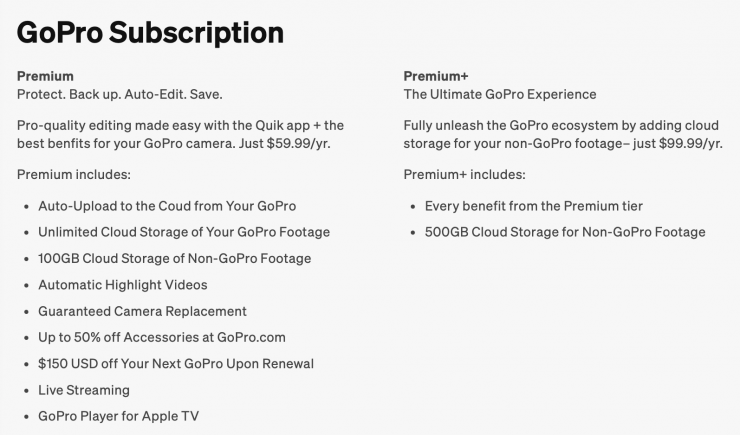
GoPro Subscription
Is it too little, too late?
GoPro recently announced its financial results for its second quarter ended June 30, 2026, and things could be better. Revenue is down, and so are camera sales.
Q2 2026 Financial Results
- Revenue was $105 million, down 31% year-over-year.
- Sell-through was approximately 291,000 camera units, down 38% year-over-year.
- Subscription and service revenue increased 11% year-over-year to $29 million, or 28% of revenue, compared to 17% of Q2 2025 revenue. Q2 2026 subscription and service revenue included $2 million generated from GoPro’s AI content licensing program.
- Subscriber attach rate was a record at 69%, compared to 54% the prior year quarter.
- Subscription ARPU increased 9% year-over-year and 5% sequentially.
- Revenue from the retail channel was $58 million, or 56% of total revenue and down 48% year-over-year. GoPro.com revenue, including subscription and service revenue, was $47 million, or 44% of total revenue and up 13% year-over-year.
- GAAP gross margin was 30.2% compared to 35.8% in the prior year quarter and included a $19 million benefit from tariff refunds, partially offset by a $15 million charge related to certain component purchase commitments. Non-GAAP gross margin was 30.4% compared to 36.0% in the prior year quarter.
- GAAP net loss was $51 million, or a $(0.30) loss per share, compared to a net loss of $16 million or a $(0.10) loss per share, in the prior year quarter. Non-GAAP net loss was $36 million, or a $(0.21) loss per share, compared to a net loss of $12 million or a $(0.08) loss per share, in the prior year quarter. GAAP and non-GAAP net loss for Q2 2026 included a $19 million benefit from tariff refunds, partially offset by a $15 million charge related to certain component purchase commitments.
- Adjusted EBITDA was negative $29 million compared to negative $6 million in the prior year quarter.
With so much competition in the action camera space, GoPro arguably rested on its laurels for far too long and failed to innovate quickly enough. GoPro basically invented the action camera category, and I had the original GoPro that shot 720p way back in 2004.
The MISSION 1 series is a welcome addition, but professionals have been asking for cameras like this for years and years, and those requests fell on deaf ears. It’s easy to fall down a hole; it’s a lot harder to get out. I really hope GoPro can turn things around, because it’s never good to see any company struggle, especially one that was so instrumental in creating a category of camera that wasn’t previously available.
Pricing & Availability
The MISSION 1 PRO ILS is $699 USD.
Thoughts
The MISSION 1 PRO ILS is an interesting camera that, like any camera, has its positive and negative aspects. It’s great to finally have an interchangeable-lens GoPro camera. The image quality when shooting in 4K and 8K Open Gate is decent; however, I was a little disappointed with the image quality of the high-speed footage. Maybe my expectations were too high, or perhaps there are just so many good cameras out there these days, and I have been spoilt. At the end of the day, I still felt like a lot of the material I was looking at was footage from an action camera. The images looked overly processed. This might sound harsh, but my job is to give you my honest impressions and not hype up products for clicks.
The form factor and the fixed small screen could both be viewed as negative aspects, and they can present usability issues. Having a camera that you can only use with manual focus lenses requires a far better monitoring solution than what GoPro offers. However, the screen issue can be addressed pretty easily if you use your iPhone and the Mission Monitor app or attach your own monitor with the Media Mod.
The menu system is too complex for my liking, and it needs a more updated UI, instead of the similar one that has been used across a lot of GoPro’s recent cameras. I would have liked to have seen something like Sony’s big 6 menu included. I say this because the ILS version is a camera that is going to be bought by a specific user base, and not by people who would be looking at a regular action camera.
The regular image quality is ok, but it really needs to be better than ok for it to succeed. Once you have an interchangeable lens camera, it suddenly has to compete with a lot more options, and it should no longer be viewed as an action camera. If you want an action camera, then arguably the MISSION 1 Pro is a much better option.