
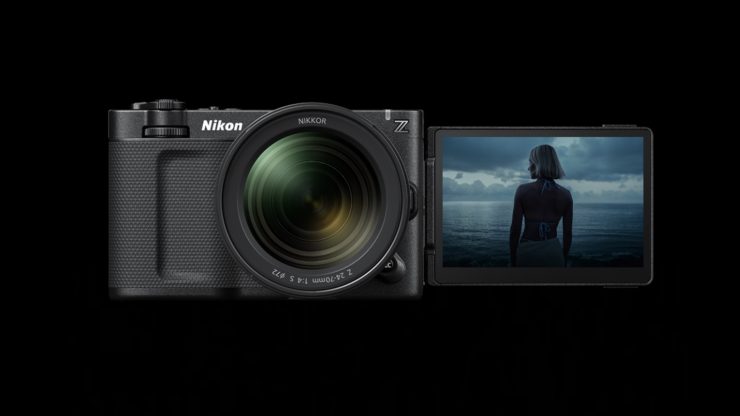
Nikon has released the RWG/Log3g10 to Rec2020/N-Log LUT that works with Adobe Premiere Pro (Beta). This is essentially a way of working with Rec.2020 footage when shooting in N-Log if you are using Premiere Pro.
RWG/Log3g10 to Rec2020/N-Log LUT
Nikon N-RAW footage recorded in N-Log tone mode can be opened using the following software: RED Wide Gamut (RWG)/Log3G10.
Use the RWG/Log3g10 to Rec2020/N-Log LUT* when you need to apply Rec.2020/N-Log.
* Not for converting R3D files recorded with RED cameras to N-Log.
The following versions of LUT are available:
- RWG_Log3G10_to_REC2020_N-LOG_size_65.cube
- RWG_Log3G10_to_REC2020_N-LOG_size_33.cube
The 65-point LUT is recommended; however, use the 33-point LUT if your system does not support the 65-point version.
How to Install it
- Download D-LUT_L3GTONL-V0100M.dmg.
- Double-click the D-LUT_L3GTONL-V0100M.dmg icon to mount a disk image containing a folder named “LUT_L3GTONL”, which in turn contains the following files:
- • RWG_Log3G10_to_REC2020_N-LOG_size_65.cube
- • RWG_Log3G10_to_REC2020_N-LOG_size_33.cube
How to Use it
Follow the steps below to apply the LUT in Adobe Premiere Pro:Copy the downloaded LUT file (“RWG_Log3G10_to_REC2020_N-LOG_size_65.cube” or “RWG_Log3G10_to_REC2020_N-LOG_size_33.cube”) to the designated folder*.
* For information on the destination folder, refer to Adobe’s website
Launch Adobe Premiere Pro, start a new project, and load the footage. While the project is selected, create a new adjustment layer via File > New > Adjustment Layer, and apply it to the timeline.
Apply “RWG_Log3G10_to_REC2020_N-LOG_size_65” or “RWG_Log3G10_to_REC2020_N-LOG_size_33” from the LUT Settings dropdown menu under Basic Correction in Lumetri Color on the adjustment layer.