

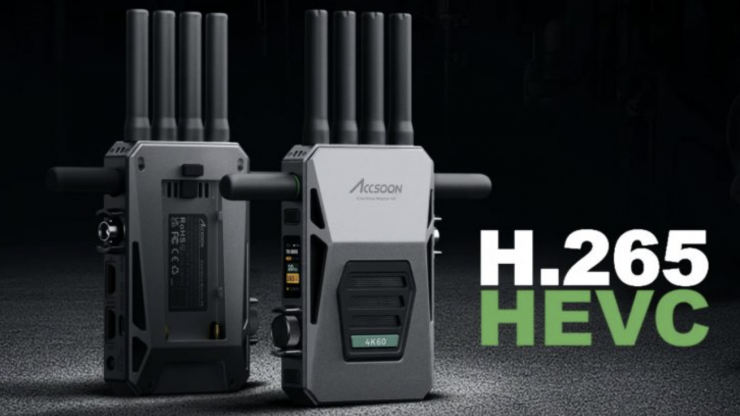
The Accsoon CineView Master 4K system was recently upgraded to support H.265 encoding at up to 4K 60p. In layman’s this means improved image quality for the same amount of data sent or recorded. It is good to see Accsoon add this capability to the CineView Master 4K. It is very rare to see significant upgrades added to existing wireless video systems.
Along with the H.265 encoding at up to 4K 60p, a single CineView Master 4K transmitter can now work with up to 10 receivers or CineView M7 Pro monitors, within a large studio environment. This is a big increase from the previous four-device limit, and it allows the system to be used in environments where a lot of different people need to see an image.
In my initial tests, I primarily looked at whether there were any noticeable image quality improvements between H.264 and H.265. In part 2, I will look at latency.
What is the difference between H.264 & H.265?
H.264 uses what is known as macroblocks of 16 by 16 pixels. It uses these macroblocks to compress video content in multiple processes that analyze what’s known as motion composition. The codec compresses video by determining what motion is happening, what is needed to complete the picture, and what else can be thrown away. The macroblocks are subdivided into transform and prediction blocks to help determine this behavior.
H.265, also known as High Efficiency Video coding, is the successor to H.264 coding. When compared to H.264, it essentially offers a higher quality for the same bit rate.
H.264 uses Macroblocks to compress video content; H.265 replaces those Macroblocks with what’s called coding tree units or CTUs for short. The CTUs are up to 64 by 64 pixels in size, and can be divided into different CTU sizes when going through this process. This means it can compress information more efficiently. As well as this, H.265 has better motion compensation and spatial prediction than H.264 does.
When dealing with high-resolution formats like 4K and 8K, the amount of data in each frame is significantly higher than when dealing with HD. H.265’s ability to handle larger file sizes with greater precision underpins its ability to stream high-quality video content without excessive bandwidth or storage.
Full H.265 Encoding for 4K60
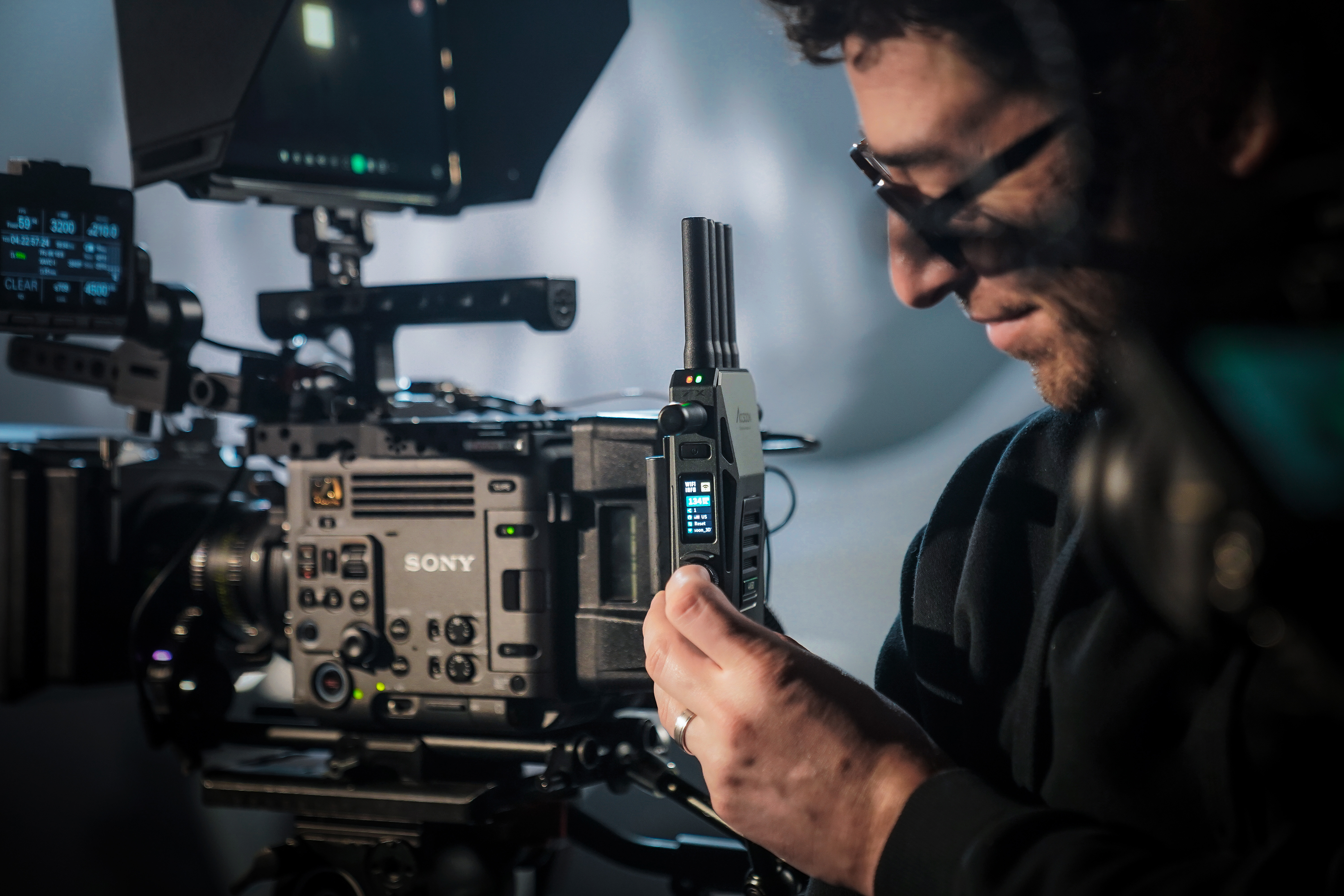
As I have already mentioned, the update introduced full H.265 encoding support, enabling true end-to-end 4K60 video transmission, from input to output. Whether for monitoring, recording, or livestreaming, this optimization promises to provide a more detailed 4K image quality at the same bitrate. For recordings, users can now choose their own balance between reduced file sizes and increased quality.
The biggest issue when using a lot of Wi-Fi-based wireless video systems, apart from the latency, can be the quality of the video. As Wi-Fi-based systems need to compress the image before sending it, you can end up with pixelation and other image artifacts depending on what you are doing. If you are viewing an image on a smartphone, then arguably this isn’t a big deal, but as soon as you want to monitor on a larger screen, it can become very noticeable.
If it’s hair and makeup watching a feed on an iPad or iPhone, then maybe it’s not a big issue, but if you have a client monitor, it doesn’t send the best message if they are watching a poor-quality feed that has image artifacts. If they don’t understand why it looks like that, they may start to question what is wrong with the image.
Latency
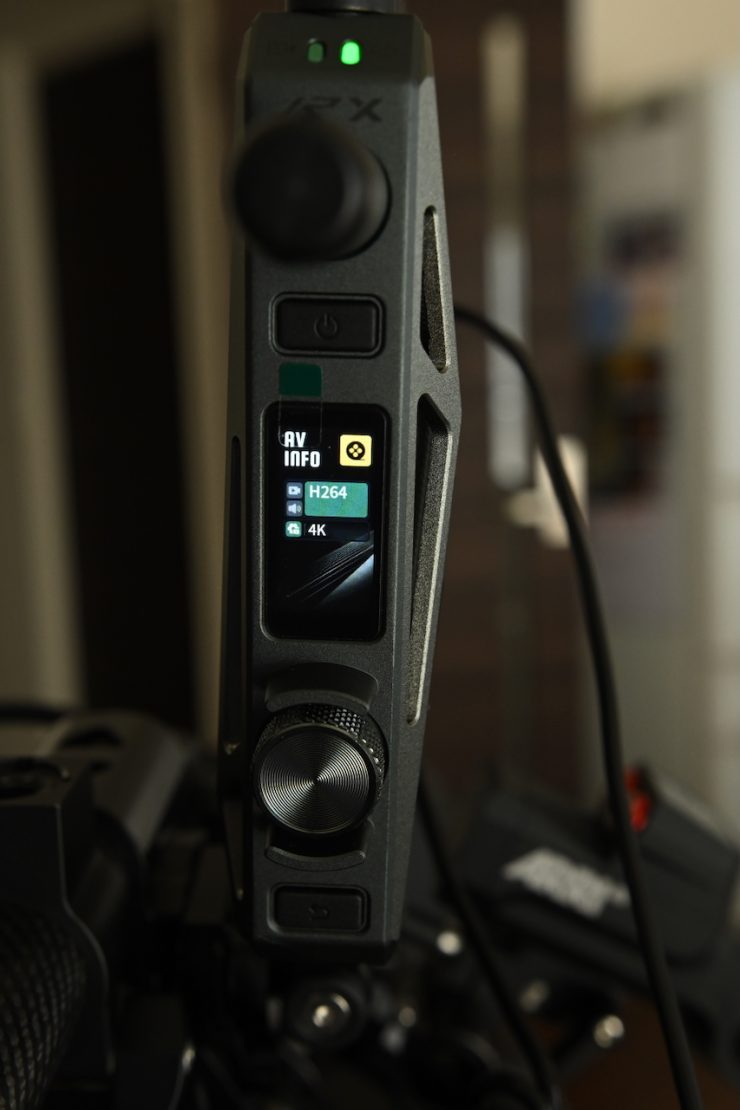
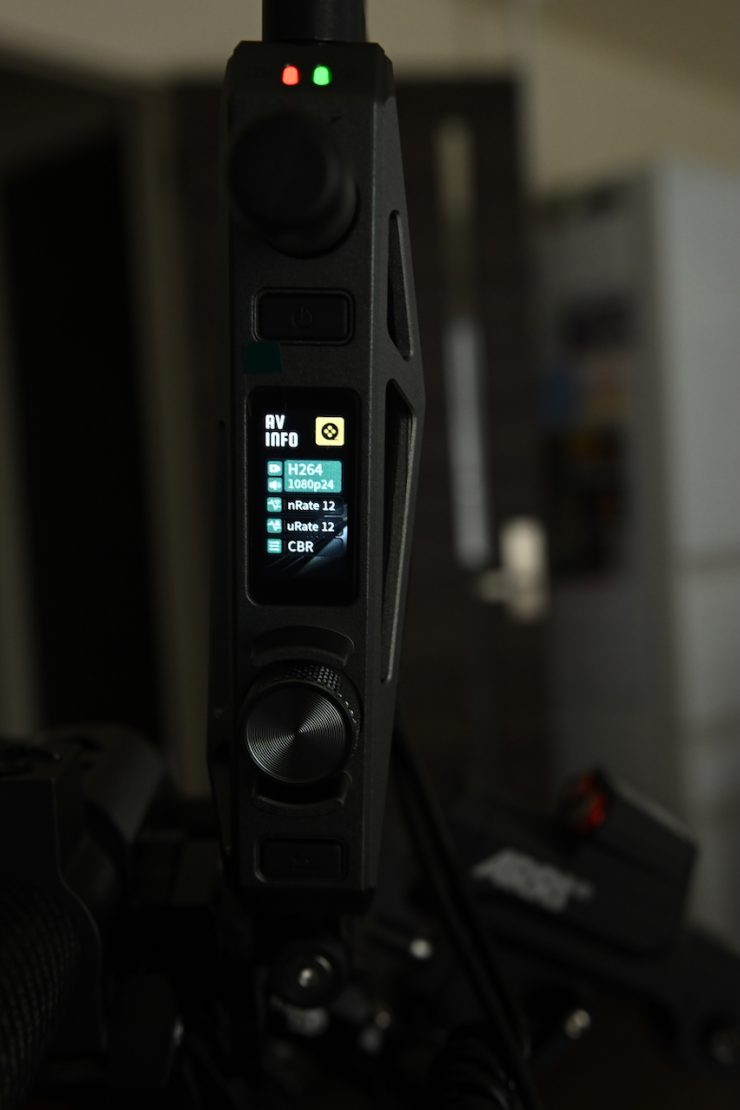
Firstly, let’s have a look at whether there is any big noticeable difference in the latency between using H.264 or H.265. As H.265 is more processor-intensive than H.264, it will be interesting to see if there are any major differences. For these tests, I am using a Nikon Z9 and sending HDMI to the CineView Master 4K TX, and then the RX is connected to a SmallHD Cine 13. Filming a TV sports broadcast is a good way of showing the real-world latency across the entire image chain.
As you can see, the latency when sending 4K 23.98p in either H.264 or H.265 over HDMI is very evident. I found that there was slightly more latency when using H.265, but not by much.
The latency difference between using H.265 and H.264 when sending 4K 60p over HDMI is virtually indistinguishable. The latency is very low, which is impressive for a compressed wireless video transmission system.
So, let’s now do those same tests again, but this time in HD.
As you can see, the latency when sending 1080 23.98p in either H.264 or H.265 over HDMI. I found that the latency was a little higher when using H.265.
As I expected, the latency is less when sending a 60p signal as opposed to 23.98p.
When sending HD or 4K in 23.98p, regardless of whether it is H.264 or H.265 produces a lot of noticeable latency. H.264 provides slightly better results at 23.98p.
HD or 4K in 60p reduces the latency significantly.
My conclusion is that there is slightly more latency when selecting H.265 as opposed to H.264.
2.4 GHz wireless video systems use a WiFi or ‘packet-based’ approach in which video is first compressed and then transmitted over a local-only WiFi network. Compressing video into packets before transmission introduces delay, typically 2-4 frames, and lowers the image quality. This is because most decoders will store multiple packets, or decoded frames, in a buffer to smooth out the video before outputting, which creates a less robust signal and latency unsuitable for the rigorous demands of film production.
Now, depending on what you are doing and what your requirements are, having some latency isn’t going to be a big deal. If you just need to monitor an image or you are not doing highly complex remote focus pulling, then you arguably may not need a zero delay system.
If you want the best possible image quality and virtually no latency, then you need to get an uncompressed system, and that is why they cost significantly more.
How to update the firmware
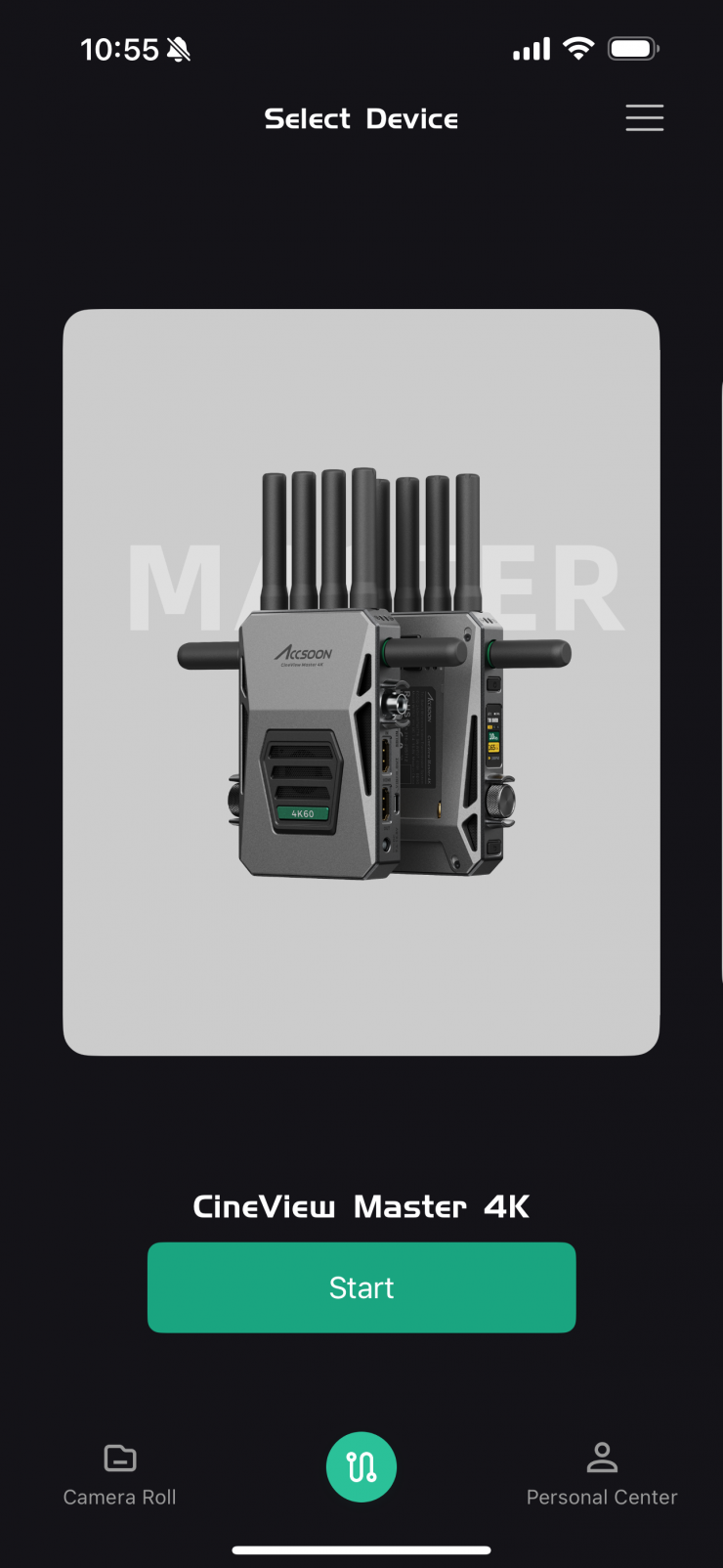
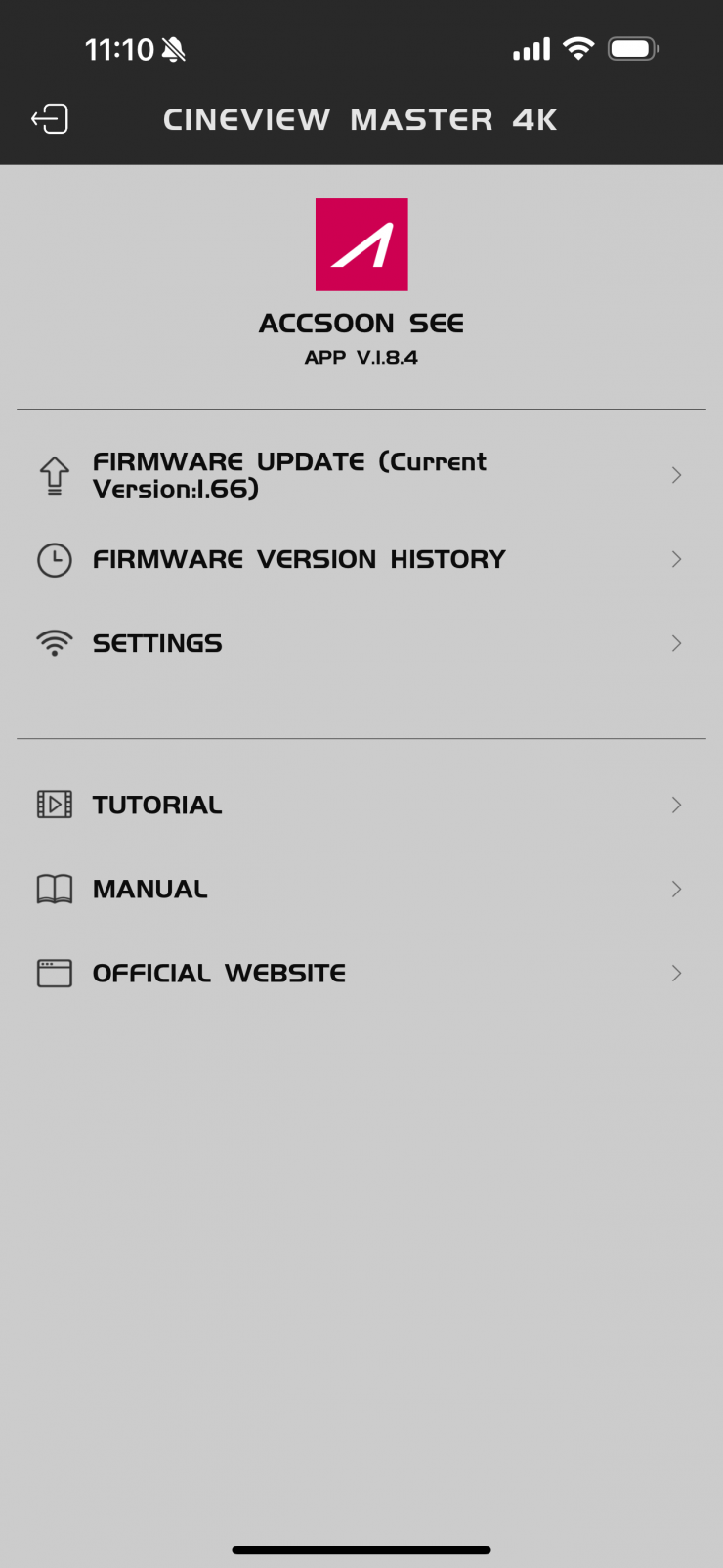
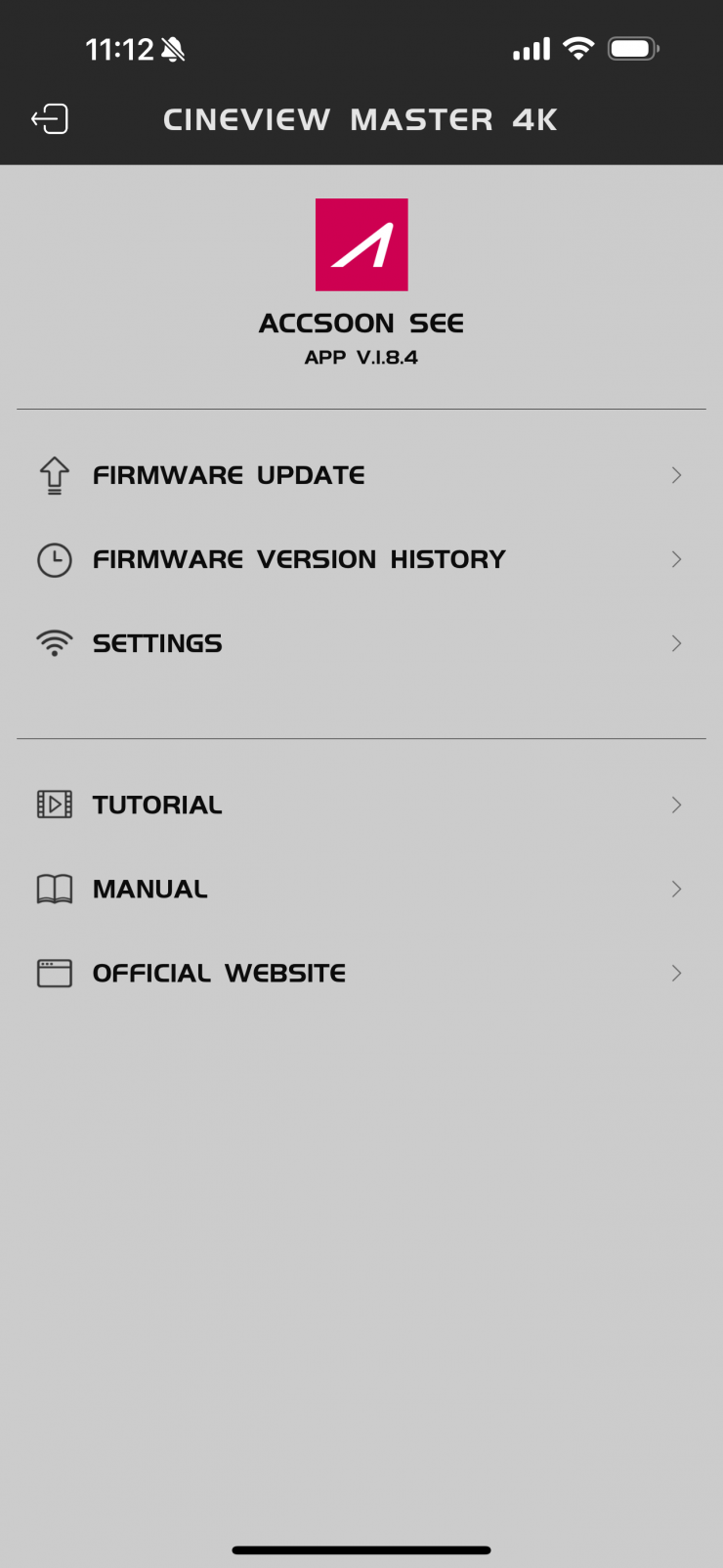
Before the Update
- Before the firmware update, please ensure that your mobile
devices can access the Internet via Wi-Fi to acquire the latest
firmware. - Please ensure that the battery level of CineView Master 4K units
is above 50%. - Power on and pair the CineView Master 4K’s transmitter and
receiver(s). - No power cuts are allowed during the update process!
- If you have any questions during the firmware update, please
refer to “Accsoon SEE App Tutorial – Firmware update” video on
Accsoon’s official YouTube channel, or send an inquiry email to
[email protected].
Firmware Download
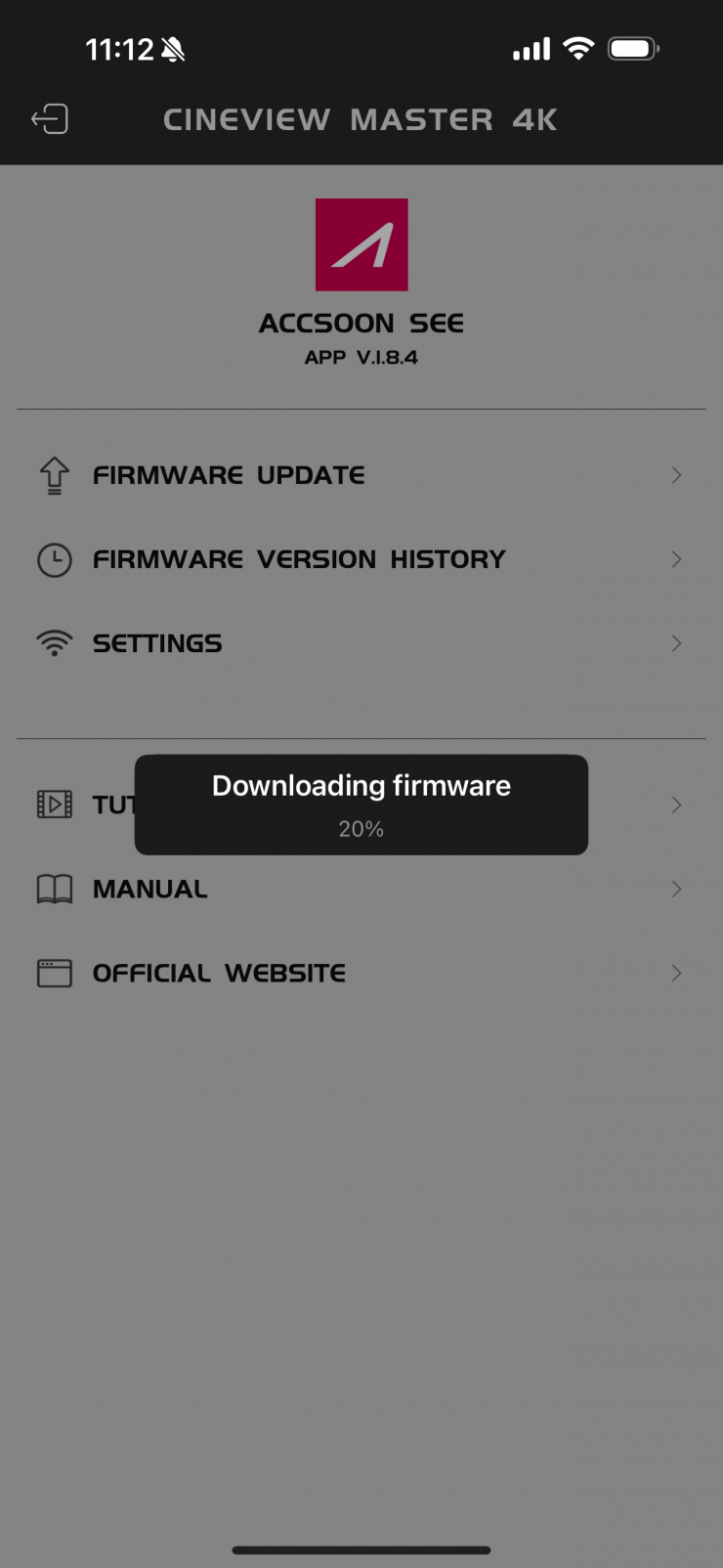
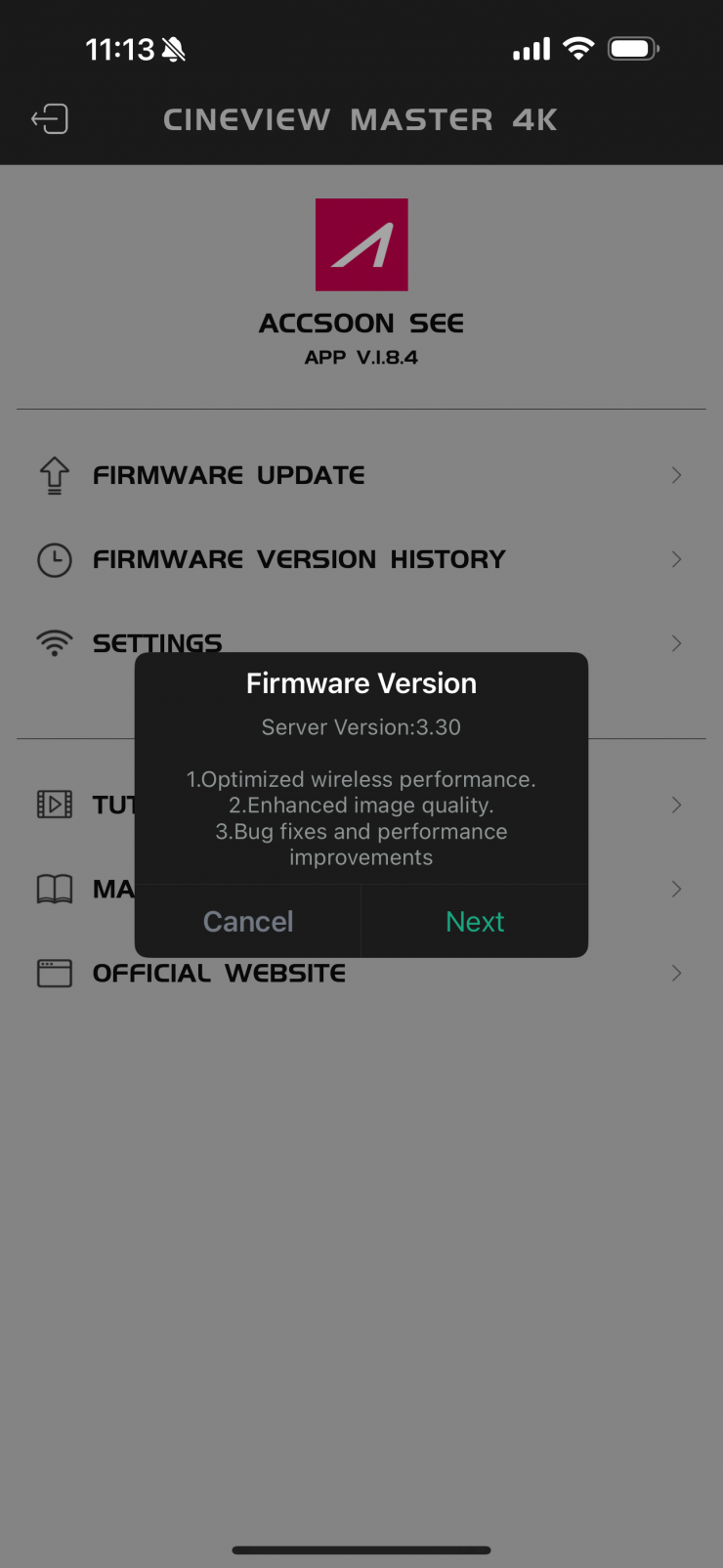
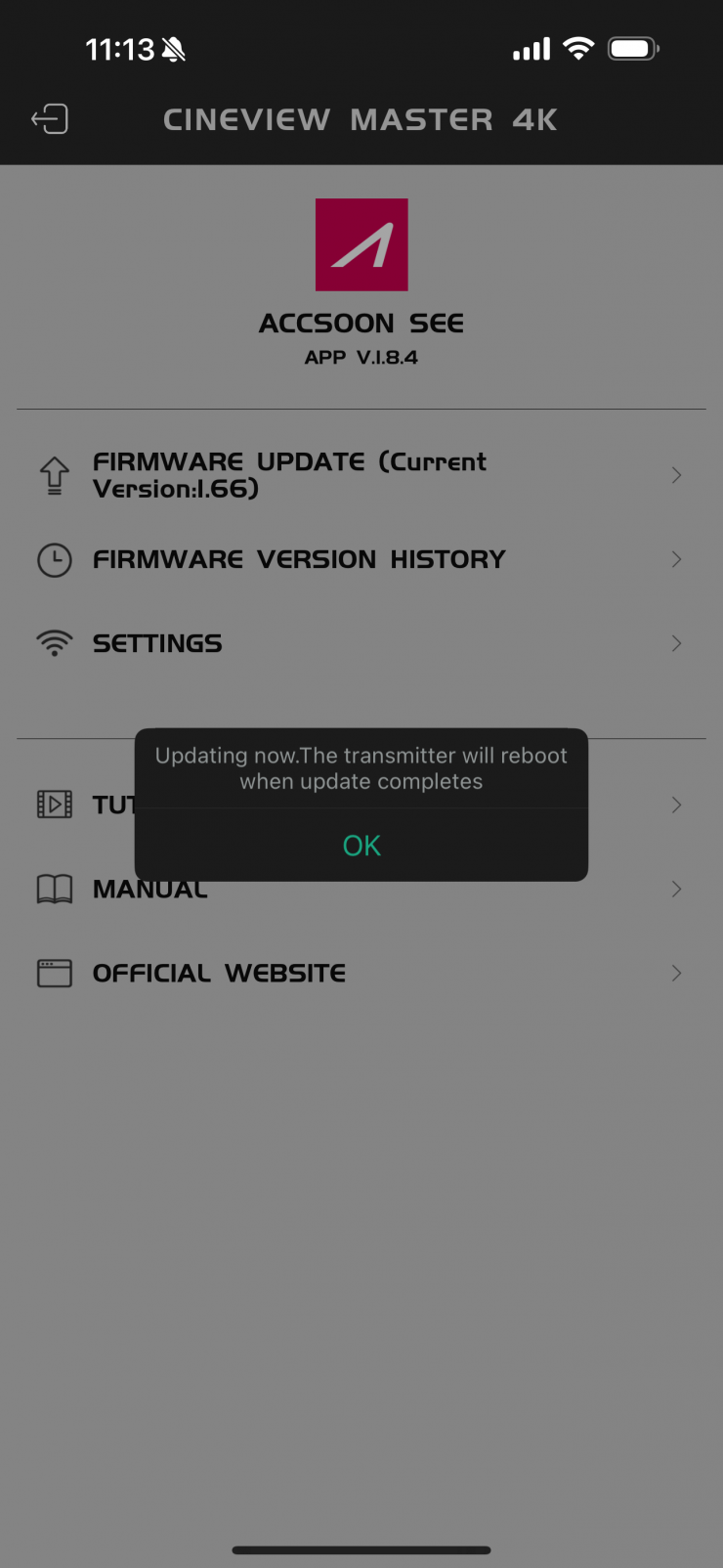
- Once the new firmware is downloaded, connect your mobile device to the transmitter’s Wi-Fi signal
- Open Accsoon SEE App and tap “Next” to send the firmware to the transmitter
- The transmitter will prompt “UPDATE” once it has received the firmware
- Press the knob and select “Yes” to start updating
- The transmitter will reboot automatically.
- Please wait until the reboot is fully completed before proceeding, as the upgrade will only be finalized once the reboot is finished.
- When the transmitter completes its update, it will connect with other receiver(s) that are under the same group and update the receiver(s).
- The receiver(s) will prompt “UPDATE”
- Press the knob and select “Yes” to start updating
- The receiver will reboot automatically.
- Please wait until the reboot is fully completed before proceeding, as the upgrade will only be finalized once the reboot is finished.
If the firmware update fails, the device will automatically be restored to the factory default firmware so that users can continue to use or update it later.
Please do not power off the unit(s) during the recovery process!
Increased Device Connections
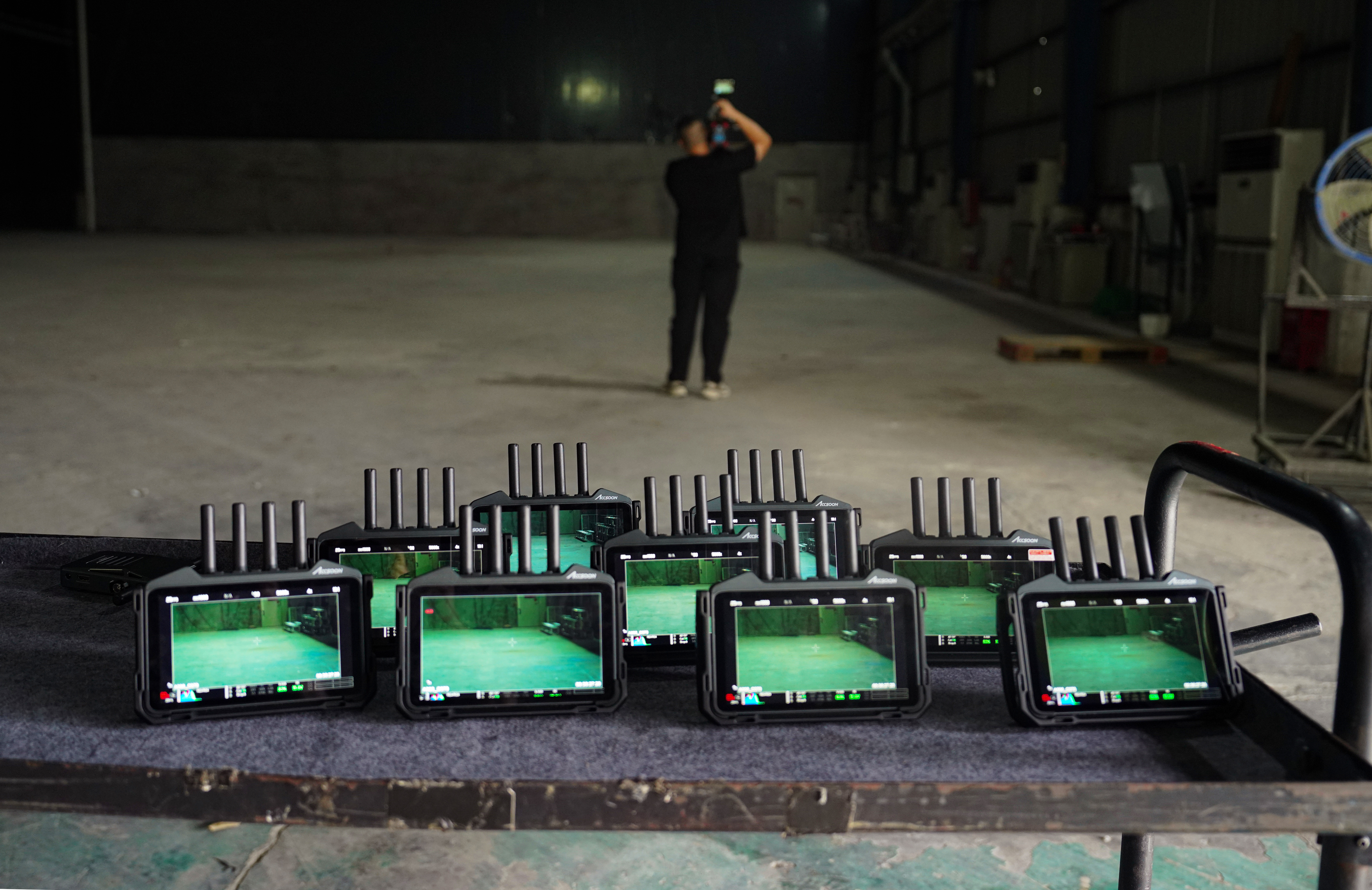
Breaking the barriers of connection limits, the new firmware allows the CineView Master 4K to support up to 10 device connections within close range. This means filmmakers can now receive wireless video on over 10 CineView M7 Pro monitors simultaneously across a 1000㎡ studio, making collaborative production easier than ever before. Larger crews can now use the CineView Master 4K to send video to everyone who needs to see the camera image on a set, whether that be gaffers, directors, producers, make-up, wardrobe, script supervisors, or clients.
Advanced Anti-Interference
With in-depth wireless channel optimization, the CineView Master 4K now intelligently avoids interference from WiFi, Bluetooth, and other crowded signals. This is claimed to guarantee uninterrupted, stable video transmission even in demanding environments such as film sets, live events, and exhibitions.
From my tests, I did find some improvements when it came to having a cleaner image with less interference; however, like any wireless video transmission system, where you are using it will ultimately determine the range and quality of the signal.
Enhanced MFi Transmission for iOS
The firmware also refines stability for MFi-certified iPhone and iPad monitoring, delivering more reliable video performance.

Available now
The CineView Master 4K Version 3.30 firmware update is available now for all existing users via an update in the SEE app.